EasyManua.ls Logo

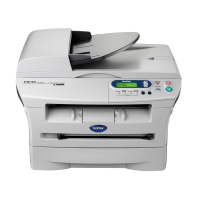
Brother DCP-7040 - User Manual

Brother DCP-7040
107 pages
Print Icon
To Next Page IconTo Next Page
Loading...
USER’S GUIDE
DCP-7030
DCP-7040
DCP-7045N
Version A
UK/IRE/SAF

Table of Contents

Other manuals for Brother DCP-7040

Questions and Answers

  • K
    Kristy AndrewsSep 4, 2025
    What to do if computer cannot find Brother Printer?
    • D
      Daniel BaileySep 4, 2025
      If your computer cannot find your Brother machine, the firewall setting on your PC may be rejecting the necessary network connection. For details, see the instruction above.
  • R
    robertgreenAug 25, 2025
    What to do if my Brother Printer does not load paper?
    • J
      Jason GutierrezAug 25, 2025
      If your Brother Printer does not load paper and the LCD shows 'No Paper' or a 'Paper Jam' message, try the following: If there is no paper, load a new stack of paper into the paper tray. If there is paper in the paper tray, make sure it is straight. If the paper is curled, you should straighten it. Sometimes it is helpful to remove the paper, turn the stack over and put it back into the paper tray. You may also need to reduce the amount of paper in the paper tray.
  • T
    Tyrone StoneAug 25, 2025
    Why are the printouts from my Brother Printer too light?
    • T
      Tony YoungAug 26, 2025
      If printouts are too light, and this problem occurs when making copies or printing, set Toner Save mode to off in the machine menu settings. Also, set Toner Save mode to off in the Advanced tab in the printer driver.
  • G
    grosscrystalSep 12, 2025
    How to print on envelopes with Brother DCP-7040 All in One Printer?
    • B
      Bryan LopezSep 12, 2025
      You can load envelopes from the manual feed slot. Ensure your application is set up to print the envelope size you're using, typically found in the Page Setup or Document Setup menu.
  • C
    Carlos CampbellSep 22, 2025
    How to fix Scan Unable AD error on Brother DCP-7040?
    • A
      April LuceroSep 22, 2025
      If your Brother All in One Printer displays 'Scan Unable AD', replace the FB unit. Another possible cause is a main PCB failure, in which case you should replace the main PCB ASSY.
  • W
    william35Sep 8, 2025
    What to do if my Brother All in One Printer shows 'Cooling Down Wait for a while'?
    • J
      Jeffrey OchoaSep 8, 2025
      The 'Cooling Down Wait for a while' message indicates the drum unit or toner cartridge is too hot. Ensure the fan is spinning and the exhaust outlet isn't blocked. If the fan works, clear any obstructions around the outlet and let the printer sit idle for a few minutes. If the fan doesn't work, disconnect the printer from power for several minutes, then reconnect it.
  • A
    Andrea Alexander MDSep 1, 2025
    How to fix Cartridge Error on Brother Printer?
    • B
      Betty RileySep 1, 2025
      A 'Cartridge Error' indicates that the toner cartridge is not installed correctly. To resolve this, pull out the drum unit, take out the toner cartridge that is indicated on the LCD, and put it back into the drum unit again.
  • E
    Edward MayerSep 23, 2025
    Why does my Brother All in One Printer say 'Cooling Down'?
    • W
      williamcraigSep 23, 2025
      After the Brother All in One Printer has been on for a while, the message 'Cooling Down' may appear.
  • A
    Ann SharpSep 15, 2025
    What to do if Brother DCP-7040 says 'No paper'?
    • B
      Brandon TorresSep 15, 2025
      If your Brother All in One Printer displays 'No paper', reload paper into the tray and then press the start button to resume printing.
  • Q
    qcookAug 28, 2025
    How to fix 'Toner Low' on Brother DCP-7040?
    • A
      aprilthompsonAug 28, 2025
      If your Brother All in One Printer displays 'Toner Low', prepare a new toner cartridge. If the toner is empty, replace it.

Summary

Section I General

General Information

Overview of the manual's content and how to use it.

Using the Documentation

Guide on how to use the manual effectively.

Symbols and Conventions Used

Explains symbols and text conventions used in the guide.

Accessing Software and Network Guides (DCP-7045 N)

Instructions for accessing advanced guides on CD-ROM.

Viewing Documentation

How to access and view user guides.

Control Panel Overview

Description of the machine's control panel buttons and LCD.

Loading Paper and Documents

Instructions for loading paper and documents into the machine.

Loading Paper in Paper Tray

Step-by-step instructions for loading paper into the tray.

Unprintable Area

Details the margins that cannot be printed on paper.

Acceptable Paper and Other Print Media

Lists compatible paper types and media for optimal results.

Recommended Paper and Print Media

Suggestions for paper types to achieve the best print quality.

Type and Size of Paper

Information on paper sizes and types for the paper tray and manual feed.

Handling and Using Special Paper

Guidelines for using special paper types like envelopes and labels.

Loading Documents using ADF

How to load documents into the Automatic Document Feeder.

Using the Scanner Glass

Instructions for scanning documents using the flatbed scanner glass.

General Setup

Configuration options for machine settings.

Paper Settings (Type & Size)

How to configure paper type and size settings on the machine.

Volume Settings (Beeper)

Adjusting the beeper volume for machine alerts.

Ecology Features

Settings for conserving power and toner.

Sleep Time Setting

Configuring the machine's automatic sleep mode.

LCD Contrast Adjustment

How to adjust the brightness of the LCD screen.

User Settings List

Printing a list of current machine settings.

Network Configuration List (DCP-7045 N only)

Printing network settings report.

Section II Copy

Making Copies

Procedures for performing copy operations.

How to Copy (Single & Multiple)

Steps for making single or multiple copies.

Stop Copying

How to cancel an ongoing copy job.

Copy Options (Temporary Settings)

How to temporarily change copy settings.

Enlarging or Reducing Image

Adjusting copy size ratios.

Adjusting Contrast for Copies

How to change contrast for copies.

Using the Options Key

Quick access to copy settings like Quality, Stack/Sort, Page Layout.

Improving Copy Quality

Settings for optimizing copy quality (Auto, Text, Photo).

Sorting Copies Using ADF (DCP-7040;7045 N)

How to sort copies when using the ADF.

Making N in 1 Copies (Page Layout)

Copying multiple pages onto a single sheet.

Out of Memory Message

Handling the "Out of Memory" error during copying.

Section III Software

Software and Network Features (DCP-7045 N only)

Information on software and network capabilities specific to the DCP-7045N.

How to Read HTML User’s Guide

Guide to accessing and navigating HTML user guides.

Accessing Guides for Macintosh Users

Instructions for Macintosh users to view guides.

Section IV Appendixes

A Safety and Legal

Information regarding safety, legal compliance, and regulations.

Choosing a Location

Recommendations for placing the machine safely and optimally.

Important Information & Safety Precautions

General safety warnings and precautions for using the machine.

IEC60825-1+A2:2001 Specification

Laser safety compliance information.

Disconnect Device & Wiring Info (U.K.)

Safety instructions regarding power disconnection and UK wiring.

LAN Connection & Radio Interference

Network connection safety and interference compliance.

EU Directive & ENERGY STAR Compliance

Environmental directives and energy efficiency statements.

Important Safety Instructions

Detailed safety guidelines for product use and maintenance.

Trademarks

List of registered trademarks used in the manual.

B Troubleshooting and Routine Maintenance

Guidance for resolving issues and performing regular maintenance.

Troubleshooting Guide

Tips for resolving common machine problems.

Copy Quality Difficulties

Solutions for issues affecting copy print quality.

Printing Difficulties

Troubleshooting steps for printing errors or failures.

Scanning Difficulties

Solutions for problems encountered during scanning.

Software Difficulties

Troubleshooting steps for software installation or printing issues.

Paper Handling Difficulties

Solutions for paper loading and feeding problems.

Print Quality Difficulties

Recommendations for improving print quality issues.

Network Difficulties (DCP-7045 N only)

Troubleshooting network connectivity and printing/scanning issues.

Error and Maintenance Messages

Explanations and actions for machine error messages.

Document Jams (DCP-7040;7045 N)

Steps to clear paper jams in the ADF.

Paper Jams

Procedures for clearing paper jams in various parts of the machine.

Routine Maintenance

Procedures for cleaning and maintaining the machine.

Cleaning Outside of Machine

Instructions for cleaning the exterior of the printer.

Cleaning Scanner Glass

How to clean the scanner glass for optimal scans.

Cleaning Laser Scanner Window

Procedure for cleaning the laser scanner window.

Cleaning Corona Wire

Steps to clean the corona wire for print quality.

Cleaning Drum Unit

Instructions for cleaning the drum unit.

Replacing Consumable Items

When and how to replace toner cartridges and drum units.

Replacing Toner Cartridge

Step-by-step guide for replacing the toner cartridge.

Replacing Drum Unit

Step-by-step guide for replacing the drum unit.

Packing and Shipping Machine

Instructions for safely packing the machine for transport.

C Menu and Features

On-Screen Programming

How to use the LCD for machine programming.

Menu Table

Reference guide for machine menu selections and options.

Memory Storage

Information on how menu settings are stored.

Menu Keys Overview

Explanation of the function of each menu key.

How to Access Menu Mode

Step-by-step guide to navigate the machine's menu system.

D Specifications

General Specifications

Overview of printer type, memory, power, and dimensions.

Print Media Specifications

Details on supported paper types, sizes, weights, and capacities.

Copy Specifications

Technical details for copy functions like resolution and speed.

Scan Specifications

Technical details for scanning functions like resolution and document size.

Print Specifications

Details on printer emulations, drivers, resolution, and speed.

Interface Specifications

Information on USB and LAN interface connections.

Computer Requirements

Minimum system requirements for PC compatibility.

Consumable Items

Information on toner cartridge and drum unit life and part numbers.

Ethernet Wired Network (DCP-7045 N only)

Network board model, LAN support, and protocols.

E Glossary

Glossary of Terms

Definitions of features and terms used in the manual.

F Index

Index

Alphabetical listing of topics and their page numbers for quick reference.

Brother DCP-7040 Specifications

General IconGeneral
Print technologyLaser
Maximum resolution2400 x 600 DPI
Time to first page (black, normal)10 s
Print speed (black, normal quality, A4/US Letter)22 ppm
Input color depth48 bit
Image formats supportedBMP, PNG
Maximum scan resolution19200 x 19200 DPI
Copier resize25 - 400 %
PC free copyingYes
Maximum copy resolution600 x 600 DPI
N-in-1 copy function (N=)2, 4, 9, 16, 25
Copy speed (black, normal quality, A4)22 cpm
Total input capacity250 sheets
Auto document feeder (ADF) input capacity35 sheets
Internal memory16 MB
Sound power level (standby)32 dB
Sound pressure level (printing)53 dB
DisplayLCD
Market positioningHome & office
Display number of lines2 lines
Display number of characters16
Maximum print size216 x 297 mm
Paper tray media typesBond paper, Envelopes, Labels, Plain paper, Transparencies
Non-ISO print media sizesExecutive
ISO A-series sizes (A0...A9)A4, A5, A6
ISO B-series sizes (B0...B9)B5, B6
Maximum ISO A-series paper sizeA4
Multi-Purpose Tray media weight60 - 163 g/m²
Standard interfacesUSB 2.0
Dimensions (WxDxH)428 x 397 x 305 mm
All-in-one functionsCopy, Scan
Color all-in-one functionsscan, n
Sustainability certificatesENERGY STAR
Power consumption (standby)5 W
Power consumption (PowerSave)10 W
Power consumption (average operating)320 W
Operating temperature (T-T)50 - 91 °F
Operating relative humidity (H-H)20 - 80 %
Package weight14.900 g
Maximum duty cycle10000 pages per month

Related product manuals