EasyManua.ls Logo

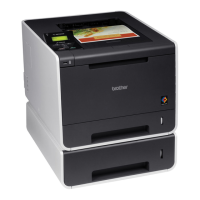
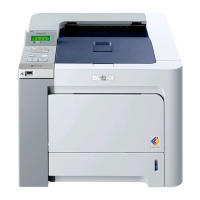
Brother HL-4150CDN - User Manual

Brother HL-4150CDN
217 pages
Print Icon
To Next Page IconTo Next Page
Loading...
®
Users Guide
Users Guide
PANTONE2728
Safety and Legal
Basic User’s Guide

Table of Contents

Other manuals for Brother HL-4150CDN

Questions and Answers

  • J
    Jeremy JensenAug 19, 2025
    What to do if my Brother HL-4150CDN Printer says 'No Toner'?
    • E
      Elizabeth LeeAug 20, 2025
      If your Brother Printer displays 'No Toner', it means the toner cartridge for the color indicated on the LCD screen isn't installed correctly. To fix this, pull out the drum unit, remove the indicated toner cartridge, and then reinsert it back into the drum unit.
  • T
    Timothy RojasAug 21, 2025
    How to fix 'Drum Error' on my Brother HL-4150CDN Printer?
    • J
      jeremyperezAug 21, 2025
      If your Brother Printer shows a 'Drum Error', it indicates that the corona wire on the drum unit needs cleaning. Clean the corona wire on the drum unit to resolve this issue.
  • P
    paul26Aug 23, 2025
    How to fix 'Replace Parts Drum' message on Brother HL-4150CDN Printer?
    • M
      Michael LeeAug 25, 2025
      If your Brother Printer is displaying 'Replace Parts Drum', it indicates that it is time to replace the drum unit. Replace the drum unit to resolve this issue.
  • A
    abarkerAug 26, 2025
    What to do if my Brother Printer says 'Cover is Open'?
    • J
      James AshleyAug 26, 2025
      If you see 'Cover is Open' on your Brother Printer, it means the front cover, ADF cover, or fuser cover isn't completely closed, or paper was jammed when you turned it on. Make sure to close the front cover, ADF cover, and fuser cover properly. If there was a paper jam, remove the jammed paper, close the fuser cover, and then press Mono Start or Colour Start.
  • M
    Mary LaraAug 27, 2025
    What to do if my Brother HL-4150CDN shows 'Toner Error'?
    • R
      Richard BrownAug 28, 2025
      If your Brother Printer displays 'Toner Error', it signifies that one or more toner cartridges are not installed correctly. To resolve this, pull out the drum unit, remove all the toner cartridges, and then reinsert them back into the drum unit.
  • M
    michele64Aug 29, 2025
    How to fix 'Replace Parts Belt Unit' message on Brother HL-4150CDN?
    • D
      Derrick WhiteAug 30, 2025
      If your Brother Printer displays 'Replace Parts Belt Unit', it means it is time to replace the belt unit. Replace the belt unit to resolve this issue.
  • B
    Brianna MendezSep 1, 2025
    How to fix 'Drum Stop' message on Brother HL-4150CDN?
    • C
      Cathy RichardsSep 1, 2025
      If your Brother Printer shows 'Drum Stop', it means it is time to replace the drum unit. Replace the drum unit.
  • L
    Laura BensonSep 2, 2025
    What to do if my Brother HL-4150CDN Printer says 'No Belt Unit'?
    • D
      Daniel CarpenterSep 2, 2025
      If your Brother Printer is displaying 'No Belt Unit', it means that the belt unit is not installed correctly. Re-install the belt unit to resolve this.
  • S
    samantha05Sep 4, 2025
    How to fix 'Fuser Error' on my Brother Printer?
    • T
      Tonya WeeksSep 4, 2025
      If your Brother Printer displays 'Fuser Error', it means the fuser unit's temperature isn't rising to the specified level within the needed time. Turn the power off, wait a few seconds, and then turn it back on. Leave the machine on for 15 minutes.
  • J
    Jeremy LoganSep 6, 2025
    Why does my Brother HL-4150CDN say 'Cooling Down Wait for a while'?
    • R
      reedkathySep 7, 2025
      If your Brother Printer shows 'Cooling Down Wait for a while', the drum unit or toner cartridge is too hot. Ensure the fan is spinning and the exhaust outlet isn't blocked. If the fan works, clear any obstructions around the exhaust and let the machine sit for several minutes. If the fan doesn’t spin, disconnect the power for several minutes, then reconnect it.

Brother HL-4150CDN Specifications

General IconGeneral
ColorYes
N-up printing2, 4, 16, 25
Print technologyLaser
Maximum resolution2400 x 600 DPI
Time to first page (color, normal)16 s
Print speed (black, normal quality, A4/US Letter)24 ppm
Duplex print speed (black, normal quality, A4/US Letter)7 ppm
Maximum internal memory384 MB
Sound power level (standby)33 dB
Sound pressure level (printing)57 dB
Total input capacity300 sheets
Total output capacity150 sheets
Maximum input capacity500 sheets
Total number of input trays1
Maximum number of input trays2
Multi-Purpose tray input capacity50 sheets
Maximum duty cycle- pages per month
Number of print cartridges4
Page description languagesBR-Script 3, PCL 6
Custom media width76.2 - 216 mm
Maximum print size216 x 356 mm
Custom media length116 - 406.4 mm
Paper tray media typesBond paper, Plain paper, Recycled paper
Paper tray media weight60 - 105 g/m²
Non-ISO print media sizesLetter
ISO A-series sizes (A0...A9)A4, A5, A6
ISO B-series sizes (B0...B9)B5, B6
Multi-purpose tray media typesBond paper, Heavyweight paper, Labels, Plain paper
Maximum ISO A-series paper sizeA4
Multi-Purpose Tray media weight60 - 163 g/m²
Wi-FiNo
AC input voltage220 - 240 V
AC input frequency50 - 60 Hz
Power consumption (standby)65 W
Power consumption (printing)560 W
Power consumption (PowerSave)0.9 W
DisplayLCD
Product colorAnthracite
Standard interfacesEthernet, USB 2.0
Mac operating systems supportedMac OS X 10.4 Tiger, Mac OS X 10.5 Leopard, Mac OS X 10.6 Snow Leopard, Mac OS X 10.7 Lion
Windows operating systems supportedWindows 2000, Windows 2000 Professional, Windows 7 Home Premium, Windows 7 Home Premium x64, Windows 7 Professional, Windows 7 Professional x64, Windows 7 Starter, Windows 7 Starter x64, Windows 7 Ultimate x64, Windows Vista Business, Windows Vista Business x64, Windows Vista Home Basic, Windows Vista Home Basic x64, Windows Vista Home Premium, Windows Vista Home Premium x64, Windows Vista Ultimate, Windows Vista Ultimate x64, Windows XP Home, Windows XP Home x64, Windows XP Professional, Windows XP Professional x64
Package weight25500 g
Sustainability certificatesENERGY STAR
Weight and Dimensions IconWeight and Dimensions
Dimensions (WxDxH)410 x 486 x 313 mm

Related product manuals