EasyManua.ls Logo

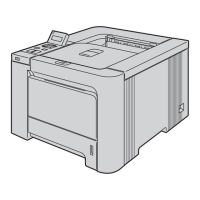
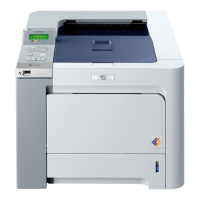
Brother HL-4040CN - User Manual

Brother HL-4040CN
202 pages
Print Icon
To Next Page IconTo Next Page
Loading...
USER’S GUIDE
Brother Laser Printer
HL-4040CN
HL-4050CDN
For visually-impaired users
You can read this manual with Screen
Reader ‘text-to-speech’ software.
You must set up the hardware and install the driver before you can use the printer.
Please use the Quick Setup Guide to set up the printer. You can find a printed copy in the box.
Please read this User’s Guide thoroughly before you use the printer. Keep the CD-ROM in a convenient place so you
can use it quickly if you need to.
Please visit us at http://solutions.brother.com
where you can get product support, the latest driver updates and
utilities, and answers to frequently asked questions (FAQs) and technical questions.
Version 0
EN-EEu_Rus

Table of Contents

Other manuals for Brother HL-4040CN

Questions and Answers

  • N
    Nicholas BoyleAug 12, 2025
    Why is my Brother Print Server not found during setup?
    • K
      Kendra DudleyAug 12, 2025
      If your Brother print server is not found during network print software setup or Brother printer driver installation, ensure you've configured the IP address according to Chapter 2 of the User’s Guide before installing. Also, verify the printer is powered on, online, and ready. Print the Printer Settings Page to check the IP address settings. If installation fails, your computer's firewall might be blocking the network connection; disable it and reinstall the drivers.
  • T
    tracygonzalezAug 16, 2025
    How to fix Brother Print Server when computer cannot find it?
    • S
      savagedanaAug 16, 2025
      If your computer can't find the Brother Print Server, the firewall settings on your computer may be rejecting the necessary network connection. Try disabling the firewall on your computer and re-installing the drivers.
  • A
    andreaharrisAug 20, 2025
    What to do if Brother Print Server is not found during setup?
    • A
      Angela RamosAug 20, 2025
      If the Brother Print Server isn't found during the network print software setup or Brother printer driver installation: * Ensure the printer is powered on, online, and ready to print. * Disable the Firewall on your computer and re-install the drivers. * Print the Printer Settings Page and check if the IP address settings are correct for your network. * Try pinging the print server from the host operating system command prompt with the command: ping ipaddress. * Reset the print server back to the default factory settings and try from the initial setup again. Also, before installing the network print software or printer driver, ensure you've completed the IP address setting of the Brother print server.
  • J
    jon81Aug 23, 2025
    What to do if Brother Print Server print job is not printed?
    • B
      burtonjordanAug 23, 2025
      If your print job is not printing when using the Brother Print Server: * Print the Printer Settings Page of the printer and check if the settings such as IP address settings are correct for your network. * Try pinging the print server from the host operating system command prompt with the command: ping ipaddress. * Reset the print server back to the default factory settings and try from the initial setup again.
  • P
    Pamela PetersenAug 27, 2025
    How to configure firewall for Brother Print Server when using Port 631?
    • E
      Emma CooperAug 27, 2025
      If you are using Port 631 for IPP printing with the Brother Print Server, your firewall may be blocking the print data. Use a different port number (port 80), or configure your firewall to allow Port 631 data through.
  • A
    Ashley LamAug 31, 2025
    How to start the CD-ROM for Brother Print Server?
    • T
      Timothy LarsenAug 31, 2025
      To start the CD-ROM for the Brother Print Server, execute Start.exe in the root directory of the CD-ROM.
  • J
    James GlennSep 3, 2025
    Why Firewall may not let the print data through during IPP printing Brother?
    • J
      Jose DavidsonSep 3, 2025
      If the firewall isn't letting print data through during IPP printing with the Brother Print Server, use a different port number (port 80), or configure your Firewall to allow Port 631 data through.
  • S
    Sarah GreenSep 7, 2025
    How to start CD-ROM for Brother Print Server if it does not start automatically?
    • D
      Deanna ThorntonSep 8, 2025
      If the CD-ROM for the Brother Print Server doesn't start automatically when inserted, execute Start.exe in the root directory of the CD-ROM.

Summary

Printer Overview

User Accessibility and Support

Guidance for visually-impaired users, initial setup, and accessing Brother's online support.

Understanding This Guide

Guide Symbols and Structure

Explanation of icons used and the manual's overall organization.

Safety Precautions

Safe Printer Operation Guidelines

Essential safety warnings to prevent injury and equipment damage during printer use.

Legal and Administrative Information

Trademarks, Copyright, and Shipping

Lists trademarks, publication details, and recommendations for shipping the printer.

1 About This Printer

Printer Components and Initial Setup

Details carton contents, interface requirements, printer views, power, and environmental considerations.

2 Printing Methods

Paper Handling and Specifications

Information on paper types, sizes, weights, and unprintable areas.

Printing Techniques

Guides for printing on plain paper, photos, and from USB drives.

Duplex and Booklet Printing

Instructions for two-sided printing and creating booklets.

3 Driver and Software

Driver Installation and Features

Details on installing and using drivers for Windows and Macintosh, including specialized drivers.

Driver Settings and Options

Configuration options within drivers like watermarks, page setup, and device settings.

Accessories and Support

Information on optional accessories and accessing printer support resources.

4 Control Panel Operations

Control Panel Overview and Buttons

Description of the control panel, its buttons, and their functions.

Status Indicators and LCD Messages

Understanding LEDs, LCD messages, and printer status.

Menu Navigation and Settings

Guide to using the LCD menu, options tables, and changing settings.

Reprinting and Secure Printing

Procedures for reprinting jobs and printing secure documents.

5 Optional Accessories

Memory Expansion (SO-DIMM)

Details on SO-DIMM types and how to install extra memory.

6 Routine Maintenance

Consumable Replacement Procedures

Step-by-step guides for replacing toner, drum, belt, and waste toner.

Printer Cleaning and Care

Instructions for cleaning internal components like corona wires and scanner windows.

Shipping and Repacking Instructions

Guidelines for safely packing and shipping the printer.

7 Troubleshooting

Problem Identification and Checks

Initial diagnostic steps and checks for common printer issues.

Error Messages and Solutions

List of LCD error messages and recommended actions for resolution.

Paper Handling and Jams

Procedures for clearing paper jams in various printer locations.

Print Quality Troubleshooting

Solutions for common print quality defects like lines, streaks, or color issues.

A Appendix: Technical Information

Printer Specifications and Software

Detailed technical data including engine, controller, software, and driver details.

Paper and Computer Requirements

Details on paper handling specifications and computer system requirements.

Paper Selection and Character Sets

Guidance on choosing paper and information on symbol and character sets.

Bar Code Commands Reference

Reference for printing bar codes and expanded characters using control commands.

B Appendix: Regional Information

Regulatory Compliance and Safety

Information on radio interference, ENERGY STAR, laser safety, and electrical safety.

EU Directives and Disposal

Details on EU directives and proper disposal of electronic waste.

EC Declaration of Conformity

C Index

Brother HL-4040CN Specifications

General IconGeneral
ColorYes
N-up printing4, 9, 16, 25
Duplex printingNo
Print technologyLaser
Maximum resolution2400 x 600 DPI
Time to first page (black, normal)16 s
Time to first page (color, normal)17 s
Print speed (black, normal quality, A4/US Letter)20 ppm
Internal memory64 MB
Maximum internal memory576 MB
Sound power level (standby)30 dB
Sound pressure level (printing)54 dB
Total input capacity250 sheets
Total output capacity150 sheets
Multi-Purpose tray input capacity50 sheets
Media weight (tray 1)60 - 105 g/m2
ISO A-series sizes (A0...A9)A4, A5, A6
ISO B-series sizes (B0...B9)B5, B6
Maximum ISO A-series paper sizeA4
Multi-Purpose Tray media weight60 - 163 g/m²
Custom media sizes(69.9 - 215.9mm) - (116 - 406.4mm)
Networking features10/100Base-TX
Power consumption (active)85 W
Compatible operating systemsWindows 2000/XP/2003/Vista Mac OS X 10.2.4 +, 10.5 Linux
Supported network protocols (IPv4)TCP/IP (IPv4 & IPv6)
Package weight33400 g
Power consumption (printing)510 W
Power consumption (PowerSave)20 W
Weight and Dimensions IconWeight and Dimensions
Dimensions (WxDxH)419 x 475 x 317 mm

Related product manuals