60
6
PC-FAX Sending 6
You can send a file created in any application
on your PC as a standard fax.
The PC-FAX software can only send
Black & White fax documents.
Sending a file as a PC-FAX 6
Please install MFL-Pro Suite software,
connect your machine and PC before using
PC-FAX sending.
a Create a file in any application on your
PC.
b Click File, then Print. The Print dialog
box appears.
c Choose Brother PC-FAX as your
printer, and then click Print. The
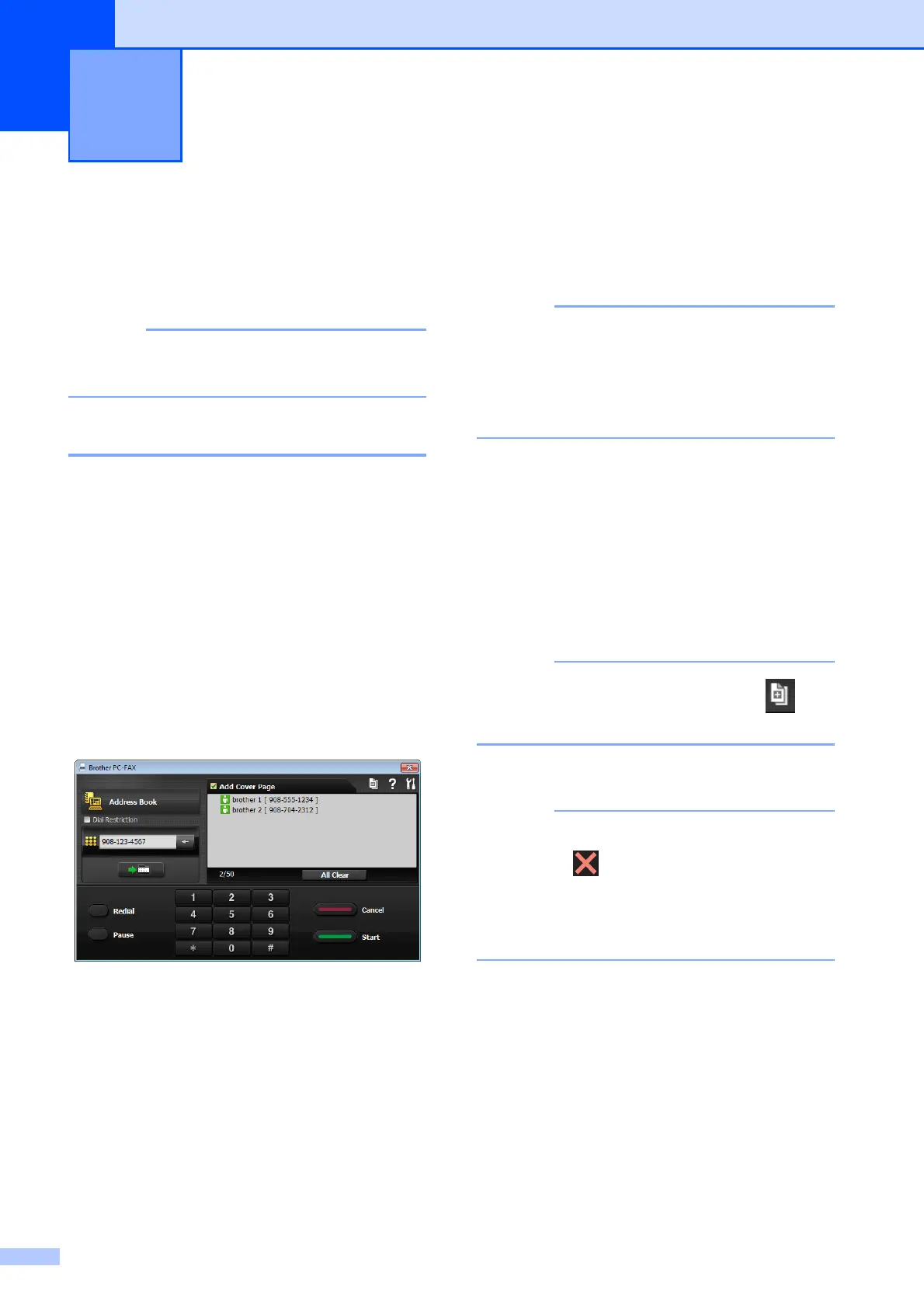
PC-FAX sending dialog box appears:
d Enter a fax number using any of the
following methods:
Use the dial pad to enter the number.
If you check the Dial Restriction check
box, a confirmation dialog box will appear
for you to re-enter the fax number. This
feature helps to prevent transmissions to
the wrong destination.
Click the Address Book button, and
then choose a member or group from
the Address Book.
If you make a mistake, click All Clear to
delete all the entries.
e To include a cover page, click
Add Cover Page.
You can also click the cover page icon
to create or edit a cover page.
f Click Start to send the fax.
• If you want to cancel the fax, click Cancel,
or press on the Touchpanel.
• If you want to redial a number, click Redial
to scroll through the last five fax numbers,
choose a number, and then click Start.
Using PC-FAX 6


 To Next Page
 Loading...