Home > Routine Maintenance > Check Your Brother Machine > Check the Ink Volume
Check the Ink Volume
Although an ink volume icon appears on the machine's LCD, you can use the ink menu to see a large graph
showing the ink left in each cartridge.
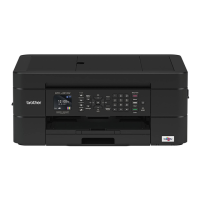
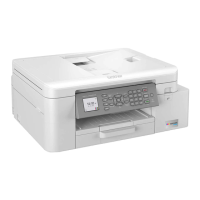
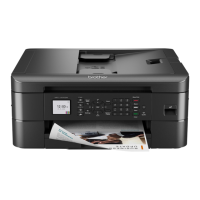
>> DCP-J572DW/MFC-J491DW/MFC-J497DW
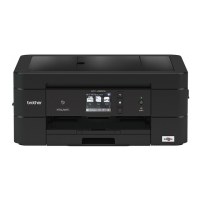
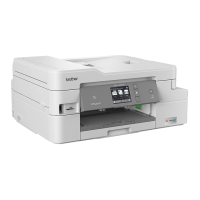
>> DCP-J772DW/DCP-J774DW/MFC-J890DW/MFC-J895DW
DCP-J572DW/MFC-J491DW/MFC-J497DW
1. Press Settings.
2. Press a or b to select the following:
a. Select [General Setup]. Press OK.
b. Select [Maintenance]. Press OK.
c. Select [Ink Volume]. Press OK.
The LCD displays the ink volume.
• When the ink cartridge is near the end of its life or having a problem, one of the following icons is
displayed.
The ink level is low.
The ink cartridge is at the end of its life.
There is a problem with the ink cartridge.
• To check or print the model numbers of the ink cartridges, press Clear/Back to go back to the
[Maintenance] menu screen, and then select [Ink Cartridge Model].
Press OK and follow the instruction on the LCD.
3. Press Stop/Exit.
You can also check the ink volume from your computer.
DCP-J772DW/DCP-J774DW/MFC-J890DW/MFC-J895DW
1. Press [Ink] > [Ink Volume]. The touchscreen displays the ink volume.
• You can also press [Settings] > [Maintenance] > [Ink Volume].
• When the ink cartridge is near the end of its life or having a problem, one of the following icons is
displayed.
The ink level is low.
The ink cartridge is at the end of its life.
There is a problem with the ink cartridge.
• To check or print the model numbers of the ink cartridges, press (Back) to go back to the [Ink]
menu screen.
Press [Ink Cartridge Model], and follow the instruction on the touchscreen.
2. Press .
530


 To Next Page
 Loading...