Chapter 1
8
Note
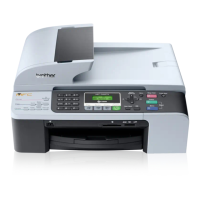
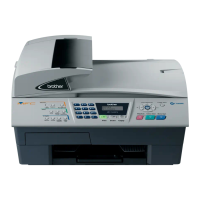
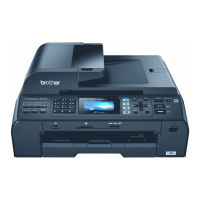
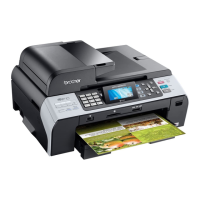
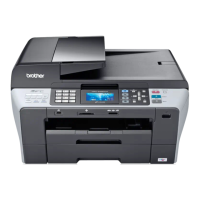
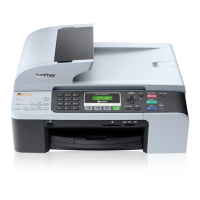
Most of the illustrations in this User’s Guide show the MFC-5460CN.
1 Fax keys:
Hook
Press before dialing if you want to make
sure a fax machine will answer, and then
press Black Start or Color Start.
Also, press this key after picking up the
handset of an external telephone during the
F/T double/pseudo-ring.
Redial/Pause
Redials the last number called. It also
inserts a pause when programming quick
dial number.
Resolution
Lets you temporarily change the resolution
when sending a fax.
2 Copy keys (Temporary settings):
Options
Lets you temporarily change multiple copy
settings.
Quality
Lets you temporarily change the quality
setting.
Enlarge/Reduce
Lets you temporarily enlarge or reduce
copies depending on the ratio you choose.
Paper Type (MFC-5460CN only)
You can choose which type of paper you
want to use for the next copy.
Tray Select (MFC-5860CN only)
You can choose which tray you want to use
for the next copy.
3 Dial Pad
Use these keys to dial telephone and fax
numbers and as a keyboard for entering
information into the machine.
(Canada only)
The # key lets you temporarily switch the
dialing mode during a telephone call from
Pulse to Tone.
4 Mode keys:
Fax
Lets you access Fax mode.
Scan
Lets you access Scan mode.
Copy
Lets you access Copy mode.
Photo Capture
Lets you access PhotoCapture Center
®
mode.
5 Menu keys:
Menu
Lets you access the Menu to program your
settings in the machine.
a Search/Speed Dial
Lets you look up and dial numbers that are
stored in the memory.
Volume keys
d c
In Fax mode, you can press these keys to
adjust the ring volume.
d
Press to scroll backward to a menu
selection.
a or b
Press to scroll through the menus and
options.
Clear/Back
Press to cancel the current setting.
OK
Lets you store your settings in the machine.
6 Start keys:
Color Start
Lets you start sending faxes or making
copies in full color. Also lets you start a
scanning operation (in color or black &
white, depending on the scanning setting in
the ControlCenter software).
Black Start
Lets you start sending faxes or making
copies in black & white. Also lets you start
a scanning operation (in color or black &
white, depending on the scanning setting in
the ControlCenter software).


 To Next Page
 Loading...