EasyManua.ls Logo

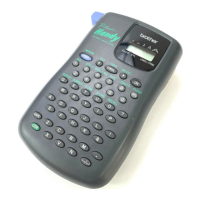
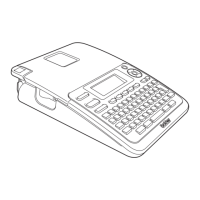
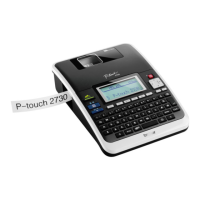
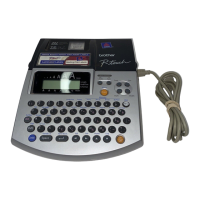
Brother P-Touch 2100 - User Manual

Brother P-Touch 2100
81 pages
Print Icon
To Next Page IconTo Next Page
Loading...
P. 21

Table of Contents

Other manuals for Brother P-Touch 2100

Questions and Answers

  • A
    annaewingAug 13, 2025
    What to do if my Brother Label Maker is not printing?
    • M
      millerkatherineAug 13, 2025
      If your Brother Label Maker isn't printing after you press the key, here are a few things to check: * Make sure you've actually entered text, as it won't print if there's nothing to print. * Confirm that the tape cassette is correctly installed and has enough tape remaining. * See if the end of the tape is bent; if it is, cut the bent section and thread the tape correctly. * Check for any tape jams. If there is a jam, remove the cassette, carefully pull out the tape, cut it, and ensure the tape passes through the guide before reinstalling. * Ensure the tape compartment cover is properly closed.
  • M
    Marcia ShepherdAug 16, 2025
    Why is my Brother P-Touch 2100 not cutting the label?
    • R
      Rachel LongAug 16, 2025
      If your Brother Label Maker is not cutting labels automatically, it might be due to the following reasons: * The Cut Option might be set to 'Chain' or 'No Cut'. In this case, the tape won't feed after printing. Check your Cut Option settings, or manually feed and cut the tape by holding down the key and pressing the key. * The tape compartment cover might be open. Make sure to close it correctly.
  • M
    Matthew FowlerAug 20, 2025
    How to fix Brother P-Touch 2100 when it is not printing correctly?
    • S
      Sharon ParkerAug 20, 2025
      If your Brother Label Maker isn't printing labels correctly, consider the following: * Ensure the tape cassette is correctly installed by pressing firmly until it clicks. * Check if the print head is dirty. If so, clean it with a cotton swab or the optional print head cleaning cassette (TZ-CL4). * Verify the Cut Option setting. If it's set to 'Chain' or 'No Cut', the tape won't feed after printing. Adjust the setting or manually feed and cut the tape.
  • E
    Elizabeth McdanielAug 25, 2025
    Why does my Brother P-Touch 2100 Label Maker stop while printing?
    • S
      Stacy TrevinoAug 25, 2025
      If your Brother Label Maker stops printing mid-label, it could be due to: * Insufficient tape remaining in the cassette. The striped tape indicates the end of the tape, so replace the cassette. * Weak batteries or a disconnected AC adapter. Replace the batteries or connect the AC adapter directly to the label maker.
  • M
    Megan PooleAug 27, 2025
    What to do if Brother P-Touch 2100 Label Maker display remains blank?
    • J
      Jason ArmstrongAug 28, 2025
      If the display on your Brother Label Maker is blank after turning it on: * Ensure the AC adapter is correctly connected. * Verify you're using the AC adapter specifically designed for your P-touch (included in the package). * Remove and reinstall the batteries to ensure they are correctly fitted.
  • D
    Diana ByrdAug 31, 2025
    Why is the ink ribbon separated from the ink roller on my Brother Label Maker?
    • K
      Kenneth DickersonAug 31, 2025
      If the ink ribbon separates from the ink roller in your Brother Label Maker, it might be because the ink ribbon in the tape cassette is loose, or you pulled on the label coming out of the exit slot. If the ink ribbon is broken, replace the tape cassette. Otherwise, leave the tape uncut, remove the cassette, and wind the loose ribbon onto the spool as shown in the figure.
  • C
    castrojoshuaSep 4, 2025
    What to do if Brother P-touch screen locks?
    • R
      rebeccajacksonSep 5, 2025
      If your Brother P-touch screen 'locks' or becomes unresponsive, reset the internal memory to the initial settings. If this doesn't solve the problem, disconnect the AC adapter and remove the batteries for more than 10 minutes.
  • M
    Marie NormanSep 8, 2025
    Why are my saved label files empty on my Brother P-Touch 2100 Label Maker?
    • J
      Jeffery JenkinsSep 8, 2025
      All files stored in the internal memory of your Brother Label Maker are lost if the batteries and AC adapter are disconnected for longer than two minutes, if the batteries become empty, or if you use the Reset function.

Summary

BEFORE USING YOUR P-TOUCH

Safety and Handling Precautions

Essential safety warnings and general guidelines for operating the P-touch, including symbols used.

GETTING STARTED

Initial Setup and Overview

Unpacking, general description, LCD display, keyboard, and power supply setup instructions.

Basic Operation and First Label

Inserting tape, turning on/off, and creating your first label.

Advanced Getting Started Features

Quick index, feeding tape, LCD contrast, language/unit settings.

EDITING A LABEL

Text Entry and Editing

Entering, editing, inserting, deleting text, adding lines, blocks, and moving the cursor.

Symbols and Characters

Inserting symbols, accented characters, and using the symbol list.

Formatting and Styles

Setting character attributes, auto fit style, and label attributes like frame and length.

Layouts and Barcodes

Using auto-format layouts, templates, block layouts, and creating barcode labels.

LABEL PRINTING

Print Preview and Basic Printing

Previewing labels before printing and printing single copies.

Advanced Printing Options

Printing multiple copies, auto-numbering, mirror printing, and tape cutting options.

Label Length and Attachment

Adjusting label length accuracy and instructions for attaching labels.

USING THE FILE MEMORY

Managing Saved Labels

Storing, opening, printing, and deleting labels from the device's memory.

MAINTAINING YOUR P-touch

Care and Resetting Procedures

Resetting the device and cleaning its main unit, print head, and tape cutter.

TROUBLESHOOTING

Common Problems and Solutions

Guide to resolving common operational issues and understanding error messages.

APPENDIX

Technical Specifications

Detailed specifications for the P-touch unit and its operating environment.

Compatible Accessories

List of recommended tape cassettes, AC adapters, and print head cleaning supplies.

Brother P-Touch 2100 Specifications

General IconGeneral
ModelP-Touch 2100
TypeLabel Maker
DisplayLCD
Print Technology / MethodThermal Transfer
Maximum Print Width12 mm
Print Resolution180 dpi
SeriesP-Touch
KeyboardQWERTY
Multi-Block PrintingNo
Auto NumberingYes
Vertical PrintingYes
Mirror PrintingYes
CutterManual
ConnectivityNo
Maximum Print Speed10 mm / sec
Power SourceAC Adapter or 6 AA batteries
Tape Size12 mm
StylesBold
FramesYes
Label Width12 mm

Related product manuals