EasyManua.ls Logo

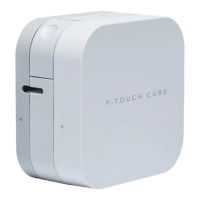
Brother P-TOUCH CUBE XP - User Manual

Brother P-TOUCH CUBE XP
16 pages
Print Icon
To Next Page IconTo Next Page
Loading...

Thank you for purchasing the PT-P910BT (hereafter referred to as "the
label printer"). Your PT-P910BT produces professional, high-quality,
durable labels. In additional, the variety of tape cartridges available
allows you to print labels with different widths and exciting colors.
Please read this guide, including all Precautions, before using this label
printer. After reading this guide, keep it in a safe place.



Supplies






 




P-TOUCH CUBE XP (PT-P910BT)


Questions and Answers

Brother P-TOUCH CUBE XP Specifications

General IconGeneral
TypeLabel Maker
TechnologyThermal Transfer
ConnectivityBluetooth, USB
Print Resolution360 dpi
Max. Label Length1 meter
Mobile Device CompatibilityiOS, Android
Print SpeedUp to 20mm/sec
Power SourceRechargeable Battery
Compatible TapeBrother TZe tapes
CutterAutomatic
ModelP-TOUCH CUBE XP (PT-P910BT)

Summary

Product Safety Guide

Safety Precautions

General guidelines to prevent hazards such as heat generation, smoking, explosion, fire, or injury.

Label Printer and USB Cable Safety

Label Printer and USB Cable Precautions

Specific safety instructions for using the label printer and its USB cable.

Rechargeable Li-ion Battery Safety

Battery Handling Precautions

Safety instructions for handling the rechargeable Li-ion battery to prevent risks.

Inserting and Charging the Battery

Using the Rechargeable Li-ion Battery

Battery Usage Notes

Important notes regarding storage, charging, and usage of the Li-ion battery.

Mobile Device Pairing

Bluetooth Pairing Guide

Steps to pair the label printer with a mobile device via Bluetooth.

Computer Printing

Software Installation for PC

Instructions to install printer driver and P-touch Editor software from brother's website.

LED Indicators

LED Troubleshooting

Troubleshooting Power LED Errors

Solutions for problems indicated by the Power LED, such as battery or transmission errors.

General Troubleshooting

Printer Not Printing Issues

Steps to resolve problems when the label printer does not print.

Tape Feeding Problems

Solutions for issues related to tape not feeding correctly or getting stuck.

Advanced Troubleshooting

Driver Installation Issues

Solutions for problems installing the printer driver or listing the printer in software.

Related product manuals