EasyManua.ls Logo

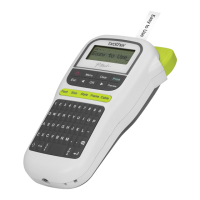
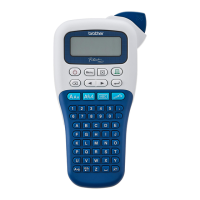
Brother P-TOUCH H110 - User Manual

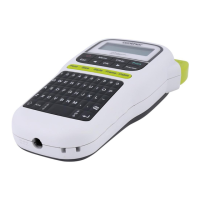
Brother P-TOUCH H110
17 pages
Print Icon
To Next Page IconTo Next Page
Loading...
English
User’s Guide
H11
0

Other manuals for Brother P-TOUCH H110

Questions and Answers

  • N
    Nicole OchoaSep 9, 2025
    What does 'Text Limit! Change Length' mean on Brother Label Maker?
    • T
      Tony ParsonsSep 9, 2025
      If your Brother Label Maker displays 'Text Limit! Change Length', reduce the amount of text or select [Auto] for the label length, as the number of characters exceeds the current label length.
  • E
    evangonzalezAug 22, 2025
    Why is my Brother Label Maker not printing correctly?
    • J
      Jennifer BaxterAug 23, 2025
      If your Brother Label Maker is not printing correctly, make sure the tape cassette is inserted correctly and isn't empty. Also, ensure that the cassette cover is properly closed.
  • K
    Kyle JohnsonAug 25, 2025
    Why did my Brother Label Maker settings reset?
    • J
      Jeffrey MoralesAug 25, 2025
      If your Brother Label Maker's settings have reset, it may be due to low batteries. Replace them with six new AAA alkaline batteries, avoiding mixing old and new batteries or different types. Note that disconnecting power for more than three minutes will erase all text and formats.
  • S
    Sean MossAug 26, 2025
    Why does the tape get stuck in my Brother P-TOUCH H110?
    • H
      Haley VasquezAug 27, 2025
      If the Brother Label Maker tape doesn't feed correctly or gets stuck, ensure the tape end feeds under the tape guides and avoid touching the cutter lever during printing.
  • O
    okellyAug 27, 2025
    What does 'No Cassette!' mean on Brother P-TOUCH H110 Label Maker?
    • E
      emorganAug 27, 2025
      If your Brother Label Maker displays 'No Cassette!', it means you're trying to print, feed, or preview a label without a cassette installed.
  • M
    Margaret DavisAug 29, 2025
    How to fix 'Battery Low!' on Brother Label Maker?
    • C
      collinsdonnaAug 29, 2025
      If your Brother Label Maker displays 'Battery Low!', replace the batteries with six new AAA alkaline batteries. Avoid mixing old and new batteries, or different battery types.
  • S
    Sonya ChristensenSep 18, 2025
    What does 'Insert 12 mm' mean on Brother P-TOUCH H110 Label Maker?
    • S
      Sheila KnightSep 18, 2025
      If your Brother Label Maker displays 'Insert 12 mm', it indicates that only 12 mm tape cassettes are compatible with the templates being used.
  • S
    Sherry HerreraSep 19, 2025
    Why is there a blank line on my Brother P-TOUCH H110's printed labels?
    • L
      Leroy JonesSep 22, 2025
      If a blank horizontal line appears on labels printed by your Brother Label Maker, there might be dust on the print head. Remove the tape cassette and gently clean the print head with a dry cotton swab using an up-and-down motion. Alternatively, use the optional print head cleaning cassette (TZe-CL3).
  • M
    Mark IngramSep 7, 2025
    What does 'No Text!' mean on my Brother Label Maker?
    • S
      Stephen RichardsSep 7, 2025
      If your Brother Label Maker displays 'No Text!', it means you've tried to print a text file with no data stored, pressed when no text was entered, or didn't enter text while using templates. Avoid pressing or when no text is entered in templates.
  • D
    dwayne28Sep 4, 2025
    What does 'Invalid!' mean on my Brother Label Maker?
    • K
      Kimberly DiazSep 4, 2025
      If your Brother Label Maker displays 'Invalid!', it could be due to: no text above the cursor when using numbering, an invalid character selected for numbering, an invalid number for label length, or an invalid value entered as the label length while using templates.

Summary

Getting Started Guide

Power Supply and Tape Cassette Installation

Instructions for inserting batteries and tape cassettes, including power precautions.

LCD Display Overview

Initial Settings Configuration

Turn Machine On

Guide to powering on the device using batteries or AC adapter.

Set Display Language

Instructions to select the preferred display language.

Set Unit of Measurement

How to choose the unit of measurement (mm or inch).

Keyboard Layout and Key Functions

Basic Usage Instructions

Adjust LCD Contrast

Explains how to adjust the brightness of the LCD screen.

Entering Text for Labels

Instructions for inputting and editing text on the label.

Switch Case (Upper;Lower)

Instructions on toggling between uppercase and lowercase text input.

Create Two-Line Labels

Guide for creating labels with two lines of text.

Enter Accented Characters

How to input accented characters using the device.

Change Label Width

Instructions to adjust the width of the label.

Change Label Length

Guide to set or change the length of the printed label.

Delete Text and Settings

How to delete entered text and settings from the machine.

Preview Labels Before Printing

How to preview a label before printing.

Tape Feed Function

Function to feed blank tape through the machine.

Print Labels

Instructions for printing labels, including number of copies.

Use Numbering Feature

How to use the auto-numbering feature for sequential labels.

Mirror Print Option

Instructions for printing mirrored text for specific applications.

Set Label Margins

How to adjust the margins for label printing.

Chain Print Labels

How to print multiple labels with minimum margins.

Saving and Recalling Label Files

Save Label to Memory

Steps to save entered text and settings to memory.

Print Saved Label

How to print saved label files.

Open Saved Label

Instructions to open and recall saved label files.

Using Templates for Labels

Cable Label Templates

Guide for creating specific types of cable labels using templates.

Text Label Templates

How to create labels using built-in text templates.

Pattern Label Templates

Formatting Keys and Options

Font Key Options

Instructions on how to change font settings for labels.

Frame Key Options

How to select and apply frame designs to labels.

Size Key Options

Guide on adjusting the font size for labels.

Style Key Options

How to apply different text styles (e.g., bold, italic).

Other Functions and Specifications

Symbol Key Usage

How to enter special symbols and pictographs.

Product Specifications

Technical specifications of the labelling machine.

Compatible Accessories

Information about compatible accessories.

Cutter Unit Maintenance

Guidance on handling and replacing the cutter unit.

Helpful Hints and Troubleshooting

Troubleshooting Guide

Lists common error messages and their solutions.

Operational Problem Solutions

Provides solutions for various operational problems.

Keyboard Shortcuts

Lists shortcut key combinations for common functions.

Resetting the Machine

Instructions on how to perform a factory reset.

Brother P-TOUCH H110 Specifications

General IconGeneral
ModelBrother P-TOUCH H110
Device CategoryLabel Maker
Print Resolution180 dpi
Max Print Height9.0 mm
Tape Widths3.5 mm, 6 mm, 9 mm, 12 mm
Print Speed20 mm/sec
KeyboardQWERTY
Cutter TypeManual
Number of Fonts1
Number of Styles10
Number of Frames15
Tape TypeTZe
Power Source6 AAA Batteries or AC Adapter (AD-24ES optional)
Display1-line, 16 characters
Weight0.39 kg

Related product manuals