47
Label Preview
1
2
3
4
5
6
7
8
9
z LABEL PRINTING
LABEL PRINTING
Using the Preview function you can check the layout of the label before printing.
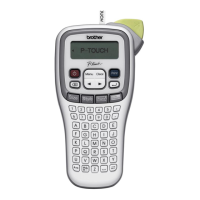
Press the
Preview
key.
An image of the label is displayed on the screen.
The length of the label is shown in the lower-right corner of the screen.
Press the or key to scroll the preview to the left or right.
Press the or key to change the magnification of the preview.
Labels can be printed once text entry and formatting is complete. Printing options include
single and multiple copies, sequential numbering and mirror-printing.
Printing Multiple Copies
Using this function you can print up to 9 copies of the same label.
Make sure that the appropriate tape cassette is inserted and ready for printing.
Press the
Print
key to display the Copies screen, and then select the number of copies
to be printed using the or key, or type the number using the number keys.
Label Preview
• Press the
Escape
,
OK
or
Enter
key to return to the text entry screen.
• To scroll the preview to the left or right side, press the
Shift
key and then press the or key.
• To print the label directly from the preview screen, press the
Print
key or open the print options screen
and select a print option. Refer to “Printing a Label” below for details.
• The print preview is a generated image of the label, and may differ from the actual label when printed.
Printing a Label
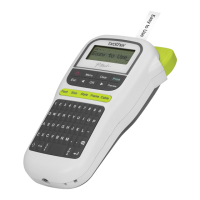
• Do not pull the label coming out of the tape exit slot. Doing so will cause the ink ribbon to be
discharged with the tape, making the tape no longer usable.
• Do not block the tape exit slot during printing or when feeding tape. Doing so will cause the tape to jam.
• Be sure to check that there is enough tape remaining when printing several labels
continuously. If tape is running low, set fewer copies, print labels one at a time, or
replace the tape cassette.
• Striped tape indicates the end of the tape cassette. If this appears during printing,
press the
Power
key to turn the P-touch off. Attempting to print with an empty tape
cassette may damage the machine.
1
2
Hold down the or key to change the number of copies faster.


 To Next Page
 Loading...