EasyManua.ls Logo

Brother QL820NWBC - User Manual

Brother QL820NWBC
214 pages
Print Icon
To Next Page IconTo Next Page
Loading...
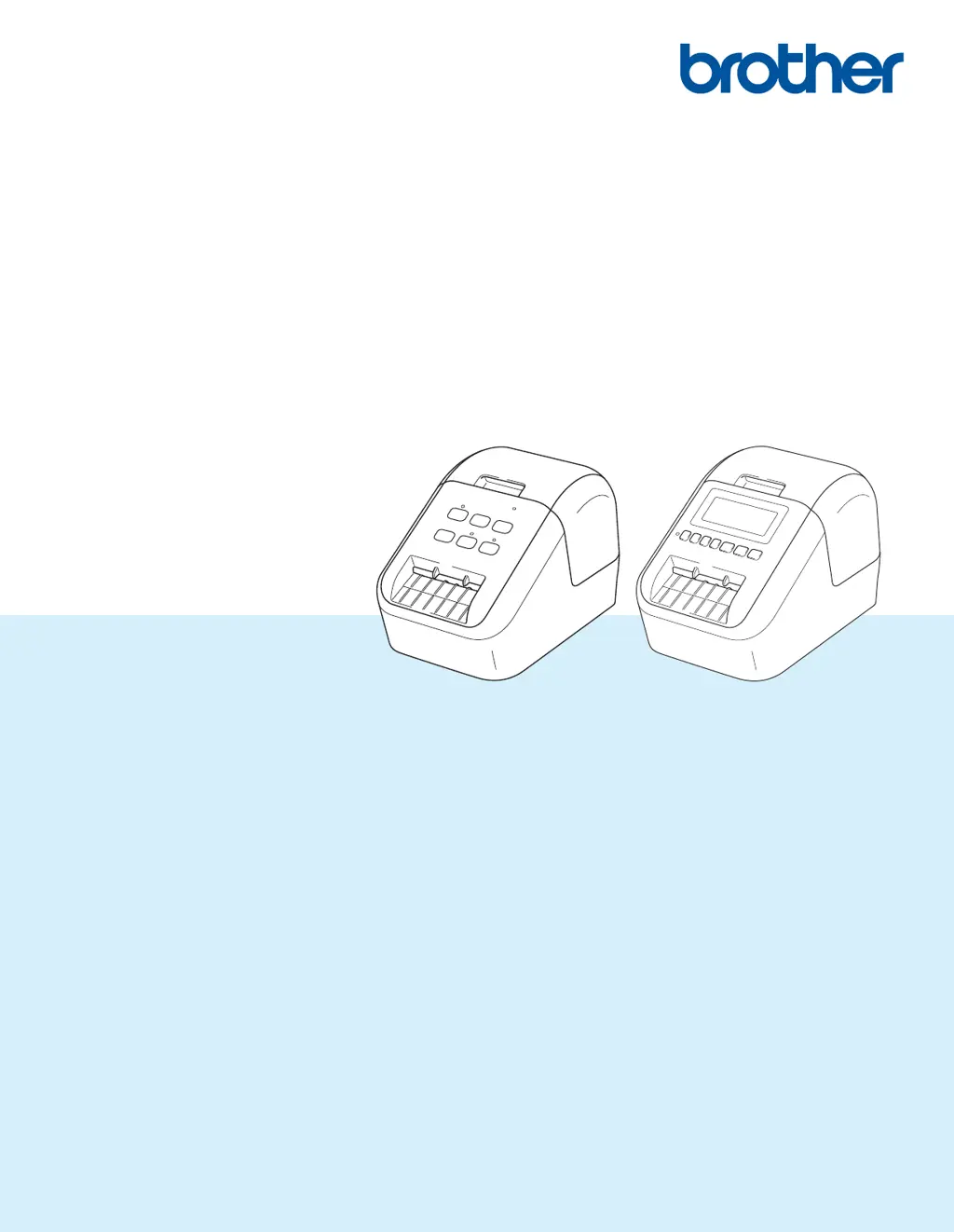
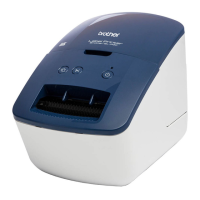
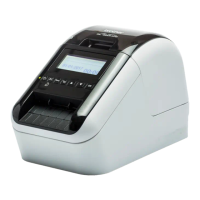
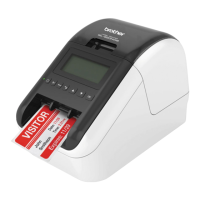
QL-810W
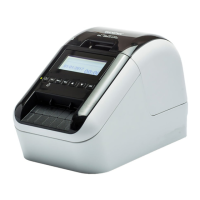
QL-820NWB
Read the Product Safety Guide first, then read the Quick Setup Guide for the correct
setup procedure. After reading this guide, keep it in a safe place for quick reference.
Version 05
ENG
User’s Guide

Table of Contents

Questions and Answers

Summary

Introduction

Available Manuals

Lists and describes the available manuals for the printer, including safety and setup guides.

Symbols Used In This Guide

General Precautions

DK Roll (DK Label and DK Tape)

Provides specific precautions and guidelines for using DK Roll labels and tapes.

Section I Basic Operations

Setting Up the Label Printer

Covers initial setup procedures, including parts identification and basic configuration.

Printing Using a Computer (P-touch Editor)

Explains how to print labels from a computer using the P-touch Editor software.

Printing Using the Mobile Device

Details how to print labels directly from smartphones and tablets using mobile applications.

Changing the Label Printer Settings

Guides users on modifying printer settings via the Printer Setting Tool for Windows and Mac.

Printing Labels Using P-touch Template

Covers using P-touch Template mode for advanced label creation and printing with barcodes.

Other Functions

Explores additional printer functionalities such as confirming settings, 2-color printing, and mass storage mode.

Section II Application

How to Use P-touch Editor

Provides comprehensive instructions on using the P-touch Editor software for label design and printing.

How to use P-touch Editor Lite (Windows only)

Guides on using the simpler P-touch Editor Lite for quick label creation without full software installation.

How to Use P-touch Transfer Manager and P-touch Library (Windows only)

Explains how to transfer templates and manage label data using P-touch Transfer Manager and Library.

Transferring Templates with P-touch Transfer Express (Windows only)

Details the process of using P-touch Transfer Express to distribute templates and software.

How to Update P-touch Software

Provides instructions for upgrading P-touch Editor, Address Book, and printer firmware.

Section III Network

Introduction (Network)

Introduces network features and capabilities of the printer for shared usage.

Changing Your Label Printer Network Settings

Details how to configure network settings like IP address, subnet mask, and gateway.

Web Based Management

Explains how to manage printer settings remotely via a web browser interface.

Section IV Appendix

Resetting the Label Printer

Guides on how to reset printer settings to factory defaults using buttons or menu options.

Maintenance

Provides instructions for cleaning the printer's exterior, print head, roller, and label outlet.

Troubleshooting

Offers solutions for common printer problems related to printing, connectivity, and errors.

Product Specifications

Lists the technical specifications for the QL-810W and QL-820NWB label printers.

Notes on Using P-touch Transfer Manager

Highlights important considerations and limitations when using P-touch Transfer Manager.

Network Terms and Information

Defines networking terms and explains supported protocols and security features for network connectivity.

Using the Battery Unit (Optional: PA-BU-001)

Details the charging and usage of the optional rechargeable Li-ion battery unit.

Using the Brother Barcode Scanner (Optional: PA-BR-001) (QL-820 NWB only)

Explains how to use the optional Brother Barcode Scanner with the printer for template operations.

List of Barcodes for the P-touch Template Function

Provides a list of barcodes used for specifying settings within the P-touch Template function.

Brother QL820NWBC Specifications

General IconGeneral
ModelQL-820NWB
Print TechnologyDirect Thermal
Resolution300 dpi
Mobile PrintingYes
CutterAutomatic
DisplayLCD
Maximum Print Width62 mm
Maximum Label Length1 m
Max Label Length1 m
ConnectivityUSB, Ethernet, Wi-Fi
Label TypesDie-cut, Continuous
PowerAC adapter
OS CompatibilityWindows, macOS, iOS, Android

Related product manuals