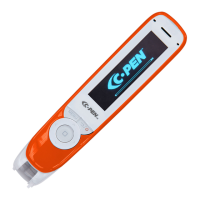
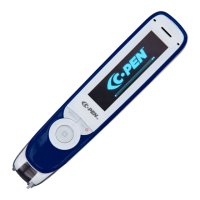
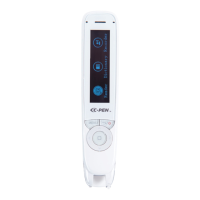
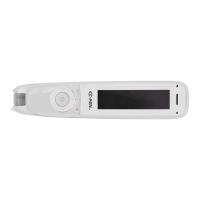
17
7. Cable Socket
The Cable Socket is where you plug in the cable that
connects C-Pen to your PC. The cable is used to com-
municate and transfer files to and from C-Pen to
your PC.
8. Cable and Charging Socket
For the rechargeable C-Pen the same cable is used for
both communication and for charging. Insert the plug
into this socket in order to recharge the battery and to
communicate with your PC.
9. Battery Compartment
For a C-Pen that is powered with AAA batteries, this is
where you insert the batteries.
10. Camera Opening
The Camera Opening is not protected in any way.
This enhances C-Pen’s reading ability but it also
makes it important to see to that dust or other objects
do not enter the camera opening.
11. Reset Button Hole
For a rechargeable C-Pen, if the pen seems to have
“frozen” gently insert something similar to an unfolded
paperclip into the Reset Button Hole and press. This
will reset C-Pen.
For C-Pens that are powered by AAA batteries, the way
to reset the pen is simply to remove the batteries from
the battery compartment, and then replace them.



 To Next Page