142 xGenConnect Installation and Programming Guide
Creating a customized company logo requires the following:
• Computer or laptop with application to edit and create .bmp files (for example,
Microsoft Paint)
• DLX900 v5.15 or higher to create .MIF3 file out of the .bmp file
• USBUP-EUR-V2 (or DLX900) to flash the NXG-183x keypad with the
company logo file (.MIF3)
The company logo file can be created by using a computer and a simple
application like MS Paint. In order to create a company logo file and upload this
file onto the keypad, follow these steps:
1. Create an image using any application capable of editing and saving .bmp
files. In example, use Microsoft Paint on a Windows computer or laptop.
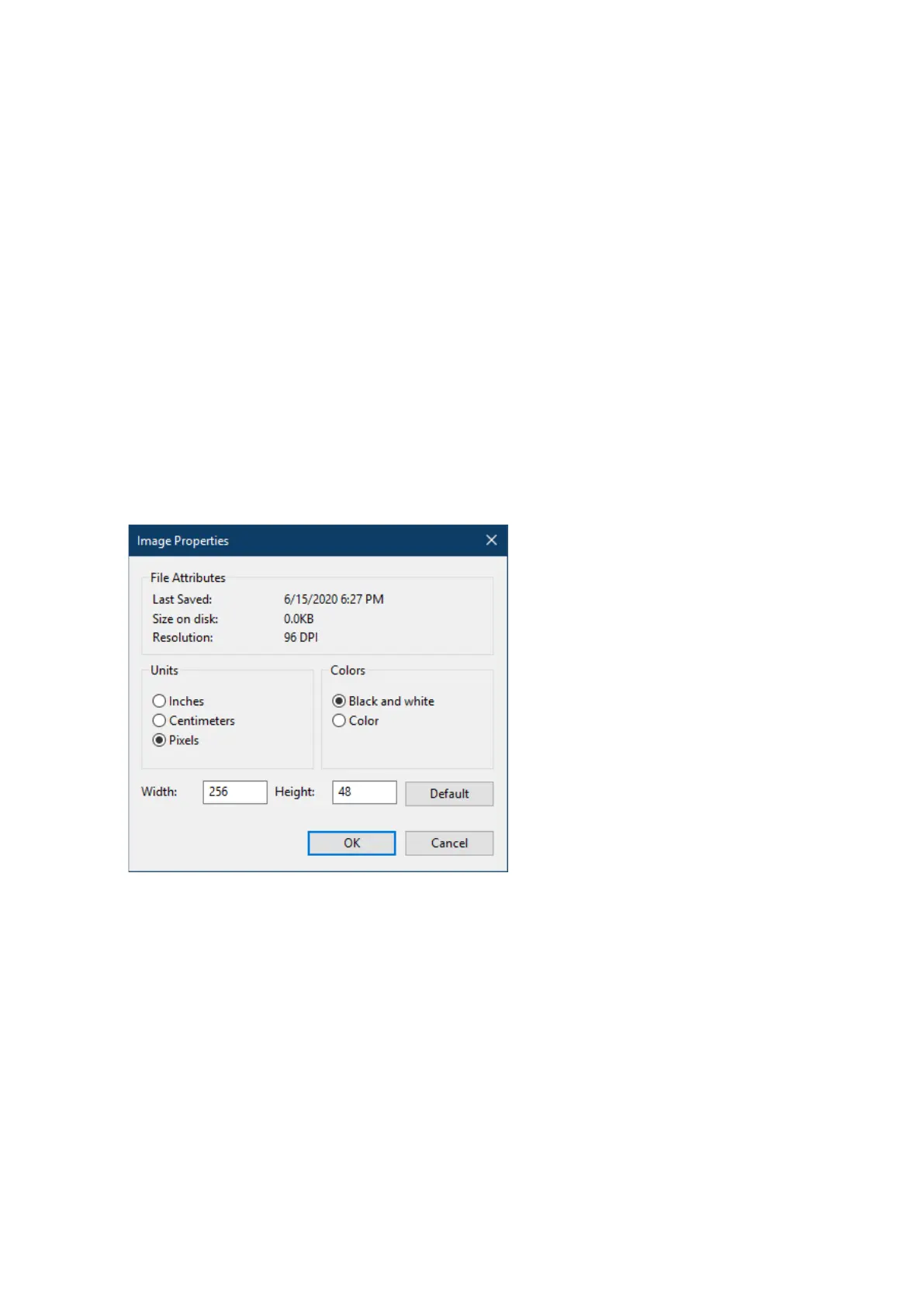
The image must be monochrome (black and white), no colours or shades of
grey are supported. The image size should not exceed 256 x 48 pixels (full
screen size of NXG-183x).
As an example, the picture below shows the file properties in MS Paint, with
the relevant options properly set:
2. Save the prepared image as a black-and-white file type with .bmp extension.
For MS Paint, select file type Monochrome Bitmap (*.bmp, *.dib).
3. Open DLX900 software (version 5.15 or higher), connect to the system or just
open the DLX900 account for which there is the NXG-183x-EUR keypad and
for which you want to upload the new company logo file.
4. Go to Devices / Device Info / Keypad. Select the NXG-183x keypad.



 To Next Page