EN1805CMINSA Rev. 5 2021-10
www.cafection.com 800-561-6162
46
SERVICE & INSTALLATION MANUAL - Encore 29
Service Mode
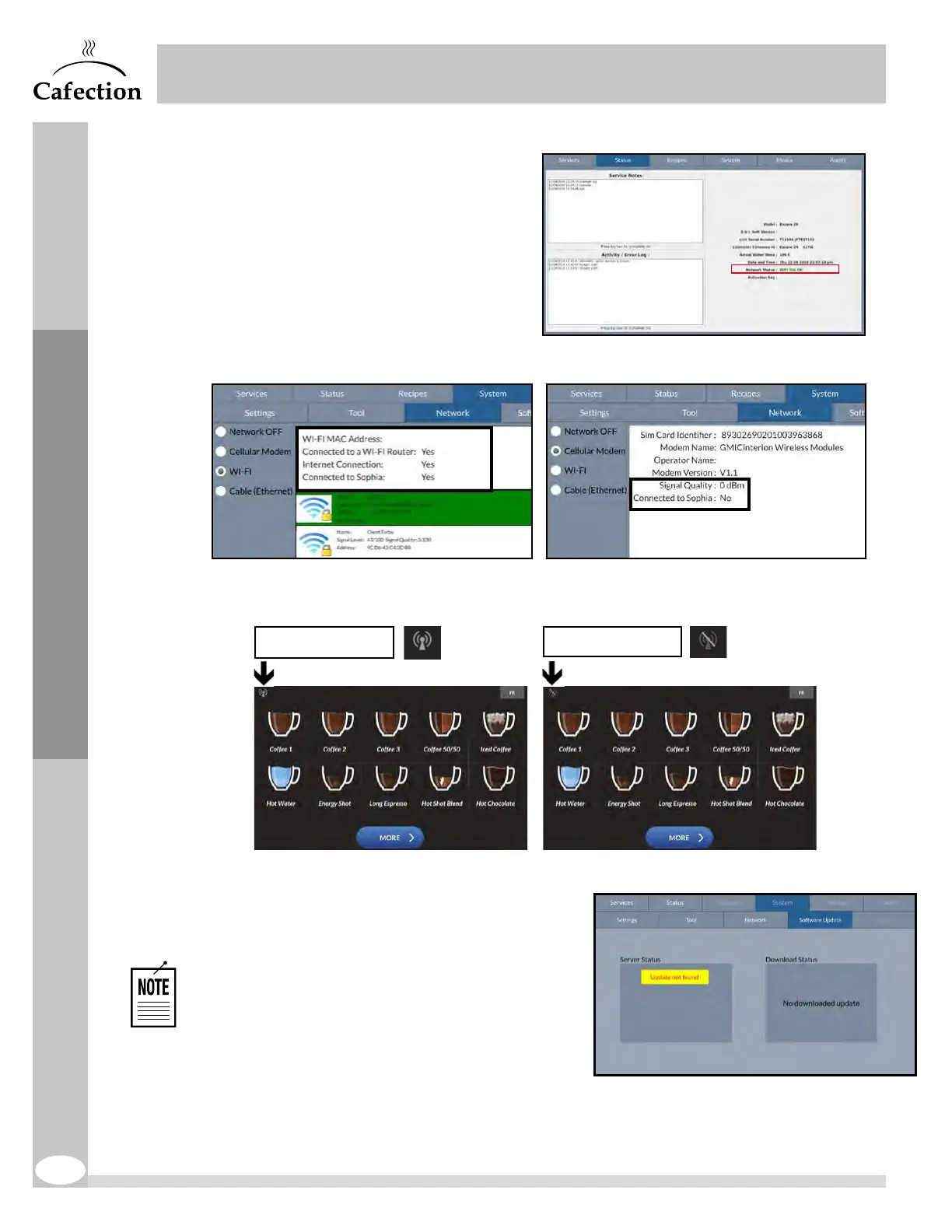
There are 3 ways to verify if the brewer
has been successfully connected.
1. Under the Status tab.
The network status indicates "Cell.
Modem link OK" (or "Wi-Fi link OK" for
wireless connection)
2. In Service mode, under the System tab, in the Network sub tab.
3. On the selection screen, the icon of the cellular or wireless network signal is active (top
left corner).
6.6.4 Software Update Sub Tab
The connected brewer automatically looks if a
software update is available online. Follow the
insctructions displayed to update the brewer.
A Wi-Fi hotspot can be provided from a mobile
device. Connect the brewer to the Wi-Fi hotspot
in the System / Network sub tab.
If the brewer is not connected, the update is available by USB key. Contact Cafection’s
Customer Service department at 800- 561-6162, ext.311, or by email at
salesorder@cafection.evocagroup.com to order an update kit.
Inactive, offline
Active, online
xxxx-xxxx-xxxx-xxxx
xxxxxx-xxxxxxxxx


 To Next Page