EasyManua.ls Logo

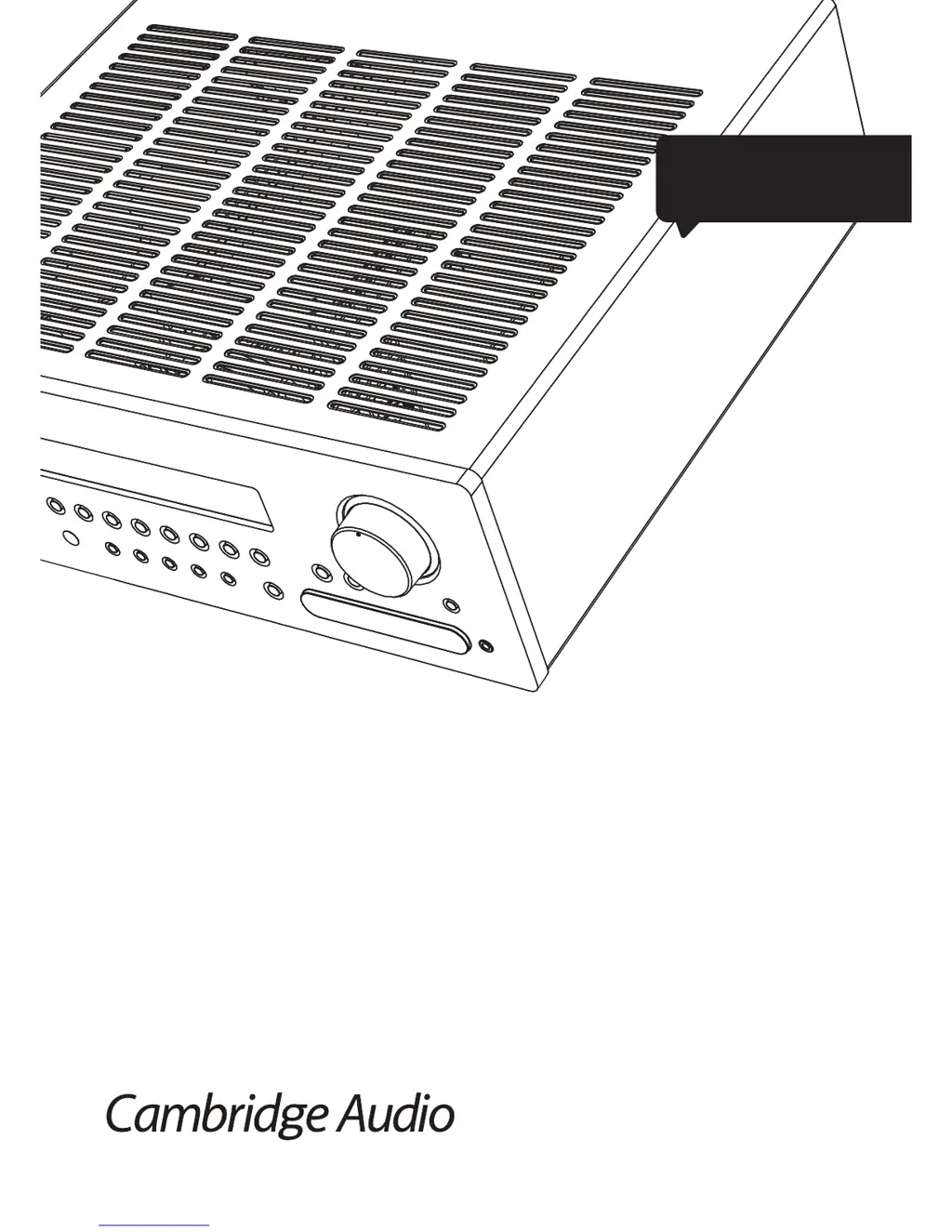
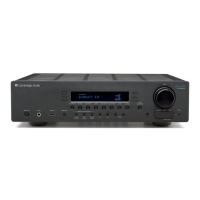
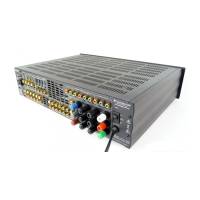
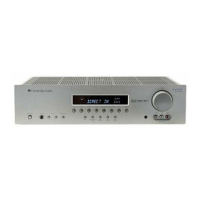
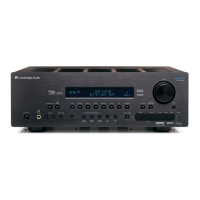
Cambridge Audio azur 751R - User Manual

Cambridge Audio azur 751R
42 pages
Print Icon
To Next Page IconTo Next Page
Loading...
Your music, our passion
751R V2
azur
ENGLISH
AV receiver
User's manual
2

Questions and Answers

  • B
    brownsabrinaAug 19, 2025
    What to do if the Cambridge Audio azur 751R Receiver remote control is not working?
    • H
      Holly FletcherAug 20, 2025
      If your Cambridge Audio Receiver's remote control isn't working, first, replace the batteries. If that doesn't solve the problem, try moving the remote closer to the receiver, ensuring you're within its effective range.
  • H
    Heather BuchananAug 21, 2025
    Why is there no sound from my Cambridge Audio azur 751R Receiver subwoofer?
    • P
      Pamela SmithAug 21, 2025
      If you're not getting any sound from your subwoofer, check that the subwoofer hasn't been set to 'Off' in the OSD setup menu or via the remote. Change the setting of the subwoofer from 'Off' to 'On'. Also, if you've selected DTS Neo:6, DD Dolby Pro Logic II/IIx modes (which have no LFE channel) with all speakers set to 'Large' (and bass augment off), change the mode selection or speaker size settings.
  • C
    Chris PatrickAug 25, 2025
    What to do if Cambridge Audio azur 751R Receiver sound cuts off or there is no sound?
    • C
      Christopher CurryAug 25, 2025
      If the sound cuts off when listening to music or there is no sound even though the power is on, it could be due to a couple of reasons. First, the speaker impedance might be less than prescribed for the 651R/751R, so use speakers with the correct impedance. Second, the unit might not be adequately ventilated and is overheating, so ensure the unit is adequately ventilated.
  • O
    obrienedwardAug 26, 2025
    How to fix no sound from the center speaker on Cambridge Audio Receiver?
    • D
      Donna StewartAug 27, 2025
      If you're not getting any sound from the center speaker, it might be that the center speaker has been set to 'None' in the OSD setup menu. Change the center speaker setting from 'None'. Also, if a stereo mode has been selected, select a surround sound mode instead.
  • A
    Alyssa WrightAug 28, 2025
    Why is there no sound from the rear speakers on my Cambridge Audio azur 751R?
    • J
      Jonathan FinleyAug 28, 2025
      If you're not getting sound from the rear speakers, there are a few potential causes: * The source being played might not be recorded in surround sound, so ensure the source is recorded in surround sound. * The speaker/s might be set to 'None' in OSD setup menu, so change the speaker setting from 'None'. * A stereo mode might have been selected, so select a surround sound mode instead of stereo mode.
  • S
    Sherry EdwardsAug 30, 2025
    What to do if there is no sound from Cambridge Audio Receiver speakers connected to a digital input or HDMI?
    • S
      Scott CruzAug 30, 2025
      If you're not getting any sound from speakers connected to a digital input or HDMI, the audio input type might be set to analogue. Check the display and press the Audio Input Type button to switch to digital or HDMI.
  • S
    sanchezmichelleSep 1, 2025
    How to troubleshoot no sound from Cambridge Audio azur 751R Receiver speakers connected to an analogue input?
    • L
      lloydvincentSep 1, 2025
      If you're experiencing no sound from speakers connected to an analogue input, it could be that the audio input type is set to digital. Press the Audio Input Type button to switch to analogue. Alternatively, the audio input type can also be set in the Input/Output Setup menu of the OSD, so adjust the input type setting there.
  • S
    Sandra GonzalezSep 3, 2025
    What causes sound not audible from one channel on Cambridge Audio Receiver?
    • A
      Ann HensonSep 4, 2025
      If sound is not audible from one channel, it could be due to speaker connections being disconnected, so check and reconnect the speaker connections. Another reason could be the speaker being set to 'None' in the OSD setup menu, so change the speaker setting from 'None'.
  • A
    Adam MoranSep 6, 2025
    How to eliminate a low hum or buzz sound from Cambridge Audio azur 751R?
    • S
      Stacy BakerSep 6, 2025
      If you're hearing a low hum or buzz, it could be due to power cords or lighting placed near the Cambridge Audio Receiver, so remove them. Another cause might be analogue inputs not connected securely, so reconnect them securely.
  • S
    santoslindaSep 8, 2025
    Why is there excessive noise in Cambridge Audio Receiver stereo and monaural radio broadcasts?
    • T
      Tonya LinSep 8, 2025
      Excessive noise in both stereo and monaural radio broadcasts could be due to a poor location and/or direction of the antenna, so adjust it. It could also be that the transmitting station is too far away, so move closer to the transmitting station.

Summary

Important Safety Instructions

Operational Guidelines

Ventilation and Positioning

Ensuring proper airflow and placement for optimal performance and longevity.

Power Sources and Maintenance

Guidelines for power connection, usage, cleaning, and battery disposal.

Limited Warranty Information

Details on the product's warranty coverage and service procedures.

Front Panel Controls

Basic Operation and Display

Details on power, display, tuning, modes, sensors, and front panel information indicators.

Source Input Selection

Buttons for selecting various audio and video sources like USB, BD/DVD, Video, CD, and direct inputs.

Sound Mode Controls

Options for selecting audio input types, stereo modes, and surround sound processing modes.

Advanced Functions

Features like HDMI preview, picture adjustment, Zone 2 control, and video input selection.

Rear Panel Connections

Antenna and Data Ports

Connections for FM/AM antennas, RS232C control, and USB interface for audio playback.

Digital and HDMI Connectivity

Optical and coaxial digital inputs/outputs, HDMI inputs, and A/B HDMI outputs for video and audio.

Rear Panel I;O and Control Ports

Video and Audio Input;Output Ports

Connections for various video sources (Composite, S-Video, Component) and multi-channel audio inputs/outputs.

Control, Power, and Speaker Connections

Ports for IR emitters, trigger outputs, control bus, power, and speaker terminals.

Main Remote Control Operations

Basic Controls and Source Navigation

Remote functions for power, source selection, modes, OSD access, and basic adjustments.

Volume, Tone, and Display Adjustments

Controls for volume, bass/treble, mute, lip sync, info display, and screen dimming.

Direct Input and Trigger Control

Buttons for direct input selection and controlling trigger outputs.

Zone 2 Remote Control

Zone 2 Operation Controls

Remote functions specific to Zone 2 volume, standby, source selection, and mute.

Follow Main Function

Enables Zone 2 to follow the source selection of the main zone.

Front Panel Display Indicators

Channel and Decoding Modes

Indicators for active output channels and current audio decoding modes.

Information and Mode Icons

Display of current source, surround mode, and input type icons.

Loudspeaker Connections

Audio Connections

Analogue Audio Setup

Connecting audio sources using stereo phono cables.

Digital Audio Setup

Connecting audio sources using optical or coaxial digital cables.

HDMI Connectivity

HDMI Input Connections

Connecting digital audio and video sources via HDMI.

4 K Video Resolution Support

Information on the receiver's capability to handle 4K video signals.

HDMI Output Configuration

Setting up HDMI outputs for TV and projector connections, including ARC.

Video Input Connections

Analogue Video Setup

Connecting video sources via Composite, S-Video, or Component cables.

5.1;7.1 Direct Input

Connecting multi-channel analogue audio sources for direct playback.

Audio Output Configurations

7.1 Preamp Outputs

Connecting to external power amplifiers or systems via preamp outputs.

Front Input Connections

Temporary connections for video games consoles and MP3 players.

Aerial Connections

FM and AM Aerial Setup

Connecting FM aerials and AM loop aerials for optimal reception.

751 R V2 Setup Process

Speaker Setup Configuration

Initial setup of speaker types, size, delay, and crossovers for optimal surround sound.

Performing the Setup Procedure

Steps for manually configuring speakers or using the Audyssey auto setup process.

Speaker Configuration Background

Speaker Placement Guidelines

Recommendations for positioning front, surround, centre, subwoofer, and height speakers.

Manual Speaker Setup

Setting Speaker Size

Configuring speaker size (Large/Small/None) for bass management.

Setting Speaker Delay

Measuring and setting speaker distances for accurate sound arrival.

Manual Calibration and Bass Management

Level Calibration Procedure

Manually adjusting speaker levels for balanced loudness using test signals.

Subwoofer Crossover and Bass Management

Setting crossover points and managing bass redirection for 'Small' speakers.

Audyssey Autosetup Procedures

Audyssey 2 EQ and Autosetup Overview

Using the microphone for automatic speaker configuration and room equalization.

Performing the Autosetup Process

Steps for running the Audyssey auto setup for speaker calibration and room correction.

Audyssey 2 EQ Room EQ Setup

Initial Setup and Measurement

Connecting the microphone and starting the initial speaker detection phase.

Speaker Calibration Process

The unit measuring speakers for levels, crossovers, and distances.

Advanced Audyssey Features

Audyssey Dynamic EQ

Adjusting equalization based on listening volume for consistent tonal balance.

Audyssey Dynamic Volume

Managing volume variations between programs and scenes for consistent levels.

Source and Input Configuration

Assigning Video Inputs

Configuring which video input is used for each source.

Audio Connection Type Setup

Selecting Analogue, Digital, or HDMI for audio input for each source.

Video Processing Settings

Surround Sound Mode Overview

Dolby and DTS Format Explanations

Descriptions of various Dolby Digital, Dolby True HD, and DTS formats.

Surround Sound Modes Explained

Dolby and DTS Enhancements

Details on Dolby EX, DTS ES, Pro Logic II/IIx/IIz, and DTS Neo:6 modes.

DSP Modes

Digital Signal Processing modes for stereo sources (Movie, Music, Direct).

USB Audio Connectivity

PC and Mac Compatibility

Connecting PCs and Macs via USB for audio playback.

Linux Compatibility

Connecting Linux systems via USB for audio playback.

Bit Perfect Transfer Modes

Using ASIO and WASAPI Exclusive for optimal audio transfer.

Operating Instructions

Selecting Sources

How to select and switch between different audio/video sources.

Choosing Listening Modes

Selecting desired stereo or surround sound modes for playback.

Decode Modes - 5.1 Speaker Setup

Decode Modes - 5.1 + Height Setup

Decode Modes - 7.1 Speaker Setup

Decode Modes - 7.1 Speaker Setup Details

Tuner Operation and Audio Features

Tuner Usage and Station Storage

Operating the FM/AM tuner, storing stations, and using RDS features.

Lip Sync Adjustment

Adjusting audio delay to synchronize with video playback.

Audio Return Channel (ARC)

Using ARC Functionality

Enabling and using the Audio Return Channel from compatible TVs.

Picture Adjustment

Video and Audio Settings

Picture Adjustment Details

Fine-tuning picture settings like brightness, contrast, and resolution.

Audio Split Mode

Listening to one source while watching video from another source.

HDMI Output and Bypass

HDMI Output Configuration

Managing HDMI A/B outputs and enabling HDMI bypass mode.

Trigger Outputs Configuration

Speaker Configuration Options

Bi-amping Setup

Configuring bi-amping for front left/right speakers.

Tone, Subwoofer, and LFE Settings

Adjusting tone controls, subwoofer levels, and LFE trim.

Recording Outputs

Output Routing and Setup Menus

Record 2;Zone 2 Output Selection

Selecting sources for Recorder 2 and Zone 2 outputs.

OSD Language and Software Version

Changing OSD language and viewing firmware version.

Advanced Dolby;DTS Settings

Dynamic Range Control

Source Naming Configuration

IR Repeater System Integration

Zone 2 Setup and Usage

Zone 2 Speaker and Output Configuration

Configuring Zone 2 speaker assignments and output types.

Zone 2 Control and Integration

Controlling Zone 2 from Main Room

Using the main remote or front panel to control Zone 2.

Controlling Zone 2 Components

Using IR repeaters to control Zone 2 sources remotely.

DTS-HD Speaker Re-mapping

Speaker Layout Configurations

Diagrams and explanations of various 7.1 channel speaker layouts.

Controlling Zone 2 from Zone 2 Itself

DTS-HD Speaker Re-mapping Details

Auto Power Down Settings

Memory Management

Reset and Back-up Memory

Restoring factory defaults and preserving settings.

HDMI Preview Function

Custom Installation (C.I.) Use

Technical Specifications

Troubleshooting Common Issues

No Sound Issues

Troubleshooting audio output problems from speakers or inputs.

Audio Quality Problems

Addressing issues like hum, buzz, phase, hiss, and noise.

Remote Control and Connectivity Issues

Resolving problems with remote control operation and input connectivity.

Cambridge Audio azur 751R Specifications

General IconGeneral
HDMI Inputs6
HDMI Outputs2
Phono InputYes
Amplifier TypeClass AB
Power Output (8 Ohms)120W
Audio Formats SupportedDolby TrueHD, DTS-HD Master Audio
BluetoothNo
Digital Audio Inputs2 x Coaxial

Related product manuals