36
OPERATION
OPERATION
#415-R1
8-15-18 - JR
allowing the software to assist you in
managing the work to be done.
Edit Orders
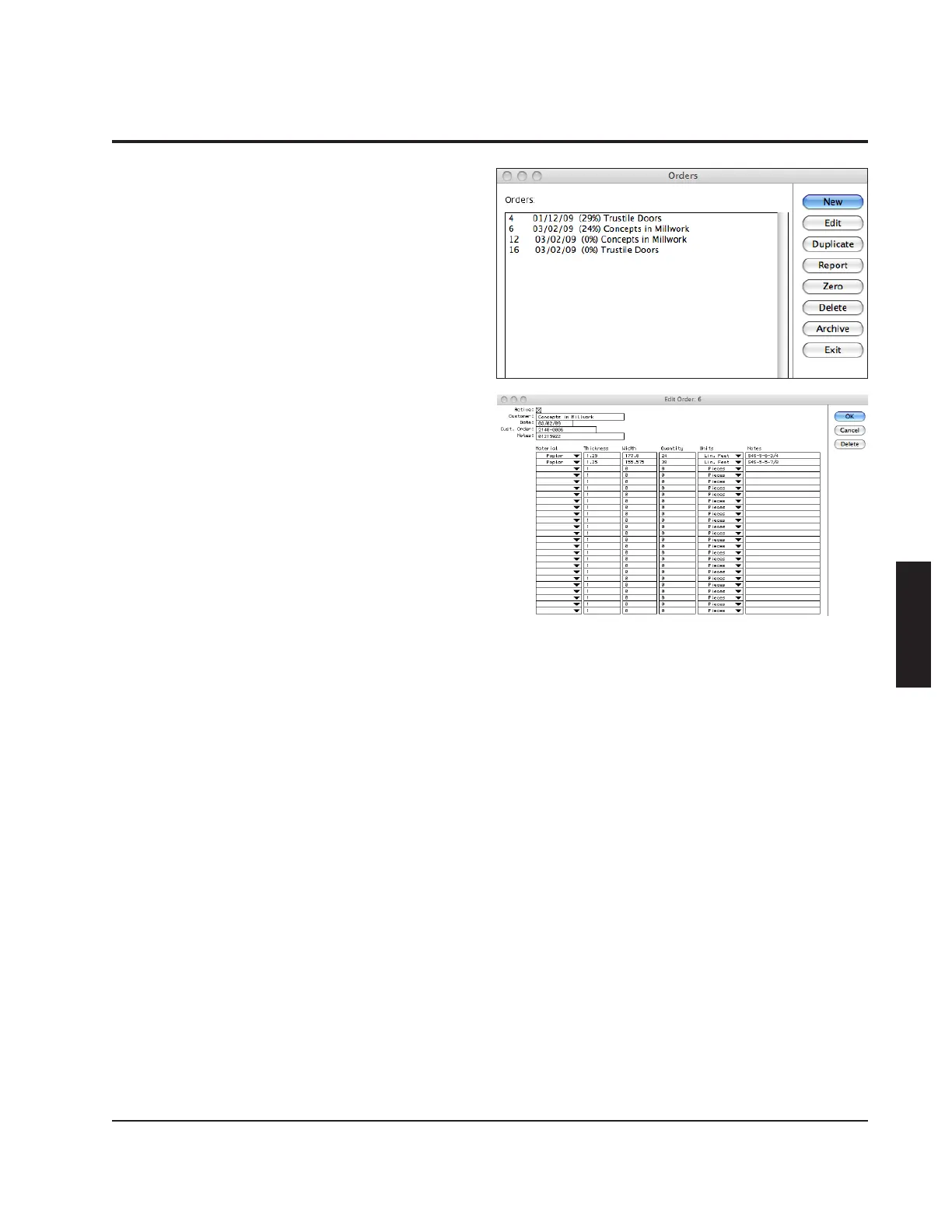
When you get an order, select "Edit Orders"
from the "Orders" menu. Click the "New"
button to create a new customer order.
At this point, the software will assign an
arbitrary order number shown at the top
of the window. Enter the customer name
in the "Customer" eld. Use the "Notes"
and "Cust. Order" elds to enter your job
number or purchase order number. Select
the "Material" pop-up eld to select the
appropriate species. If you do not see the
proper species and grade listed among
the choices, select "Other" to create a
new species and/or grade entry. Enter
the "Thickness" of the lumber to be ripped
(inches), the "Width" of the part to be
produced (inches), and the "Quantity" of
that rip width. Note that you can specify the
appropriate "Units" to properly describe the
quantity. Any one order may have material
specied in different units (Pieces, Lineal
Ft, Bd Ft, or Sq Ft). Use the "Notes" eld to
designate part numbers or any other misc.
information.
Once you nish entering the order data,
select to "Active" check box to allow the
Opti-Rip software to begin production on the
order. If you have a particular order that you
repeat frequently, enter it at any time and
leave the "Active" check box unselected until
you are ready to begin production on that
order. Orders will stay in the system until
they are deleted or "Archived".
Archive All Completed Orders



 To Next Page