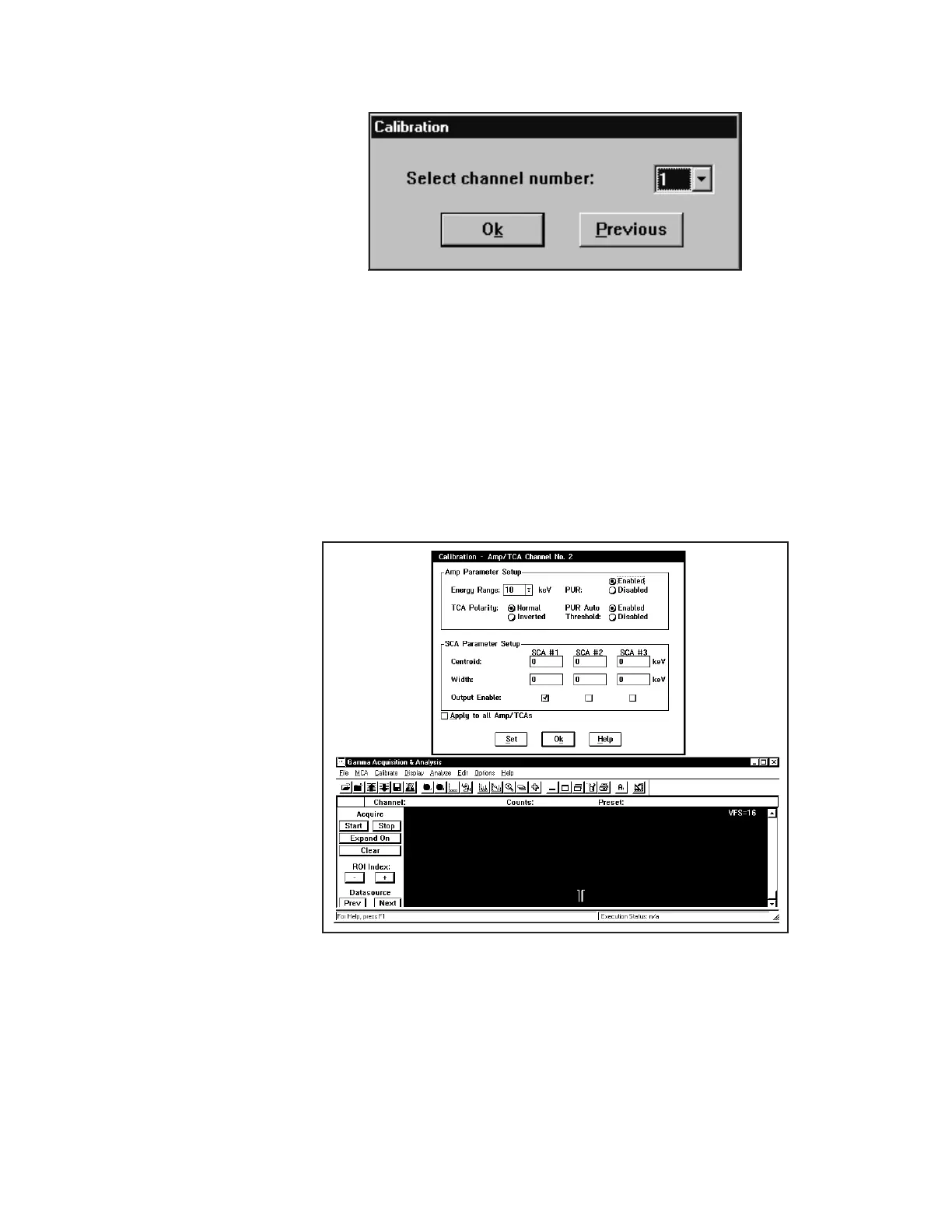
3. Press Ok to enable the selected channel (note that the RDY light will be
blinking on the 2016 module selected). The Calibration screen will be
displayed along with the MCA View and Control (MVC) window as shown
in Figure 15.
Only one SCA is needed to properly calibrate a given 2016 module;
centroid/width values for all three SCA’s can be defined/adjusted later using
the TCA Window Setup main menu option. Use the calibration screen as
follows:
20
Using the Genie-PC/Genie-2000
Software
Figure 14 Selecting the 2016 to Calibrate
Figure 15 Calibrating the Selected's SCAs



 To Next Page