h. Next the software will calculate the energy calibration equation and
update the MVC window with this information. You will be asked to
verify this calibration via a dialog, press Ok to complete the
calibration process.
i. At this time, you will be returned to Figure 14. Select Previous to
return back to the main menu; select Ok to calibration another 2016
channel. For most conditions, only one 2016 channel needs to be
calibrated, the remaining channels can be setup via the Gain
Normalization process (refer to next section for more details). Under
certain operating conditions (primarily very short shaping times), it
may be necessary to individually calibrate each channel to
accommodate small differences in ADC / SCA peak detect timing.
Gain Normalization Procedure
The gain normalization procedure provides for gain adjustments to ensure that the am
-
plifier outputs from all channels are matched. Once this is done, SCA window settings
can be changed by entering new values and using the “apply to all” check box to select
different energies.
Performing the Gain Normalization
1. When at least one channel has been calibrated, you’ll need to select the Gain
Normalization procedure from the 2016 Amp/TCA Software main menu.
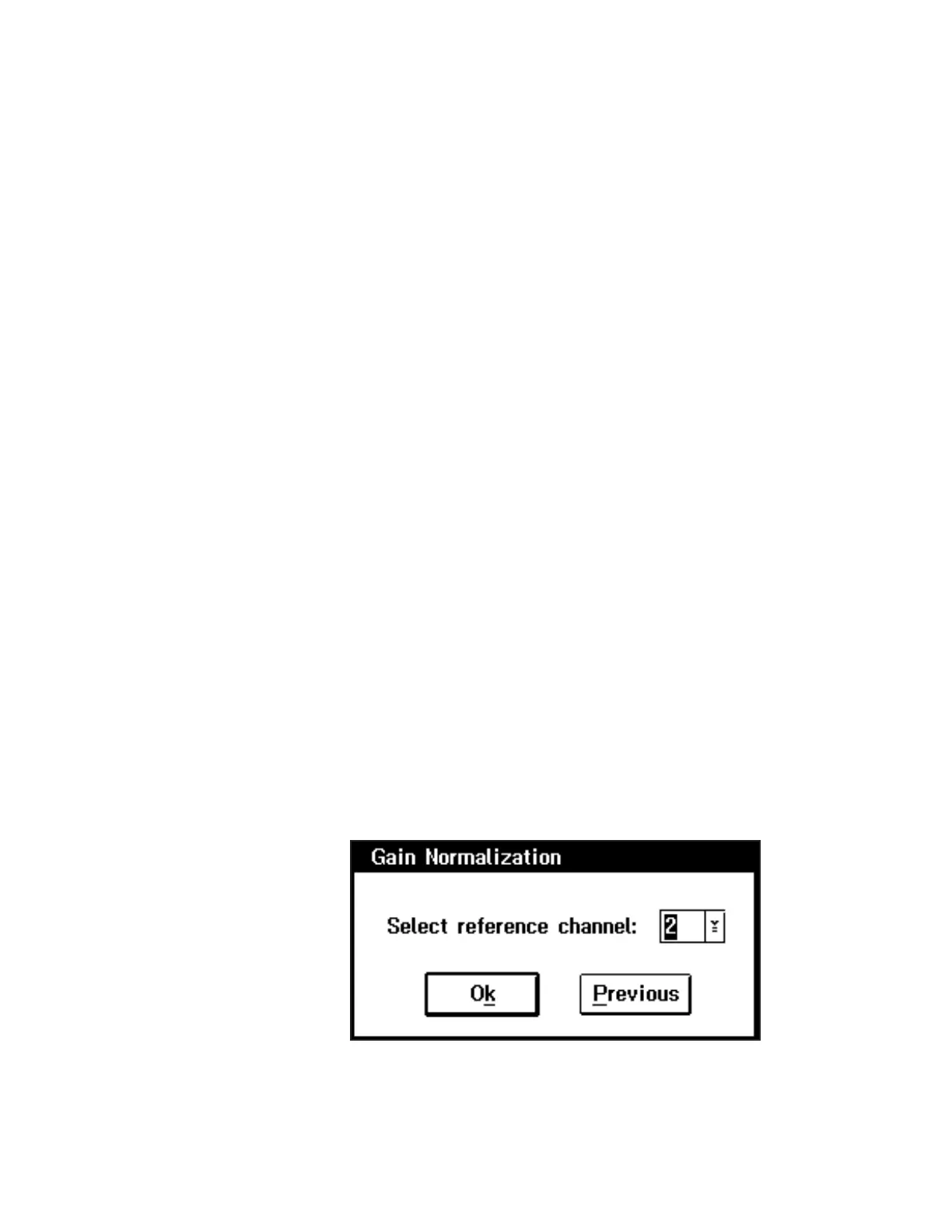
2. The procedure starts with the screen in Figure 14, which lets you select a
channel to be gain normalized. Pressing Ok brings up the screen in Figure 17,
which asks you to select a previously calibrated channel to use as the
reference.
22
Using the Genie-PC/Genie-2000
Software
Figure 17 Selecting the Reference Chanel



 To Next Page