NOTE
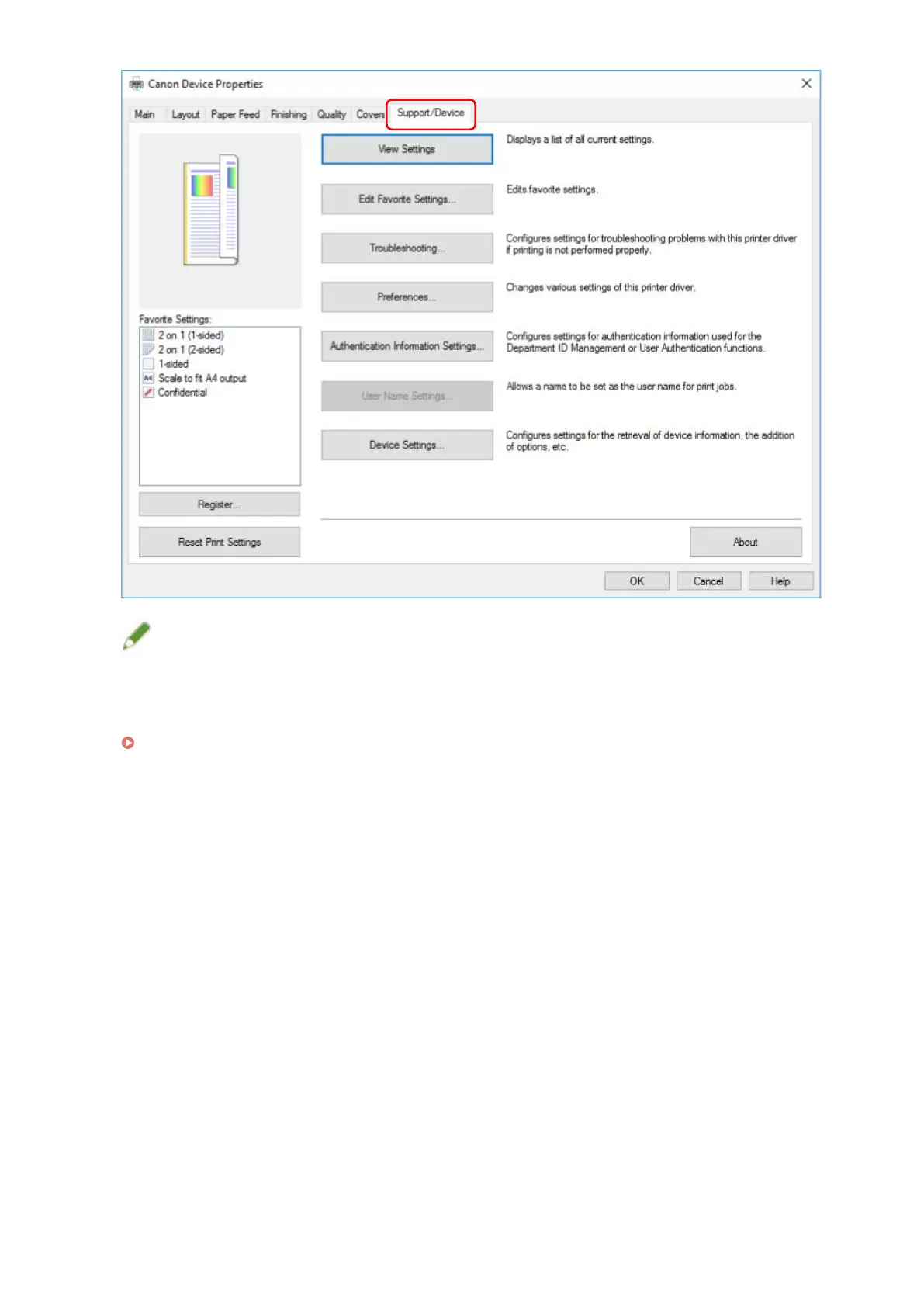
● If the Windows standard print settings screen, which does not have a [Support/Device] sheet, is displayed,
there could be a problem with the environment, settings, or installation state of the driver. Refer to the
subsequent troubleshooting to enable the print settings screen of the driver to be displayed.
The Windows standard print settings screen is displayed(P. 139)
4
Click [Device Settings].
When you click [Device Settings], after a conrmation screen asking whether you want to save the settings is
displayed, the print settings screen closes.
5
Display the [Device Settings] sheet.
6
If necessary, set whether the IP address of the device is to be automatically detected
or manually specied in [IP Address Settings] at the bottom of the screen.
7
Click [Retrieve Device Information].
Changing Settings to Match the Usage Environment
53



 To Next Page