MXF Clip Operations
136
NOTES
• You cannot copy a clip if either CF card slot cover is open.
• If a clip is being copied to a card that already has a clip with the same number (the last 4 digits in the clip
name), then the copied clip will be renamed with the following number.
Deleting Clips
You can delete any clip except those with an $ mark. To delete such clips, delete the $ mark beforehand.
Deleting a Single Clip
1 Select the desired clip and then press SET to open the clip menu.
2 Select [Delete Clip] and then press SET.
• The clip information screen appears and it prompts you to confirm the operation.
3 Select [OK] and then press SET.
• Select [Cancel] instead to cancel the operation.
• While the clip is being deleted, the operation cannot be canceled.
4 When the confirmation message appears, press SET.
Deleting All Clips
1 Open the [Delete All Clips] submenu.
[w Other Functions] > [Clips] > [Delete All Clips]
2 Select [OK] and then press SET.
• All of the clips (except for clips with an $ mark) on the selected CF
card will be deleted.
• Select [Cancel] instead to cancel the operation.
• While the clips are being deleted, you can press SET to cancel.
3 When the confirmation message appears, press SET.
Deleting the User Memo and GPS Information
1 Select the desired clip and then press SET to open the clip menu.
2 Select [Delete User Memo] and then press SET.
• The [Delete User Memo] screen appears and it prompts you to confirm the operation.
3 Select [OK] and then press SET.
• The user memo and GPS information is deleted and the screen changes back to the clip index screen.
• Select [Cancel] instead to cancel the operation.
Copying a Custom Picture File Embedded in a Clip
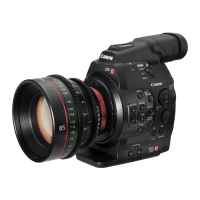
You can copy the custom picture file embedded in a clip to the camera. A custom picture file embedded in a clip
recorded on a CF card with a C300 / C300 PL camcorder can be copied to this camera.
1 Select the desired clip (a clip with the / icon) and then press SET to open the clip menu.
2 Select [Copy / File] and then press SET.
[w Other Functions]
[Clips]
[Delete All Clips]


 To Next Page