Recording Audio
96
Activating the Microphone’s Attenuator
If the audio level is too high and the sound sounds distorted, activate the
microphone attenuator (20 dB).
1 Open the [MIC Att.] submenu.
[¡ Audio Setup] > [Audio Input] > [MIC Att.]
2 Select [On] and then press SET.
Monitoring the Audio with Headphones
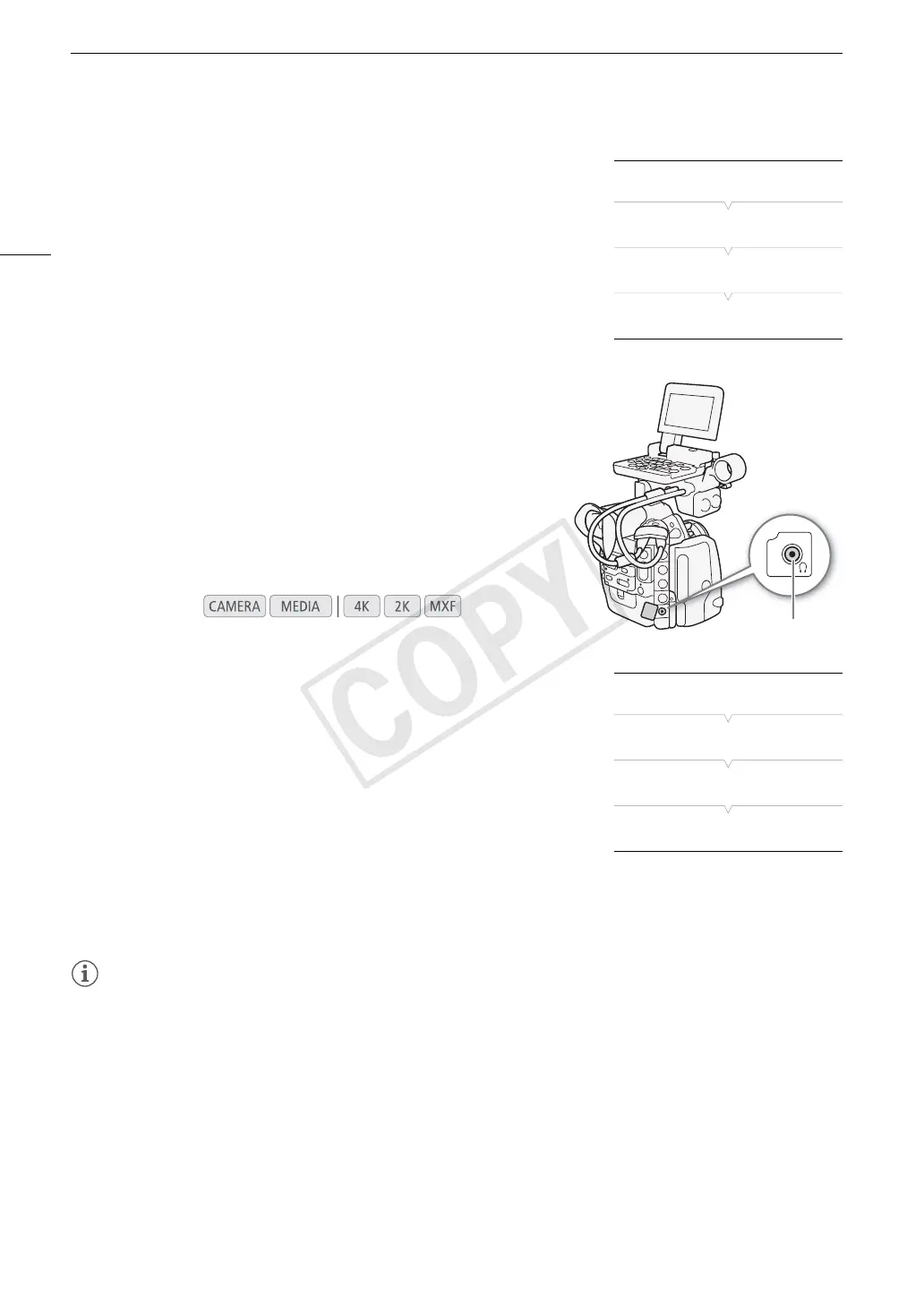
Connect headphones* to the × (headphone) terminal to monitor the
recorded audio. You can adjust the headphone volume with the
[¡ Audio Setup] > [Audio Output] > [Headphone Volume] setting.
* For 50.00 Hz recordings, use commercially available headphones with a cable no
longer than 3 m.
Selecting the Audio Channel
You can select the audio channel that is output from the ×
(headphone) terminal.
1 Open the [Channel] submenu.
[¡ Audio Setup] > [Audio Output] > [Channel]
2 Select the desired option and then press SET.
Options
NOTES
• If you set an assignable button to [Audio Output CH] (A 111), you can press the button to change the audio
channel directly.
Operating modes:
[CH1/CH2]: Audio from CH1 is output from the left audio channel and
audio from CH2 is output from the right audio channel.
[CH1/CH1]: Audio from CH1 is output from both the left and right audio
channels.
[CH2/CH2]: Audio from CH2 is output from both the left and right audio
channels.
[All/All]: Audio from CH1 and CH2 is mixed and output from both
the left and right audio channels.
[¡ Audio Setup]
[Audio Input]
[MIC Att.]
[Off]
× (headphone)
terminal
[¡ Audio Setup]
[Audio Output]
[Channel]
[CH1/CH2]


 To Next Page