Setting Up a Computer for Printing/Sending a Fax
3-49
3
Using a TCP/IP Network
3
In the [Printer Ports] dialog box, from [Available ports types],
select [Standard TCP/IP Port] ➞ click [New Port].
4
According to the instructions on the Add Standard TCP/IP
Printer Port Wizard, in [Printer Name or IP Address], enter the
printer IP address or printer host name ➞ exit the Wizard.
If the dialog box displays <Additional Port Information Required>, follow the
instructions on the screen to search again, or click [Standard] ➞ click [Canon
Network Printing Device with P9100] under [Device type].
5
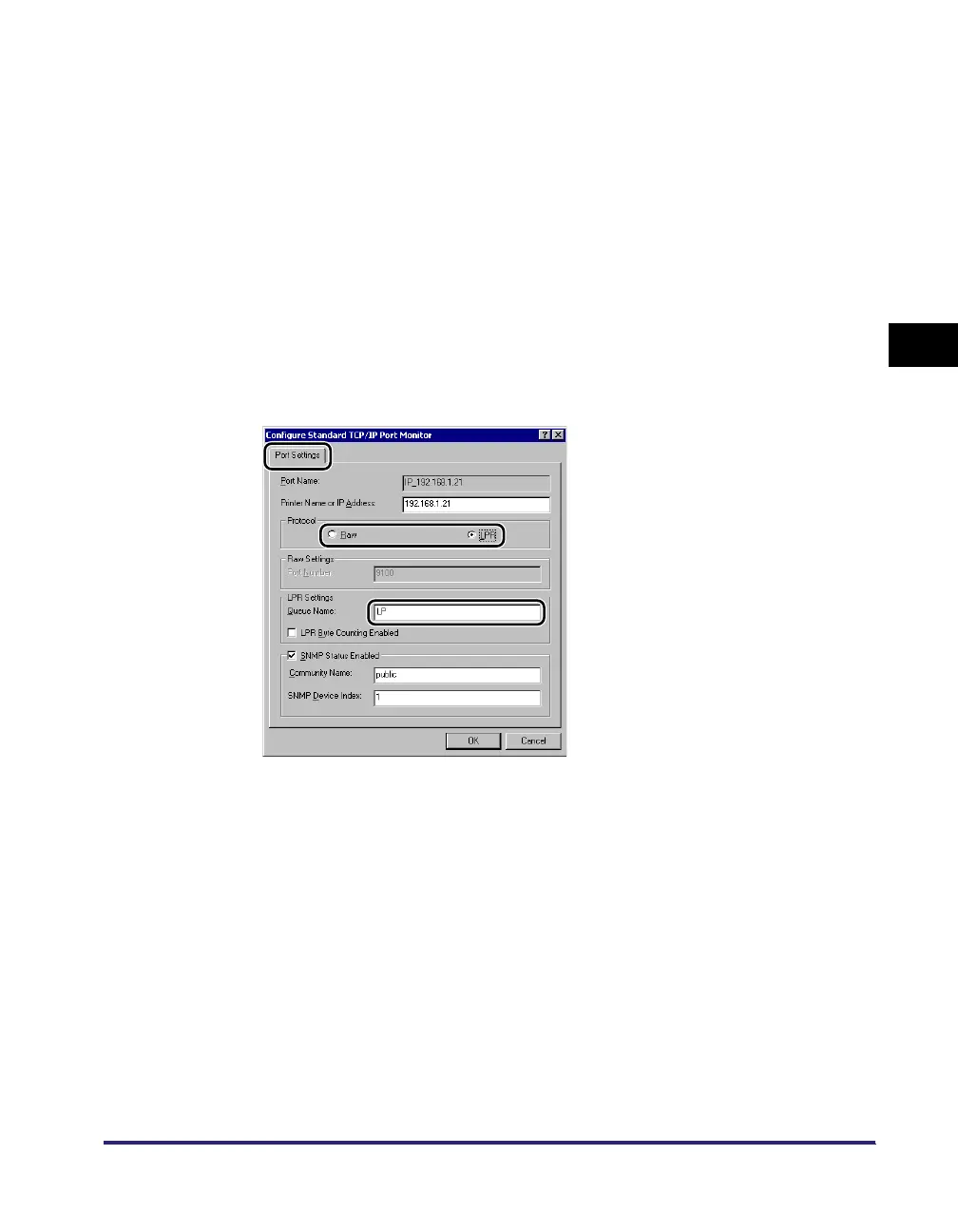
In the printer properties dialog box, click [Configure Port] ➞
select [LPR] or [Raw].
If you use LPD, you can specify one of the following print queues in [Queue
Name].
• LP
The machine prints according to its spool settings. Normally, <LP> is entered
as a print queue.
• SPOOL
The machine prints only after spooling a print job on the hard disk, regardless of
its spool settings.
• DIRECT
The machine prints without spooling a print job on the hard disk, regardless of
its spool settings.






 To Next Page