20
4.
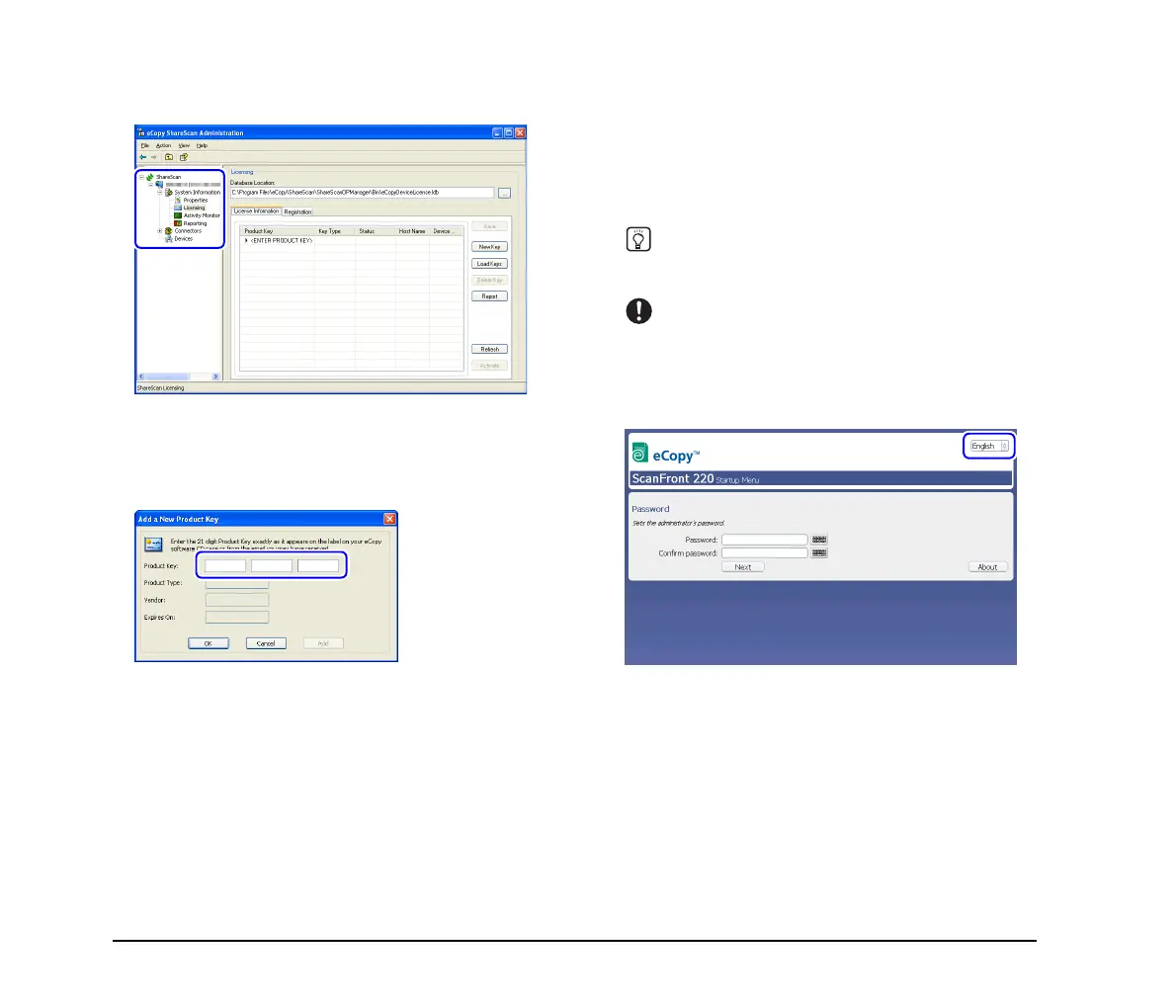
Double-click the computer under the tree to expand
it, and click [Licensing] under [System Information].
The [Licensing] screen appears in the right pane.
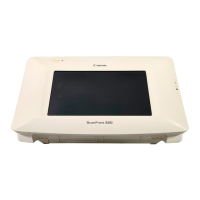
5. Click [New Key].
The [Add a New Product Key] dialog box appears.
6. Enter the product key, and click [OK].
For details on the product key, refer to the supplied
information sheet on how to obtain the eCopy ShareScan
product key.
When you click [OK], the [Add a New Product Key]
dialog box closes. Information on the product key you
entered appears under the [License Information] tab of the
[Licensing] screen.
You can now proceed to configuration and registration of
the device. As you will need to operate both the device and
the computer when registering the device, do not exit
ShareScan Administrator yet.
❏ Configuring and Registering the Device
After setting up the computer on which Services Manager
is installed, configure the necessary settings on the device
and register the device on the computer.
1. Turn the device ON.
The Startup Menu for the device appears.
Hint
You can change the display language using the pull-down menu
at the top right of the Startup Menu.
IMPORTANT
If you continuously press the touch panel before the connection
to ShareScan Services Manager can be established, an error
may occur and operation may be disabled. In such cases,
restart the device and perform operations again from the
beginning.




 To Next Page