EasyManua.ls Logo

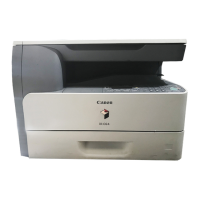
Canon iR1020 Series - User Manual

Canon iR1020 Series
304 pages
Print Icon
To Next Page IconTo Next Page
Loading...
Sep 1 2008
Service Manual
iR1020/1021/1024/1025 Series

Table of Contents

Questions and Answers

  • J
    James SmithJul 27, 2025
    What to do if my Canon iR1020 shows a URL Scheme error (not https)?
    • O
      owattsJul 27, 2025
      If the Canon All in One Printer displays a 'URL Scheme error(not https)', it means the URL header of the registered server is not using 'https'. To resolve this, correct the server URL header to 'https' via: Service Mode > #E-RDS > RGW-ADDRESS.
  • J
    Jason BuckAug 2, 2025
    Why is the communication test not performed on my Canon All in One Printer?
    • S
      saraweaverAug 2, 2025
      If your Canon All in One Printer suspends and the communication test isn't performed, it's likely because e-RDS is ON but was activated without completing the Communication test, possibly after a device reboot. To fix this, perform and complete the Communication test (COM-TEST).
  • E
    erojasAug 8, 2025
    What to do if Event Registration failed on Canon All in One Printer?
    • M
      Mrs. Ellen WilsonAug 8, 2025
      If the Canon All in One Printer fails during event registration, it indicates a processing failure within the device. Try turning the device OFF and then ON again. If the problem persists, reinstall the device system software.
  • B
    Brittany BentonAug 13, 2025
    How to fix communication test failure on Canon All in One Printer?
    • K
      Kevin TownsendAug 13, 2025
      If the communication test fails on your Canon All in One Printer, you should check the firmware version and the network settings. Also, check the results of the communication test.
  • C
    Cynthia RodriguezAug 20, 2025
    Why are no e-RDS settings items found in the Service Mode of my Canon All in One Printer?
    • K
      Katie ParksAug 20, 2025
      To address the issue of no e-RDS settings items being found in the Service Mode of your Canon All in One Printer, ensure that the firmware version is WLaa-60-xx or later. Also, verify that the network is up and running.

Summary

Chapter 1 Introduction

1.1 System Construction

Details on the overall system configuration and its components.

1.2 Product Specifications

Overview of product parts, usage, user modes, maintenance, safety, and functional lists.

Chapter 2 Installation

Procedures for unpacking, relocating, and installing the machine and its accessories.

Chapter 3 Basic Operation

Explanation of the machine's construction and basic operational sequences.

Chapter 4 Original Exposure System

Details on the original exposure system's construction, basic sequences, controls, and part replacement.

Chapter 5 Laser Exposure

Information on the laser exposure system's construction, components, and part replacement procedures.

Chapter 6 Image Formation

Details on image formation system construction, processes, and part replacement.

Chapter 7 Pickup;Feeding System

Information on the pickup/feeding system's construction, jam detection, and part replacement.

Chapter 8 Fixing System

Details on the fixing system's construction, control mechanisms, protective functions, and part replacement.

Chapter 9 External and Controls

Description of the control panel, fans, power supply, and replacement procedures for external components.

Chapter 10 Original Feeding System

Details on the ADF's construction, basic operation, jam detection, and part replacement procedures.

Chapter 11 e-maintenance;imageWARE Remote

Information on e-maintenance features, communication tests, and troubleshooting for remote device management.

Chapter 12 Maintenance and Inspection

Guidelines for periodically replaced parts, durables, consumables, and scheduled servicing procedures.

Chapter 13 Standards and Adjustments

Procedures for image adjustments, scanning system calibration, and electrical component handling.

Chapter 14 Correcting Faulty Images

Procedures for initial checks and outlining electrical components to correct faulty images.

Chapter 15 Self Diagnosis

Details on error codes, jam codes, and FAX error codes for diagnosing machine issues.

Chapter 16 Service Mode

Comprehensive guide to service mode functions, settings, and diagnostic tests.

Chapter 17 Upgrading

Procedures for upgrading system software, boot programs, and CA certificates using the service support tool.

Chapter 18 Service Tools

Lists special tools required for servicing the machine and their uses.

Canon iR1020 Series Specifications

General IconGeneral
Print Speed20 ppm (A4)
Copy Resolution600 x 600 dpi
Copy Speed20 cpm (A4)
InterfaceUSB 2.0
FunctionsPrint, Copy, Scan
Print Resolution600 x 600 dpi
Paper Output Capacity100 sheets
Paper SizesA4, A5, B5
Multiple CopyUp to 99 copies
Scan Resolution600 x 600 dpi
Memory64 MB
Scanner TypeFlatbed
Supported OSWindows, Mac OS
Paper Weight60-163 g/m²

Related product manuals