Sending Faxes from a Computer (PC Faxing)
94WS-069
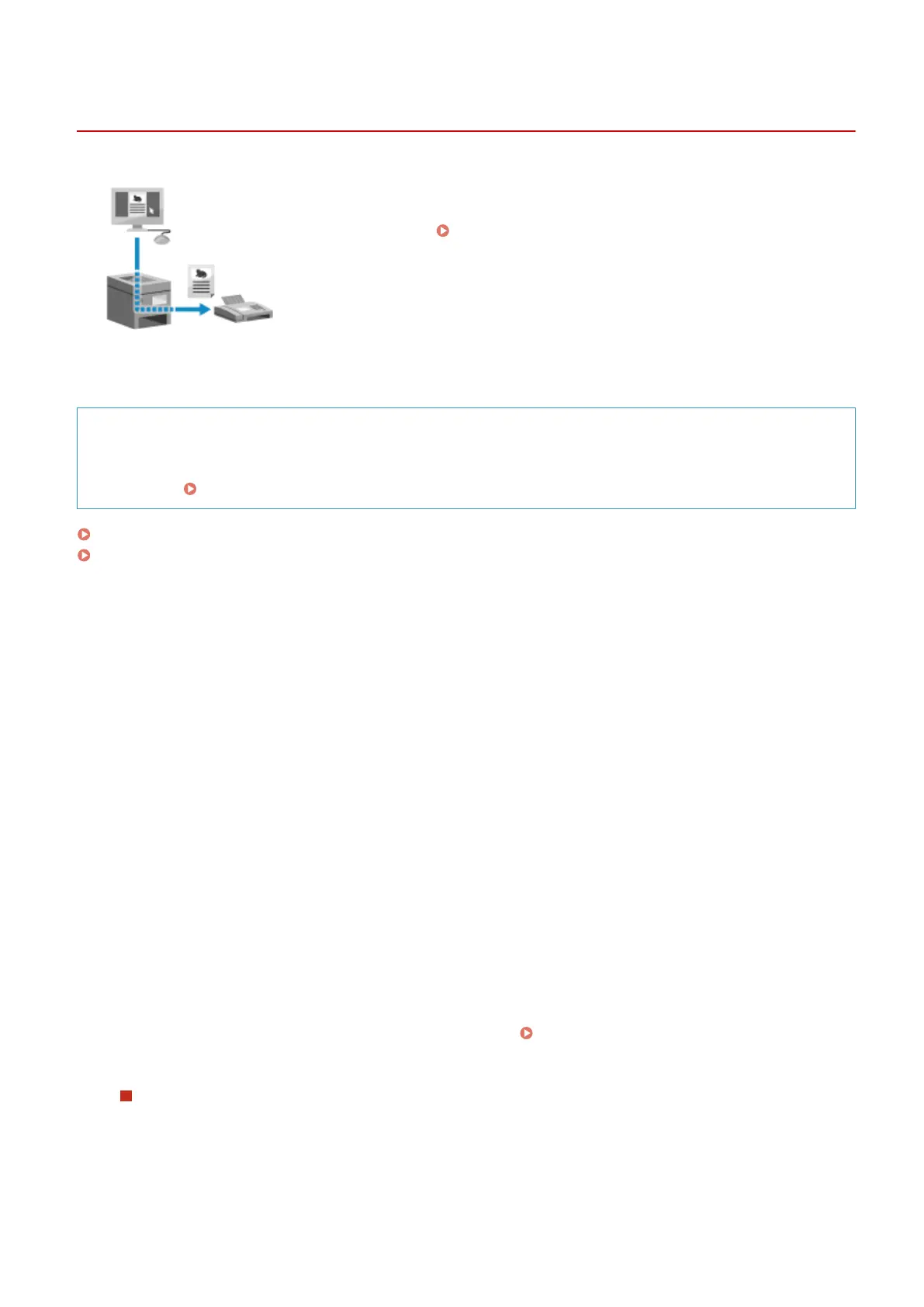
You can send a document as a fax from a computer using a fax driver.
As it is easy to send a document, be sur
e to thoroughly check the item you are
sending beforehand.
Securely Sending PC Faxes(P. 233)
This section describes the general procedure for this operation. Check the manual of the application you are using for
detailed oper
ations on how to use it.
Required Preparations
● Install the fax driver to the computer and congur
e the settings according to your usage environment and
purpose.
Preparing to Send Faxes from a Computer(P. 218)
When Using Windows(P. 230)
When Using macOS(P. 231)
◼ When Using Windows
1
Open the document you are sending on your computer.
2
In the application used to open the document, select the command to print.
3
Select the fax driver of the machine, and click [Print].
➠ The [Fax Sending Settings] scr
een of the fax driver appears.
4
Specify a destination.
● This section describes ho
w to enter a fax number. You can specify a destination registered to the Address
Book from the [Select Destination] tab.
● If an outside line number is required, enter this number before the fax number. If the outside line number
has been set in advance, you do not need to enter it here.
Step 2: Conguring the Settings for Secur
e
Sending(P. 218)
When Entering One Fax Number
On the [Enter Destination] tab, enter a fax number. When [Conrm Fax Number] can be entered, enter the
same fax number.
Faxing
230









 To Next Page