• When copying
Setting Items
• Check 6: Is printing performed beyond the recommended printing
area?
If you are printing beyond the recommended printing area of your printing paper, the lower edge of the
paper may become stained with ink.
Resize your original document in your application software.
Printing Area
•
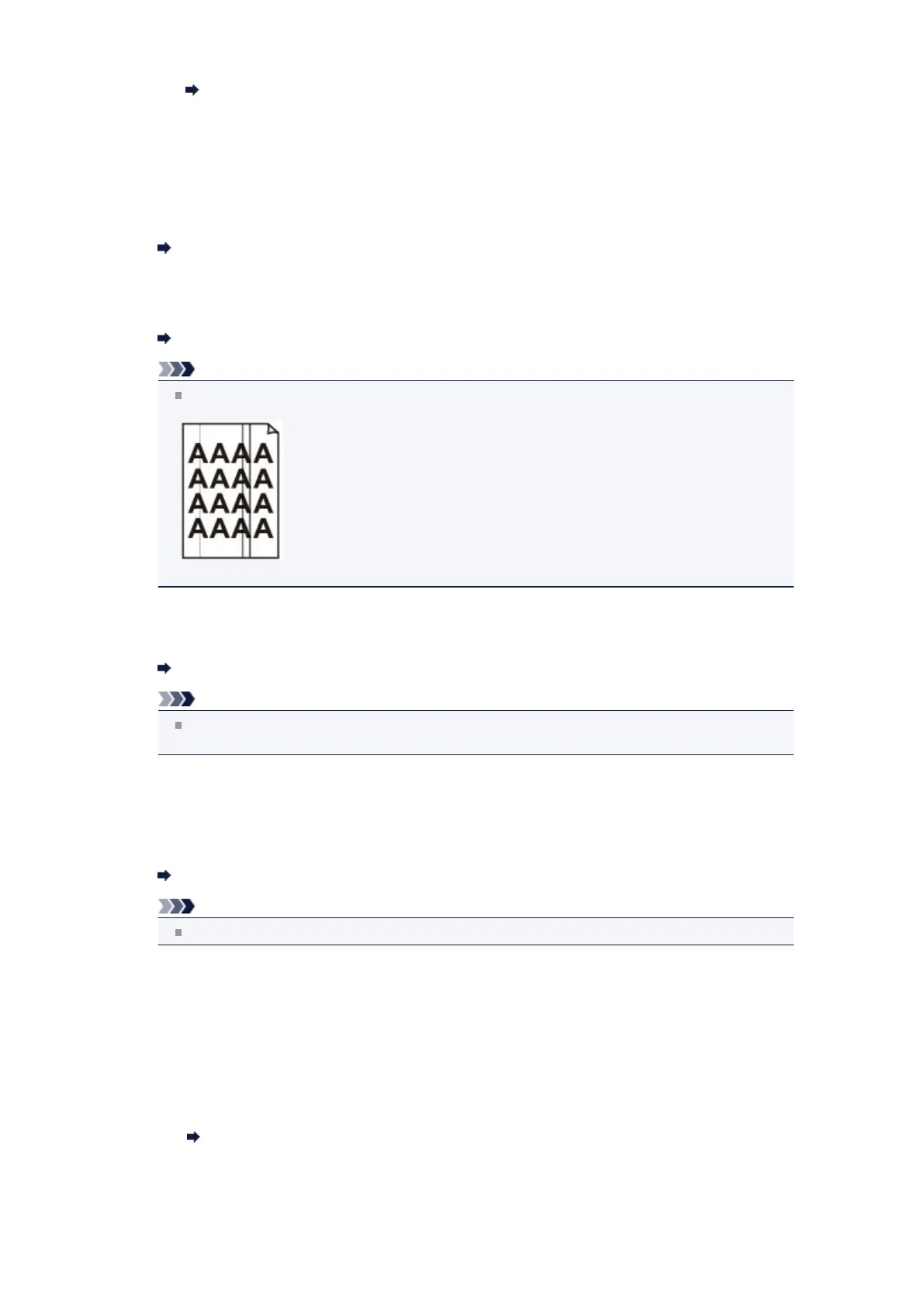
Check 7: Is the platen glass or the glass of ADF dirty?
Clean the platen glass or the glass of ADF.
Cleaning the Platen Glass and Document Cover
Note
If the glass of ADF is dirty, black streaks appear on the paper as shown below.
•
Check 8: Is the paper feed roller dirty?
Clean the paper feed roller.
Cleaning the Paper Feed Roller
Note
Cleaning the paper feed roller will wear the roller, so perform this procedure only when
necessary.
•
Check 9: Is the inside of the machine dirty?
When performing duplex printing, the inside of the machine may become stained with ink, causing the
printout to become smudged.
Perform the Bottom Plate Cleaning to clean the inside of the machine.
Cleaning the Inside of the Machine (Bottom Plate Cleaning)
Note
To prevent the inside of the machine from stains, set the paper size correctly.
•
Check 10: Set the time to dry the printed surface longer.
Doing so gives the printed surface enough time to dry so that paper smudged and scratched are
prevented.
1.
Make sure that the machine is turned on.
2.
Open the Canon IJ Printer Utility.
Opening the Canon IJ Printer Utility
3.
Select Custom Settings in the pop-up menu.






 To Next Page