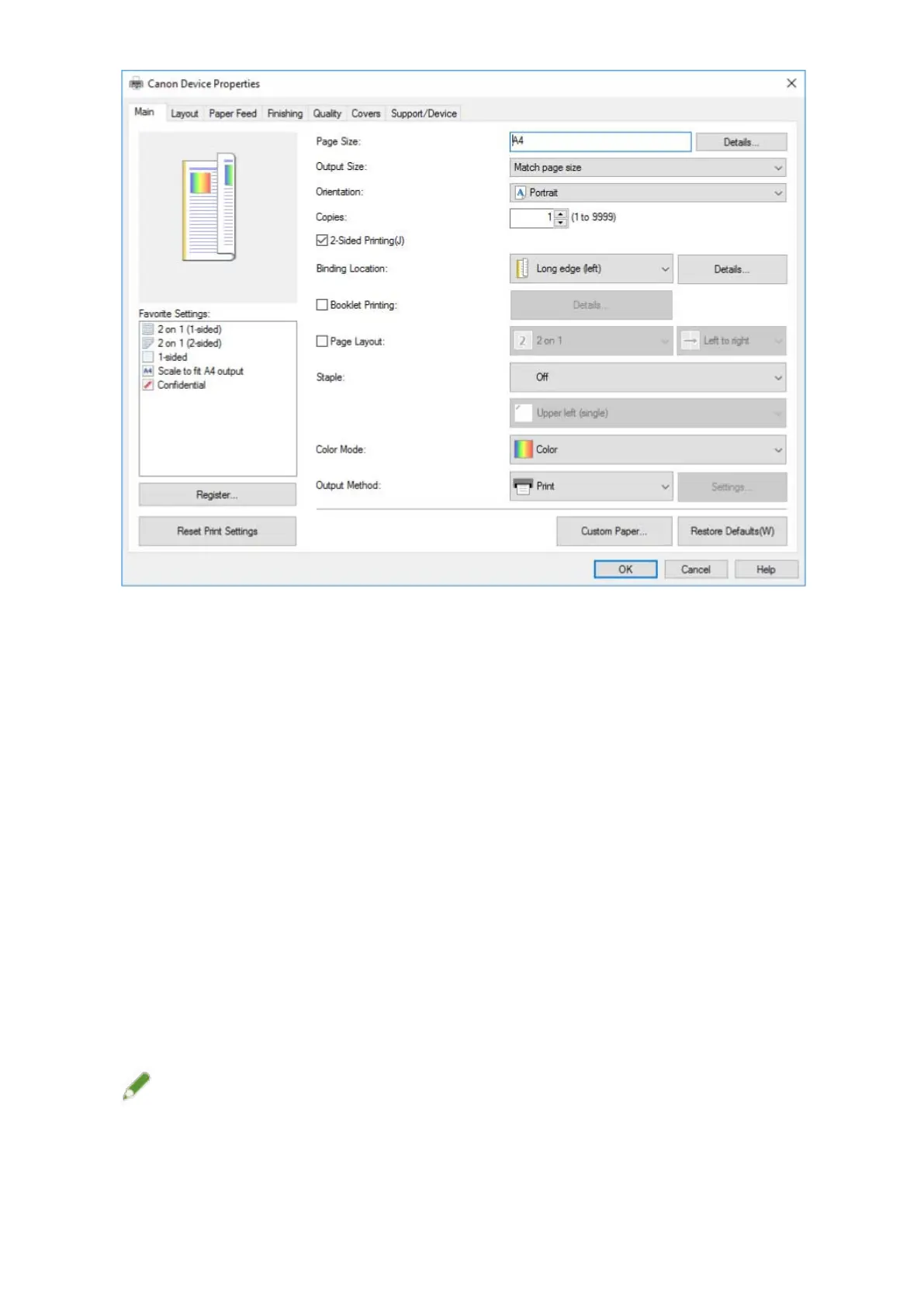
If the above screen is displayed, the operation is nished.
If the standard Windows print settings screen is displayed, perform the following procedure.
5
Start the installer → proceed according to the instructions on the screen.
6
Select [Custom] for [Printer Setup] → click [Next].
7
In the [Select Process] screen, select [Update existing printer drivers] → click [Next].
8
Check [List of Printers for Installation] → click [Start].
9
Click [Exit].
10
Restart the computer after installation is complete.
NOTE
● The driver settings of the server may not be reected in the clients. If this happens, the driver version of the
clients may be older than that of the print server. Make sure that the drivers in the clients are always the
newest and match that of the print server.
Changing Settings to Match the Usage Environment
46



 To Next Page