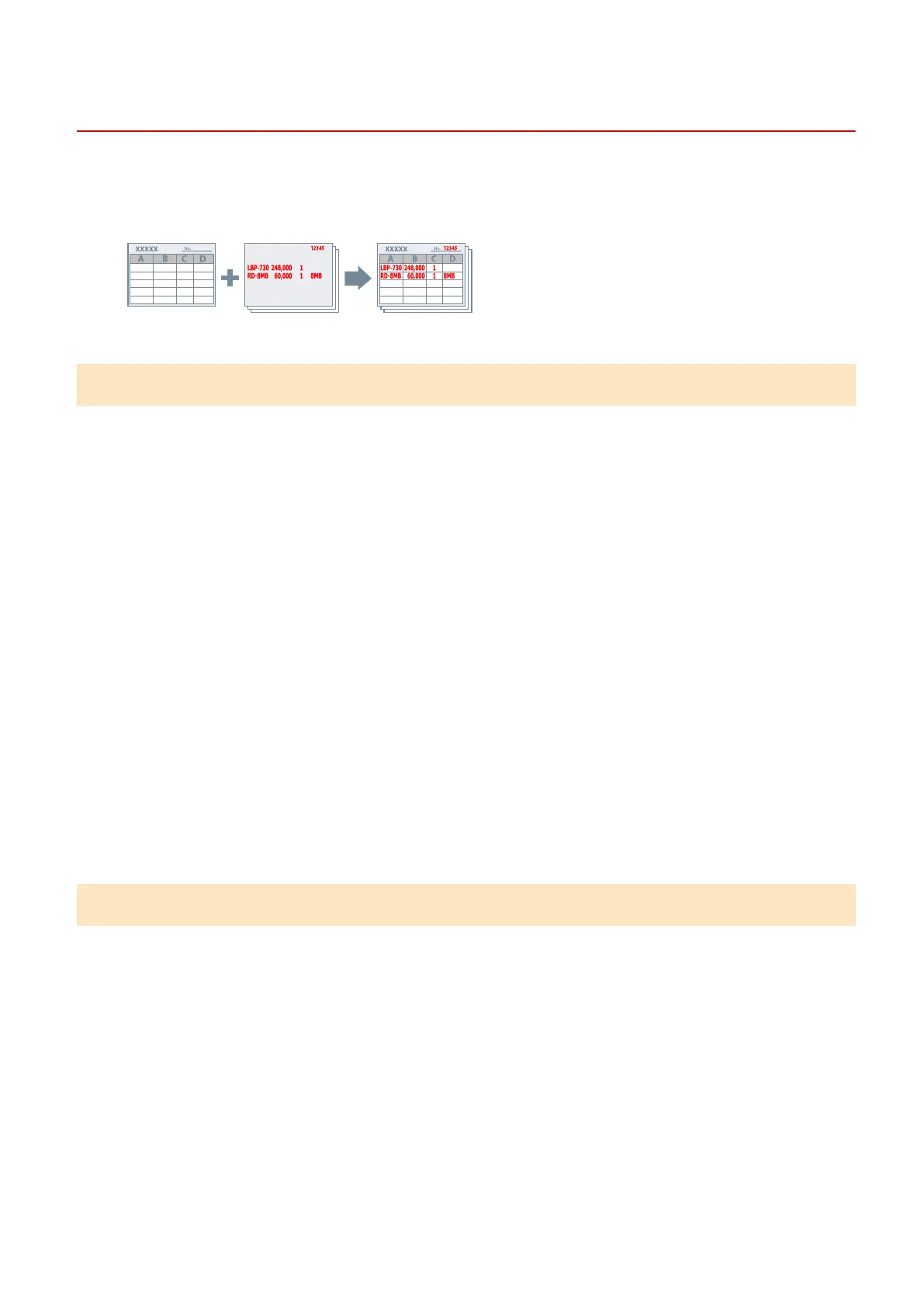
Overlapping Print Data on a Fixed Form
You can print data overlapping a xed form stored in the device. This function is known as overlay printing.
If you are using a created xed form, you must save it beforehand in the device.
To Save a Fixed Form in the Device
1
Select [Print] from the menu of the app → display the print settings screen of the
driver.
2
Display the [Layout] sheet.
3
Click [Overlay].
4
In the [Overlay Settings] dialog box, select [Processing Method] > [Create a form le] →
specify a le name in [File Name] → click [OK].
5
In the print settings screen, click [OK].
6
In the print screen, click [Print] or [OK].
To Perform Overlay Printing
1
Display the [Layout] sheet.
2
Click [Overlay].
3
In the [Overlay Settings] dialog box, select [Processing Method] > [Use Overlay Print].
4
Click [Retrieve Form File Information] → select the form le to use from [File List].
If you cannot acquire information from the device, enter the form le name in [File Name].
Printing
73



 To Next Page