Perfect Binding
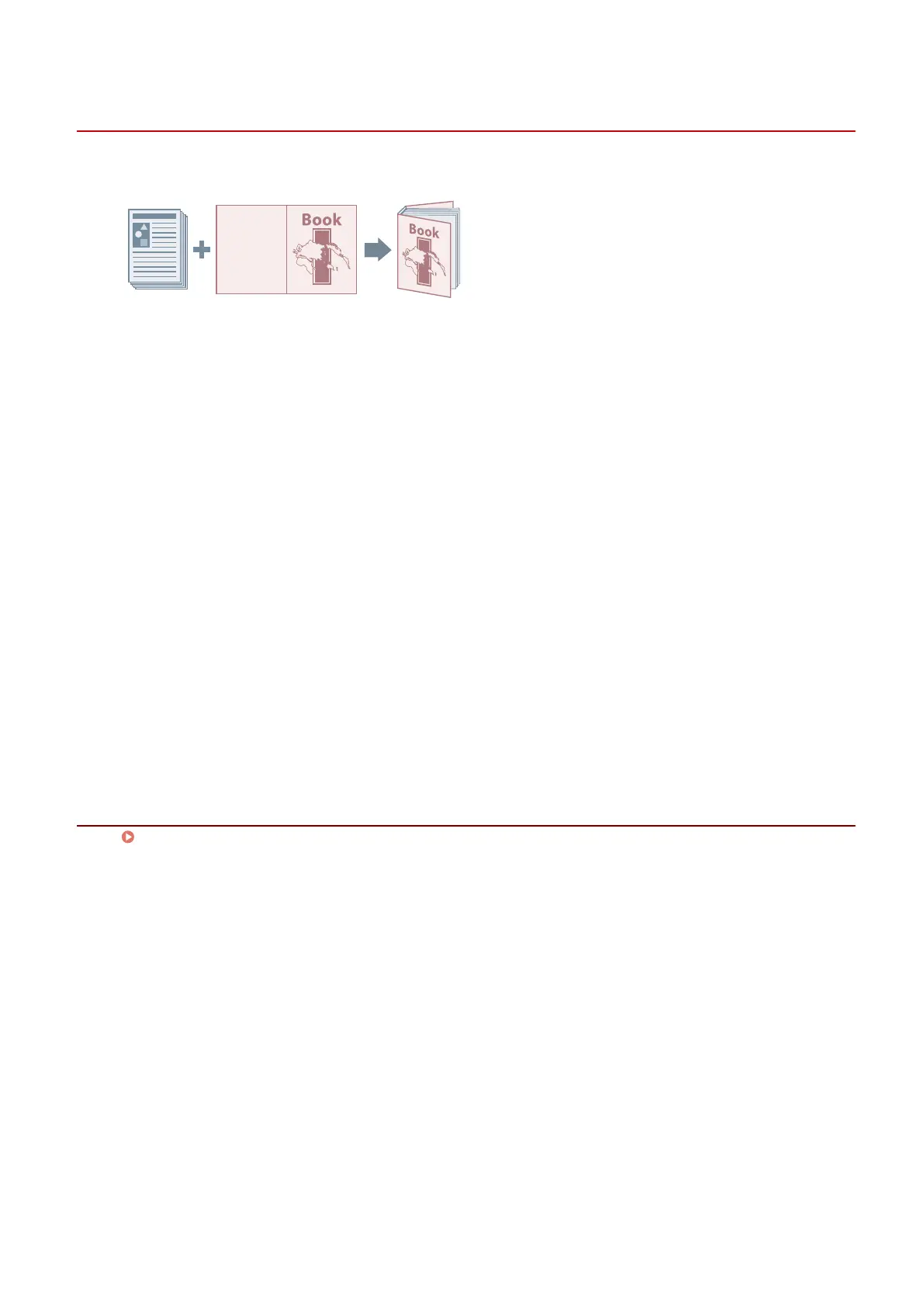
You can apply glue to the gutter side of the contents and encloses them in a cover to create a booklet.
1
Display the [Layout] sheet.
2
Select [Perfect Binding] → click [Details].
3
In the [Perfect Binding Settings] dialog box, set the required items.
When printing on the cover
Set [Perfect Binding Cover Settings] > [Cover Printing].
When adjusting the nishing size
Select [Finishing Settings] > [Specify By].
If you select [Finishing size], select a nished page size from [Finishing Size]. The cover and content pages are
trimmed to match the nished size.
If you select [Trim width], specify the trim widths in [Trim Width (Fore)] and [Trim Width (Top/Bottom)].
4
Click [OK].
Related Topics
[Layout] Sheet(P. 118)
Creating a Booklet
91



 To Next Page