4
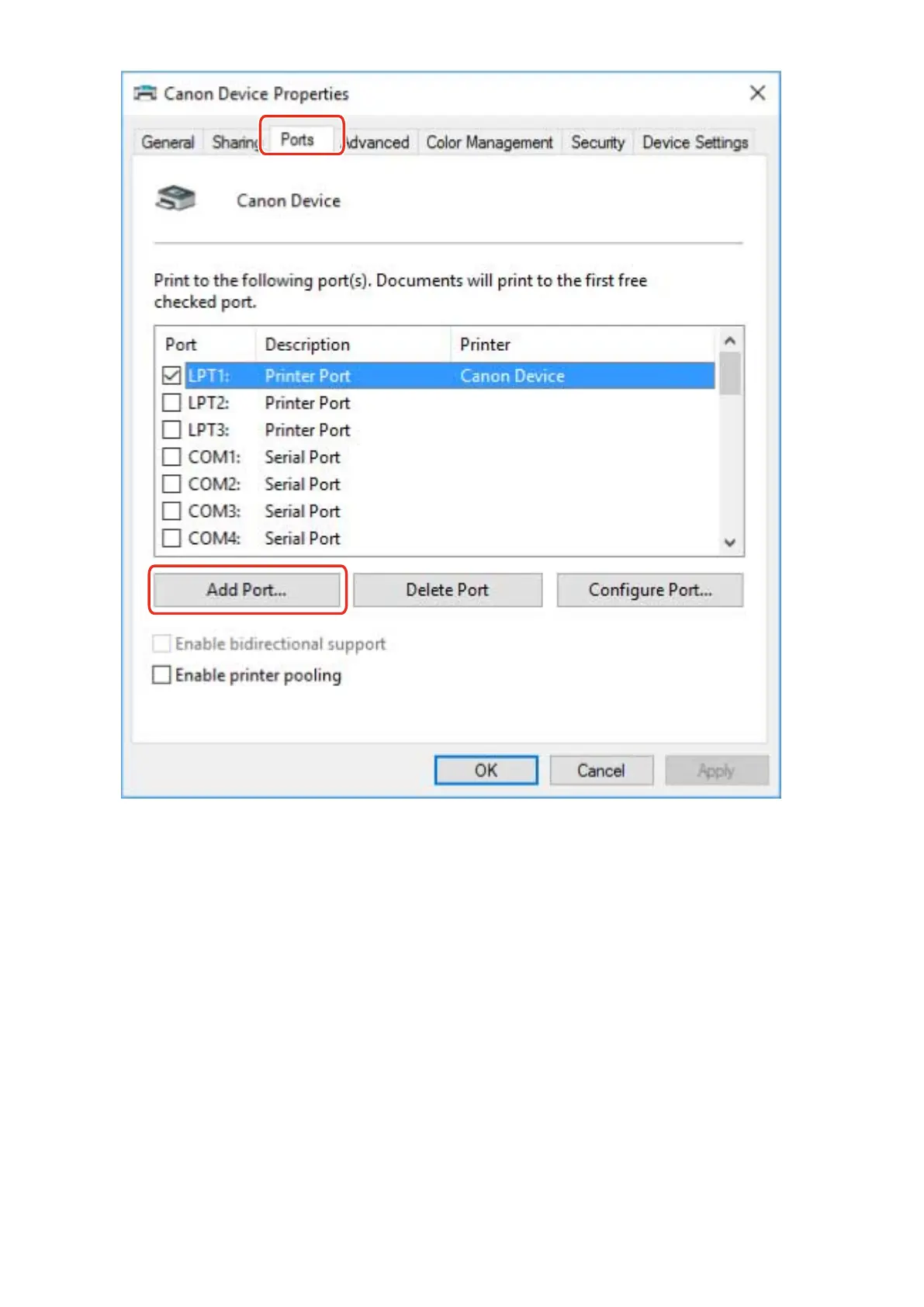
In the [Printer Ports] dialog box, select [Standard TCP/IP Port] from [Available port
types] → click [New Port].
5
Proceed with the operation according to the instructions on the wizard, then enter the
device name or IP address.
[Port Name] is automatically entered. Change the port name if required.
If the [Additional port information required] screen is displayed, click the subsequent "Open details" and
perform the necessary operations.
Perform one of the following.
- Return to the previous screen in the wizard → re-enter the information for [Printer Name or IP Address] →
click [Next].
- Select [Device Type] > [Standard] > [Canon Network Printing Device with P9100] → click [Next].
Depending on the device you are using, the name you select in [Device Type] > [Standard] may differ from
[Canon Network Printing Device with P9100].
6
Click [Finish].
Changing Settings to Match the Usage Environment
49



 To Next Page