NOTE
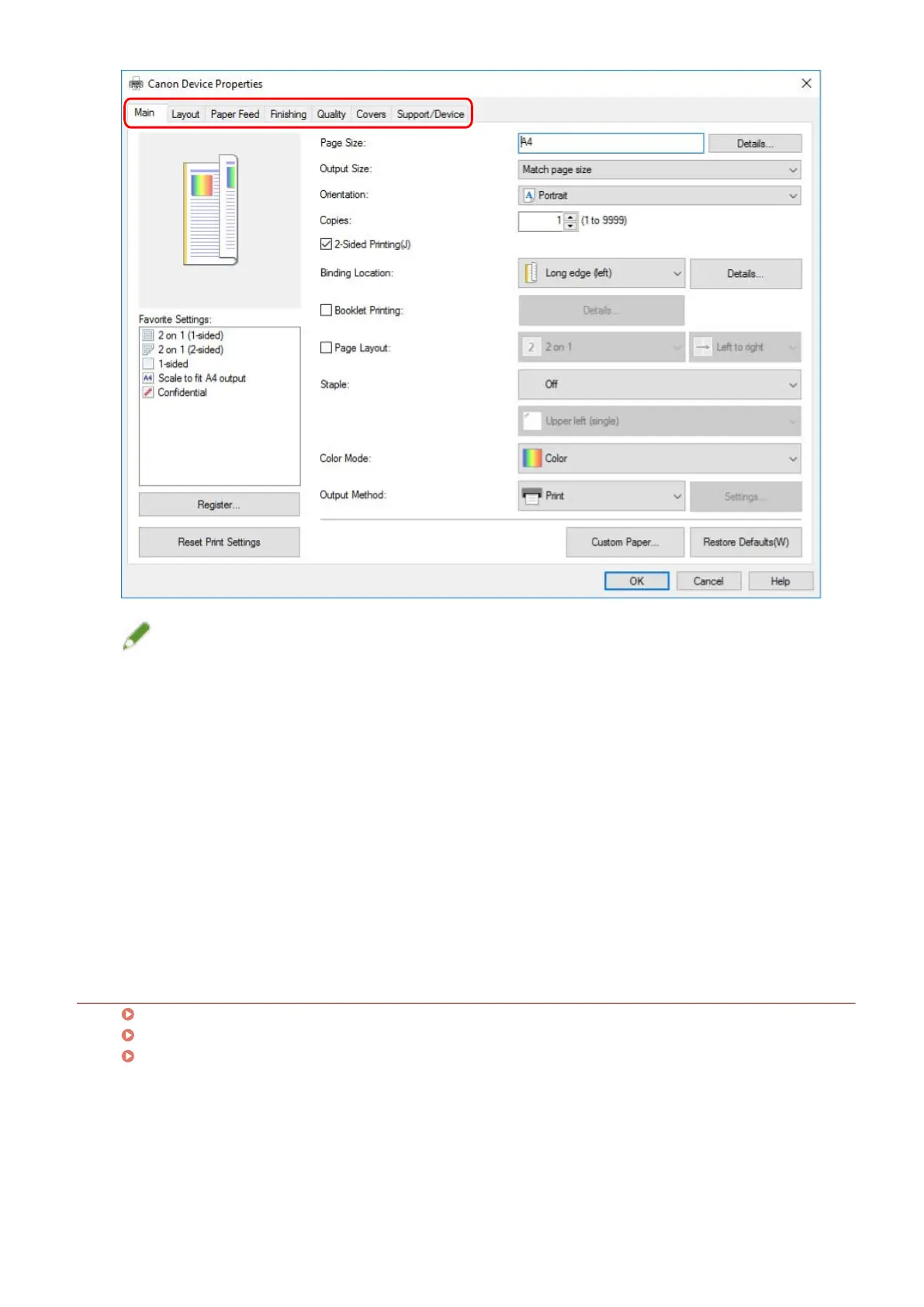
● If the Windows standard print setting screen, which differs from the screen above, is displayed, it may be due
to an error in the environment, settings, or installation state of the driver. Refer to the troubleshooting to
enable the print settings screen of the driver to be displayed.
● If the function you want to use is not displayed in the print settings screen, congure the print settings after
enabling the functions of the device by retrieving the device information etc.
4
Click [OK].
5
In the print screen, click [Print] or [OK].
Related Topics
About This Driver(P. 9)
Making the Device Functions Usable(P. 52)
The Windows standard print settings screen is displayed(P. 139)
Printing
59



 To Next Page