EasyManua.ls Logo

Canon ReallS SX80 - User Manual

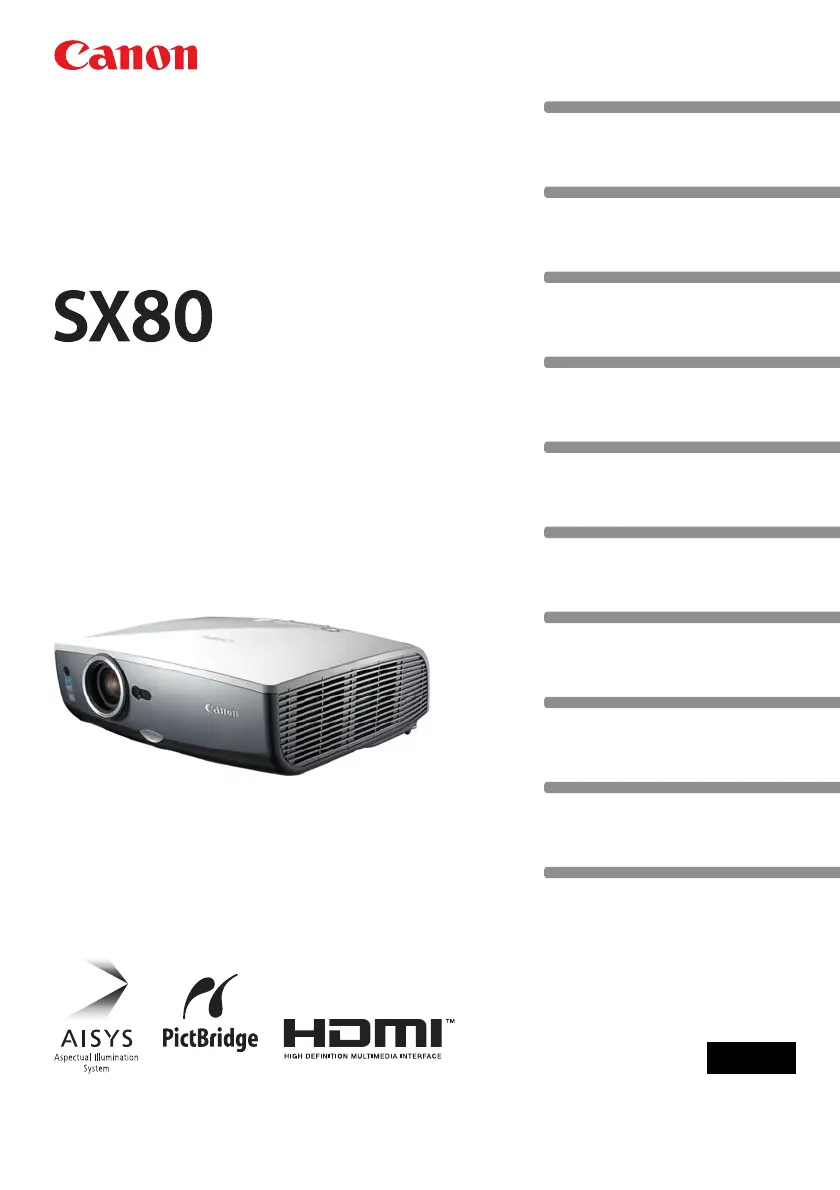
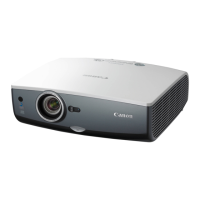
Canon ReallS SX80
148 pages
Print Icon
To Next Page IconTo Next Page
Loading...
Table of Contents
Safety Instructions
Before Use
Projecting an Image
Useful Functions Available During a Presentation
Setting Up Functions from Menus
Projecting an Image from a Digital Camera or an
USB Flash Memory
Connecting the Projector to Network
Appendix
Index
ENG
MULTIMEDIA PROJECTOR
User’s Manual

Table of Contents

Questions and Answers

  • D
    David ColemanJul 30, 2025
    Why my Canon Projector won't turn on?
    • S
      Seth WelchJul 30, 2025
      If your Canon Projector won't turn on, there might be several reasons: * The power cord may not be correctly connected. Ensure it's properly plugged in. * If you've just connected the power cord, wait until the POWER indicator turns red before attempting to turn on the projector. * The lamp cover might be open. Unplug the power cord, correctly install the lamp cover, and then try turning the projector on again. * The safety device might have activated due to putting the projector in the carrying bag while the cooling fan was rotating, or because the air intake or exhaust vent is blocked. In these cases, contact your dealer.
  • R
    Renee DavidsonAug 14, 2025
    Why is the image blurry on my Canon ReallS SX80 Projector and how to fix it?
    • C
      Charles DoughertyAug 14, 2025
      If you're experiencing blurry images with your Canon Projector, here's what you can do: * Adjust the focus to sharpen the image. * Ensure the distance to the screen is appropriate. If it's shorter than approximately 1.2m (3.9'), the projector may not be able to focus. * Make sure the projector is placed straight in front of the screen. Use the keystone adjustment function to correct any slight angle errors. * If the projector has been moved from a low-temperature place to a high-temperature place, condensation may have formed on the lens. Wait for it to evaporate. * Clean the lens if it's stained.
  • L
    Leslie CrawfordAug 19, 2025
    How to troubleshoot sound issues with my Canon ReallS SX80?
    • A
      ashleymillerSep 12, 2025
      If you can't hear any sound from your Canon Projector, try the following: * Check the audio cable connection to ensure it's correctly connected. * Make sure the MUTE function is not enabled by pressing the MUTE button on the remote control. * Adjust the volume level by pressing the VOL button on the remote control or the VOL+ button on the top control. * If you are using an audio cable, make sure it does not have a built-in resistor; use an audio cable without one.
  • A
    Alison JamesAug 25, 2025
    What to do if Canon ReallS SX80 Projector remote control is not working?
    • S
      Stephanie IrwinAug 25, 2025
      If you're unable to operate the remote control for your Canon Projector, consider the following: * Check that the batteries are installed correctly or replace them with new ones. * Ensure you are operating the remote control within its operating range. * Remove any obstacles between the projector and the remote control. * Make sure the projector's infrared remote receiver is not exposed to direct sunlight or strong light. * Verify that the channel setting of the remote control matches the setting of the projector. You can check the [Remote control] setting in the [System settings] menu. * Check whether [Key lock] is enabled to disable the remote control operation. In the System settings menu, set [Key lock] to [Off].
  • S
    susan96Nov 3, 2025
    How to fix Canon ReallS SX80 if it is not projecting an image?
    • A
      Arthur WilsonNov 3, 2025
      If you're not getting any image from your Canon Projector, consider these potential causes: * A connection cable might be incorrectly connected. Ensure the projector is correctly connected to the computer or AV equipment. * If it has not passed 20 seconds since the projector was turned on, wait for the Opening window to disappear, or press the OK button. * No image may be sent from the AV equipment. Check that an image is playing on the connected digital camera, video camcorder, DVD, etc. * The wrong video terminal or signal type might be selected. Ensure the correct video terminal and signal type are selected. * No input signal type might be selected. Press the INPUT button to select an appropriate input signal type. * The video signal type might be incorrect. Check whether t...
  • T
    Taylor BairdNov 8, 2025
    What to do if Canon Projector is forced to be turned off?
    • B
      Bruce PerkinsNov 8, 2025
      If your Canon Projector is being forced to turn off, it could be due to: * Blocked air intake or exhaust vent. Ensure these vents are not blocked. The projector will automatically turn off if the internal temperature rises too high. Wait for the temperature to decrease before turning it back on. * A dirty air filter. Check the bottom air filter for dust and clean or replace it if necessary. * The lamp has exploded or is defective. Check the lamp and replace it if needed. If it hasn't exploded, try replacing it with a spare lamp to check if it is defective. * Inappropriate operating temperature. Ensure the operating temperature is between 5 to 35°C. If you are using the projector at 2300 meters or higher above sea level, contact your dealer. * Other reasons: The projector may be ...

Summary

Safety Instructions

Safety Precautions

Details important warnings and precautions for safe operation and handling of the projector.

Before Use

Projecting an Image

Steps for Setting Up and Projecting

Provides a flowchart outlining the sequence for connecting, powering on, and projecting an image.

Connecting External Devices

Guides on connecting computers, AV equipment, digital cameras, and USB flash memories to the projector.

Starting Projection

Setting Up the Screen Automatically

Auto Setup Function

Details the automatic setup process for input signal, focus, keystone, and screen color correction.

Selecting an Input Signal

Adjusting Image

Setting Up Functions from Menus

Projecting an Image from a Digital Camera or USB Flash Memory

Projecting from Digital Camera

Details connecting and projecting images directly from a PictBridge-compatible digital camera.

Projecting from USB Flash Memory

Explains connecting and projecting images from a USB flash memory via the USB file browser.

Connecting the Projector to Network

Network Configuration and IP Address

Guides on assigning an IP address to the projector for network connectivity and error reporting.

Appendix

Troubleshooting Common Issues

Provides solutions for common projector issues like power, image, sound, and remote control problems.

Projector Maintenance

Covers cleaning the projector, air filter, and replacing the lamp for optimal performance.

Canon ReallS SX80 Specifications

General IconGeneral
BrandCanon
ModelReallS SX80
CategoryProjector
LanguageEnglish

Related product manuals