Notes on Operating Environment
1-9
1
Before Use
Enabling the Sound Function to Use Audio
In Windows Server 2008/Windows Server 2012, the sound
function is disabled by default.
To receive audio with the Viewer, follow the steps below to
enable the sound function.
Note
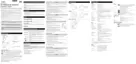
If [Control Panel] is in the classic view, double-click [Sound].
Notes on Use with Windows Vista/
Windows 7/Windows 8/Windows Server
2008/Windows Server 2012
The following restrictions apply.
RM-Lite
For more important information on the RM-Lite operating
environment, see the “Administrator Manual.”
Notes for Windows 8/Windows Server
2012
Each software application, including Admin Viewer and
Admin Tools, can be started from the desktop screen
only. They cannot be started from the Start screen.
2
Clear the [Do not save encrypted pages to disk]
checkbox in [Security].
Important
Note that when IE Enhanced Security Configuration is turned
back on, the [Do not save encrypted pages to disk] checkbox
also becomes enabled.
1
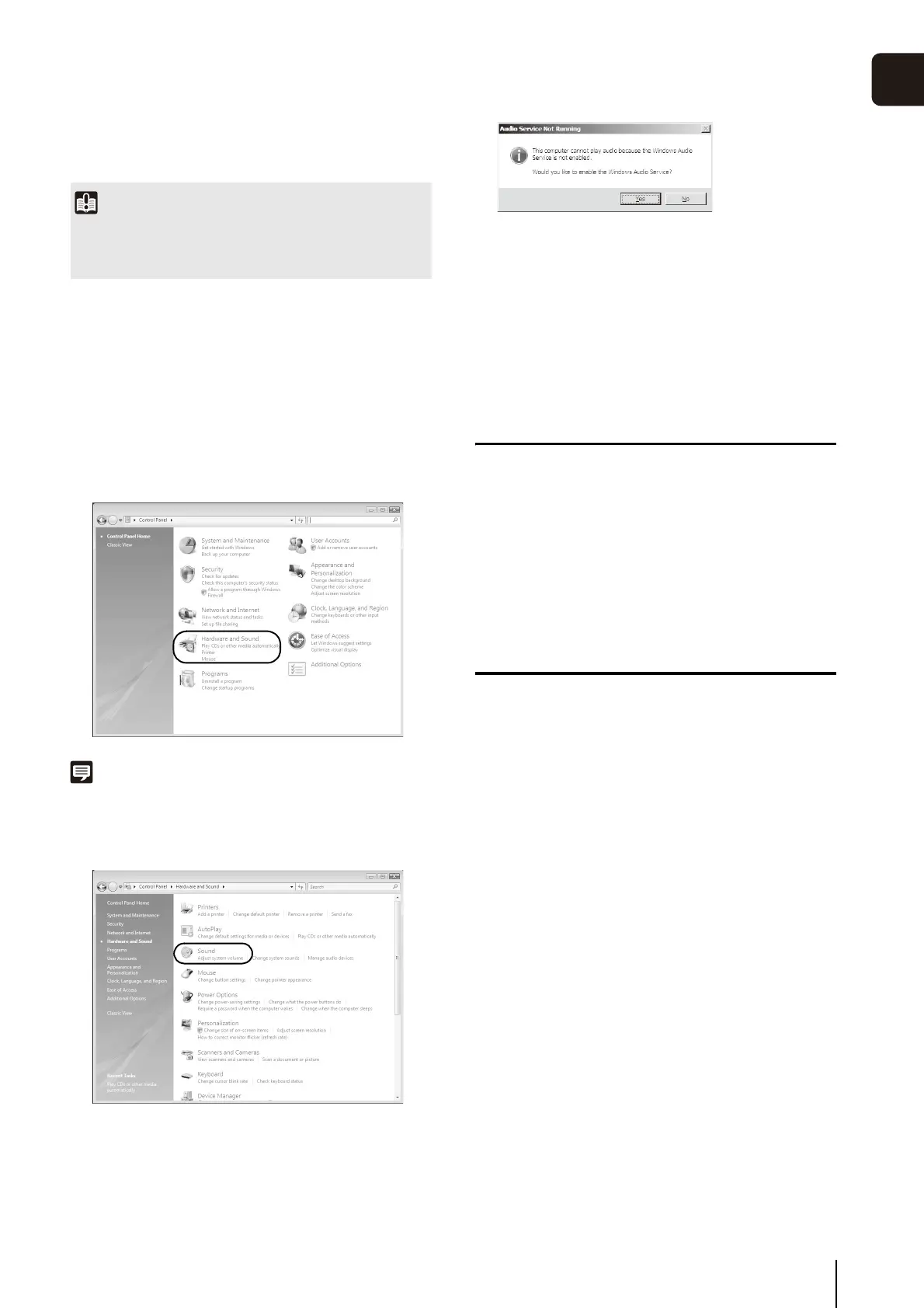
Open [Control Panel] and click [Hardware and Sound].
2
Click [Sound].
3
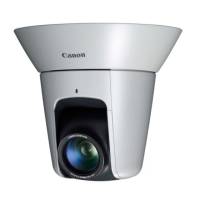
When the [Audio Service Not Running] message
appears, click [Yes].
4
The [Sound] dialog box appears.
Click the [Playback] tab to confirm that an audio device
has been installed. (If no audio device is installed, refer
to your PC manual.)


 To Next Page