EasyManua.ls Logo

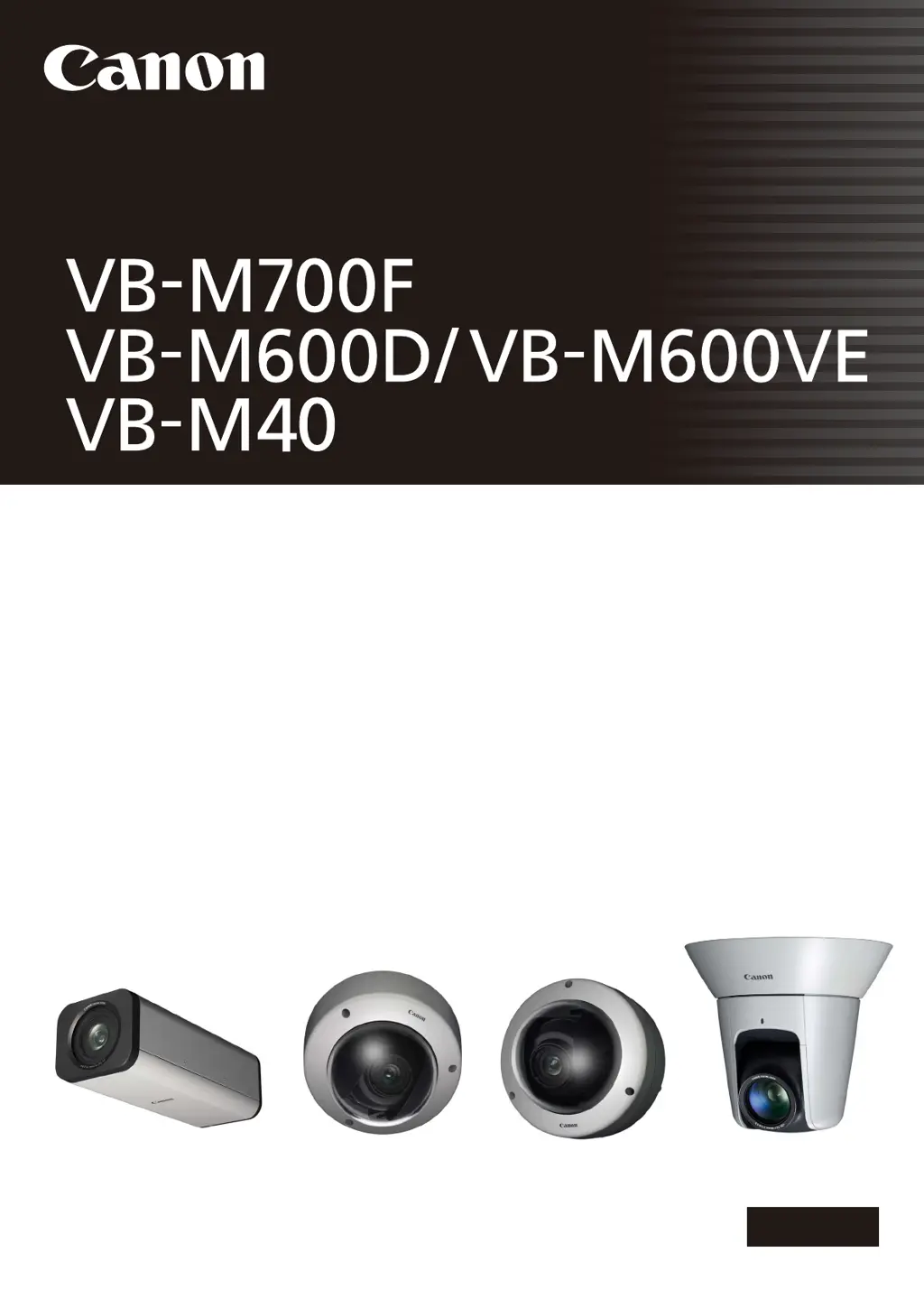
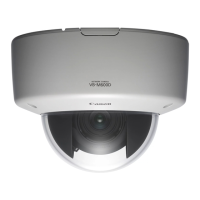
Canon VB-M600D - User Manual

Canon VB-M600D
159 pages
Print Icon
To Next Page IconTo Next Page
Loading...
ENGLISH
Network Camera
Operation Guide
Be sure to read this Operation Guide before using the network camera.

Table of Contents

Other manuals for Canon VB-M600D

Questions and Answers

  • T
    Todd WilliamsAug 21, 2025
    How to troubleshoot a Canon VB-M600D Security Camera that does not start?
    • T
      Tyler PatelAug 21, 2025
      If your camera isn't starting, check the following: * If you're using a PoE HUB, ensure the LAN cable is correctly connected. * If using an optional AC adapter, verify it's properly connected. * Try turning the camera off and on again.
  • A
    Amber MillerAug 23, 2025
    Why is the top page of my Canon Security Camera not displayed?
    • D
      Dr. Angela Foley MDAug 23, 2025
      If the top page of the camera isn't displaying, check these items: * Ensure the LAN cable is correctly connected. * Verify the network to which the camera is connected is set up correctly, specifically the IP address, subnet mask, and default gateway address are within supported ranges. * If you changed the IP address, reboot the camera for the new address to take effect. * Confirm the correct URI (camera IP address) is entered in your web browser.
  • M
    mjordanAug 26, 2025
    What to do if video is not displayed on my Canon VB-M600D?
    • J
      Joel CastilloAug 26, 2025
      If the video is not displayed, consider the following: * Adjust image size, quality and frame rate settings to improve video quality. * Note that the camera can only support up to 30 viewers simultaneously. If this limit is exceeded, video will not be displayed.
  • B
    Brent ReevesAug 28, 2025
    Why VB Initial Setting Tool does not operate with my Canon VB-M600D Security Camera?
    • R
      Roger MoraAug 28, 2025
      If the VB Initial Setting Tool isn't operating, consider these potential causes: * Ensure the LAN cable is correctly connected. * Try turning the camera off and on again. * Verify that the camera and the PC running the VB Initial Setting Tool are connected to the LAN in the same segment. * The VB Initial Setting Tool may not function when the Windows Firewall is enabled. * Check if you are using an older version of the VB Initial Setting Tool.
  • H
    Holly PhillipsAug 30, 2025
    Why is there no audio from my Canon Security Camera?
    • T
      Tina FrancoAug 30, 2025
      If there is no audio, check the audio server settings of the camera and also check the sound and audio device settings for the PC. If you are using the Admin Viewer with the administrator authorities, check if the camera is connected to the RM-Lite Viewer or another viewer that lets the administrator use audio. Audio cannot be received if you are using a proxy server, when connected via SSL encrypted communications or during IPv6 connection. Also, audio cannot be used if add-ons are not installed.
  • A
    Andrea HughesSep 1, 2025
    What to do if Camera Angle Setting Tool does not operate for Canon VB-M600D Security Camera?
    • J
      Judy YuSep 1, 2025
      If the Camera Angle Setting Tool isn't working, check these items: * Ensure the LAN cable is correctly connected. * Verify the camera and the PC running the Camera Angle Setting Tool are connected to the LAN in the same segment. * If you see the message “Could not launch application. Install .NET Framework 3.5 (SP1 or later).”, install .NET Framework 3.5 (SP1 or later) or enable settings.
  • S
    Savannah ClarkSep 5, 2025
    Why data cannot be uploaded from my Canon VB-M600D?
    • A
      Anthony SteinSep 5, 2025
      If data cannot be uploaded, verify the upload destination in the [Upload] menu, and the upload operation upon event in the [Event] menu, to ensure both are set correctly. You can perform an operation check based on the currently set upload destination by running a test from the [Upload] menu. Check [View Logs] in the [Maintenance] menu or logs on the server to check the detailed operating environment. For the server settings, contact your System Administrator.
  • M
    Misty MillerSep 7, 2025
    Why does the viewer get disconnected from my Canon VB-M600D?
    • P
      Pamela ValdezSep 7, 2025
      If the viewer gets disconnected, check the network and PC for any abnormalities. Try rebooting the PC and connecting again.
  • K
    Kimberly ScottSep 9, 2025
    Why the Canon VB-M600D Security Camera cannot be controlled?
    • W
      Wendy HarmonSep 9, 2025
      If you connect the Admin Viewer as an administrator, you will have exclusive possession of the camera control privileges. If you connect to the Admin Viewer as an Authorized User, you cannot control the camera unless the administrator releases camera control.
  • T
    Thomas MezaSep 10, 2025
    What to do if I forgot my Canon VB-M600D Security Camera password?
    • T
      thomasandradeSep 12, 2025
      If you've forgotten your password, you can initialize all settings of the camera, excluding date and time, using the reset switch. The administrator password required for initialization is “camera”. Note that network settings such as the IP address and subnet mask will be initialized and must be set again.

Summary

Safety Precautions

Maintenance

Chapter 2 Initial Settings

Preparing the Camera for Use

Overview of steps for preparing the camera for initial use.

Initial Setting Tool Installation

Instructions for installing the initial setting tool.

Initial Settings

General guidance on performing initial settings for the camera.

Chapter 3 Camera Angle Setting Tool

Camera Angle Setting Method

Guide to adjusting camera angle and capture orientation.

Creating a Camera Specification File to Manage Multiple Cameras

How to create a CSV file for managing multiple camera connections.

Chapter 4 Top Page of the Camera

Accessing the Setting Page, Admin Tools and Viewer

Overview of navigating to camera settings, admin tools, and viewer.

Chapter 5 Setting Page

Administrator Password and Network Detailed Settings

Settings for administrator password, LAN, IPv4, IPv6, DNS, and SNMP.

Camera Date and Time Settings

Configuration for camera date, time, and time zone settings.

Camera Name and Initial Camera Settings Related Settings

Settings for camera name, initial settings, and device names.

Image Size and Quality Settings

Adjustments for JPEG and H.264 image size, quality, and frame rate.

Upload and E-mail Notification Settings

Configuration for HTTP/FTP upload and e-mail notification settings.

Image Server, Audio Server and HTTP Server Settings

Settings for image, audio, and HTTP servers.

Settings Related to Events

Configuration for image buffer, volume detection, external input, and timer events.

User Registration;Authorities and Access Restriction Settings

Settings for user accounts, authorities, and access restrictions.

IPsec Settings

Configuration settings for IPsec security.

HTTP Communication Encryption (SSL;TLS) Settings

Settings for creating and managing SSL/TLS certificates for secure communication.

SD Memory Card Operations and Displaying Information

Operations and information display for the SD memory card.

Settings for Items Requiring Rebooting

Lists settings that require a camera reboot to take effect.

Maintenance (Displaying Log and Setting Information;Rebooting;Factory Default Settings)

Tools for viewing logs, current settings, and performing maintenance.

Operating Environment

VB Initial Setting Tool, Camera Angle Setting Tool, VB-M700;600;40 Viewer, Admin Tools

System requirements for setting tools, viewers, and admin tools.

Notes on Operating Environment

Notes on Use When the [Windows Firewall] Function is Enabled

Procedure to add VB Initial Setting Tool as a Windows Firewall exception.

Preparing the Camera for Use

Performing Initial Settings for the Camera

Steps to configure the IP address using the VB Initial Setting Tool.

Using VB-M700;600;40 Viewer

Explanation of Admin Viewer and VB Viewer for administrators and guest users.

Checking Images

How to access the camera via a web browser and check the image.

Installing the Camera

Instructions on how to install the camera to suit the operating environment.

Setting the Camera Angle

Using the Camera Angle Setting Tool to adjust the camera angle.

Configuring the Camera from the Setting Page

How to configure camera settings, network operations, and user registration.

Using Admin Tools

Overview of Admin Tools for settings, viewing restrictions, and intelligent functions.

Installing the Necessary Software

Notes on Use with Internet Explorer 9 or Greater and Windows Server 2003;Windows Server 2008;Windows Server 2012

Procedure to register the camera's top page as a trusted site in Internet Explorer.

Performing Initial Settings for the Camera

Setting the Camera Angle

Launching the Camera Angle Setting Tool

Steps to launch the Camera Angle Setting Tool application.

Connecting with a Camera List

How to connect to cameras using a previously created camera specification file.

Disconnecting from the Camera, Shutting Down

Steps to disconnect from the camera and shut down the tool.

Set Using the Operation Buttons and Sliders

How to use buttons and sliders to adjust pan, tilt, and rotation.

Connecting to the Camera

Instructions for establishing a connection with the camera.

Loading a Camera Specification File

Procedure to load a camera specification file into the tool.

Setting Focus and Exposure Compensation

Setting the Focus

Options for setting focus manually or fixing it at infinity.

Setting the Exposure

Adjusting image brightness using exposure compensation and metering modes.

Accessing the Top Page of the Camera

User Authentication

Details on required username and password for accessing camera functions.

[Network] Setting Administrator Password, LAN, IP Address, DNS, etc

[Camera] Setting Initial Camera Settings and External Device Name

[Video] Setting Image Size, Quality and Frame Rate

[Upload] Setting HTTP;FTP Upload and E-mail Notification

[Server] Setting the Image Server, Audio Server and HTTP Server

[Event] Setting Image Buffer, Volume Detection, External Device Input, Audio Playback and Timer

[Access Control] Setting User Access Privileges

[IPsec] Setting IPsec

[SSL;TLS] Setting HTTP Communication Encryption

[Memory Card] SD Memory Card Operations and Settings

[Reboot Item] Setting Items Requiring Rebooting

[Maintenance] Viewing Event Logs and Current Settings and Performing Maintenance

Chapter 6 Admin Tools

Privacy Mask Setting Tool

Display Screen of Privacy Mask Setting Tool

Overview of the interface and controls for setting privacy masks.

Setting the Privacy Mask Area

Procedure to set the position and size of a privacy mask area.

Changing;Deleting a Privacy Mask Area

How to modify or remove existing privacy mask areas.

Panorama Creation Tool

View Restriction Setting Tool

Preset Setting Tool

Intelligent Function Setting Tool

Setting Intelligent Function Detection Settings

Procedure to set detection areas, criteria, and operations for intelligent functions.

Setting Intelligent Function Detection Settings

Setting Detection Criteria ([Detection Criteria] tab)

Specifying detection criteria like area shape, color, and size.

Setting a [Polygonal] detection area

Setting Detection Criteria per Detection Type

Specifying detection criteria for moving, abandoned, and removed objects.

Log Viewer

Display Screens of Log Viewer

Overview of the Log Viewer interface and its functions.

Saving a Log to a File;Opening a Saved Log

Copying;Searching Logs

Methods for copying selected logs or searching logs by character string.

Chapter 7 Admin Viewer;VB Viewer

Differences between the Admin Viewer and the VB Viewer

Comparison of features and operable ranges between Admin and VB Viewers.

Viewer Startup and Operation

Information on launching and operating the Admin Viewer and VB Viewer.

Camera Control and Obtaining Camera Control Privileges

Procedure for obtaining and managing camera control privileges.

Admin Viewer Operation and Settings

Details on performing operations and settings specifically in the Admin Viewer.

Overview of Viewer

Major Differences Between the Admin Viewer and the VB Viewer

Comparison of operable ranges and accessible controls between viewers.

User Authorities and Camera Control Privileges

Table detailing user authorities and their camera control privileges.

How to Operate the Viewer

Obtaining Camera Control Privileges

Procedure for obtaining camera control privileges to operate the camera.

Controlling the Camera

Changing the Camera Angle

How to adjust the camera's angle using pan and tilt sliders or the image.

Changing the Camera Zoom Ratio

Methods for changing the camera's zoom ratio using sliders or panorama display.

Performing Operations and Settings as the Administrator

Magnifying Part of the Image (Viewer PTZ)

Using Viewer PTZ to magnify parts of the camera image using digital zoom.

Adjusting the Smart Shade Control

Adjusting the smart shade control level to brighten dark areas.

Adjusting the Preview Frame Size

How to resize the preview frame to adjust the magnified view.

Setting White Balance

Setting the Night Mode

Switching between Day and Night modes and their implications.

Chapter 8 Appendix

Troubleshooting

Common problems and their countermeasures for camera operation.

List of Log Messages

Classification and description of log messages generated by the camera.

List of Viewer Messages

Messages displayed in the viewer's information field and their explanations.

Restore Settings

Procedures for restoring initial settings from the web browser or reset switch.

List of Factory Default Settings

Table listing all factory default settings for camera functions.

Troubleshooting

List of Log Messages

List of Viewer Messages

Restore Settings

Restoring the Initial Setting from the Maintenance Page in the Web Browser

Procedure to restore factory default settings via the web browser maintenance page.

Restoring Factory Default Settings with the Reset Switch on the Camera

Steps to restore factory defaults using the camera's reset switch.

List of Factory Default Settings

Canon VB-M600D Specifications

General IconGeneral
BrandCanon
ModelVB-M600D
CategorySecurity Camera
LanguageEnglish

Related product manuals