36
E
Recording
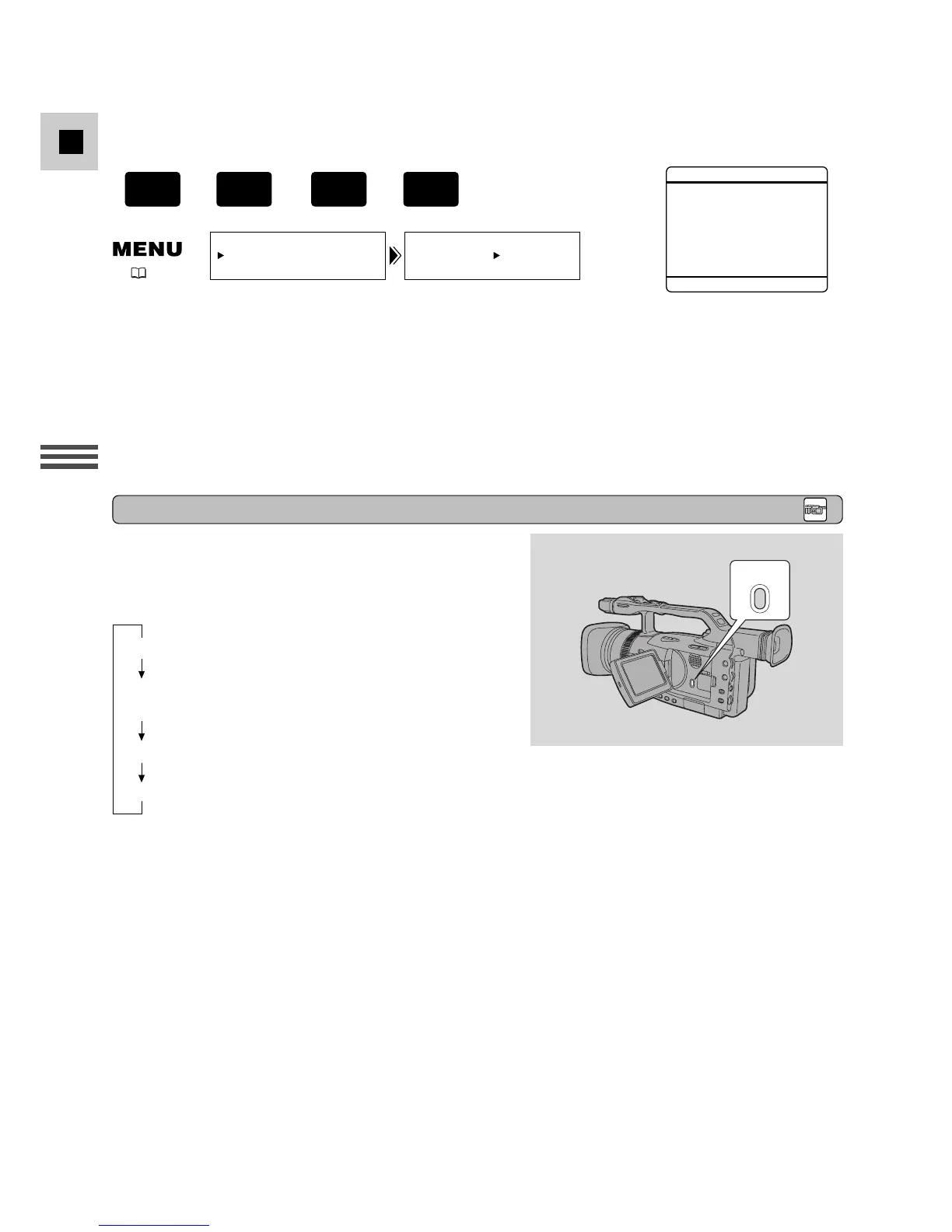
Turning the Camcorder Recording Displays ON/OFF
You can change the display by pressing the
DISPLAY/DATA CODE button.
Each time you press the DISPLAY/DATA CODE button,
the display will change as follows:
* Appears when GUIDE INFO is set to D/T DISPLAY in the DISP. SET UP submenu (CAMERA menu).
Notes:
• The display becomes reset when you turn the power off by the POWER switch or standby lever.
• The same information will be displayed on a connected TV screen (TV SCREEN function).
• The audio level indicator can be displayed or hidden through the menu independently from the
DISPLAY/DATA CODE button.
The 16:9 guides allows you to view the 16:9 wide screen composition while in the standard 4:3
aspect ratio. The 16:9 guides will not be superimposed on your recordings.
1. Open the menu and select DISP. SET UP.
2. Select 16:9 GUIDES, set it to ON and close the menu.
Notes:
• “16:9” is shown in the display when you turn the 16:9 effect on.
• If you play back a recording made for 16:9 on a normal TV screen, the image will appear to be
vertically “squashed” (compressed).
+
,
+



 To Next Page