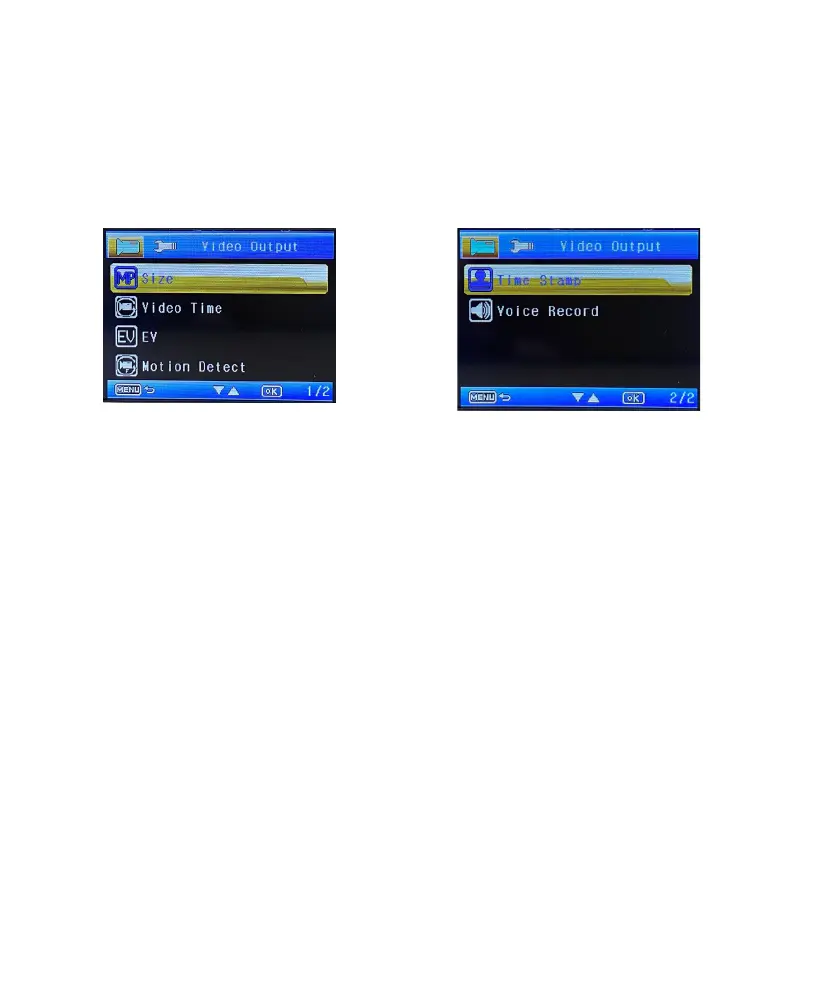
Use the Up/Down buttons to select the setting item, press the OK button to confirm.
Press the Menu button again to exit the current settings and return to previous screen.
In Recording standby mode, press the Menu button to enter Video recording settings.
Size
Set your recording video output resolution (1080P, 720P or VGA).
Video Time
Set the length of each video clip for a continuous recording (O, 1 min., 3 min., 5 min. or 10 min.).
Motion detect
1. When the device is in standby, bring up “Motion Detection” in the settings menu and make sure
“On” is selected.
2. When an object comes into your camera’s field of view in standby mode, the device will auto-
matically turn on and begin recording. It will only stop when it doesn’t see any movement after 20
seconds.
Attention: Please do not use the Motion Detection feature while driving. The recording will repeat-
edly play/ pause which will aect the video’s quality and duration.
Time stamps
Enable/Disable the date and time information display.
Voice Record
Allows you to turn ON and OFF audio recording. The default settings is on.
EV
Set the exposure level to adjust the brightness of the image. The default settings are 0.
4. Settings
4-1 Video Recording Settings
9 EN


 To Next Page