Using and Maintaining the Imager
2010-11-04 2G8647 2-5
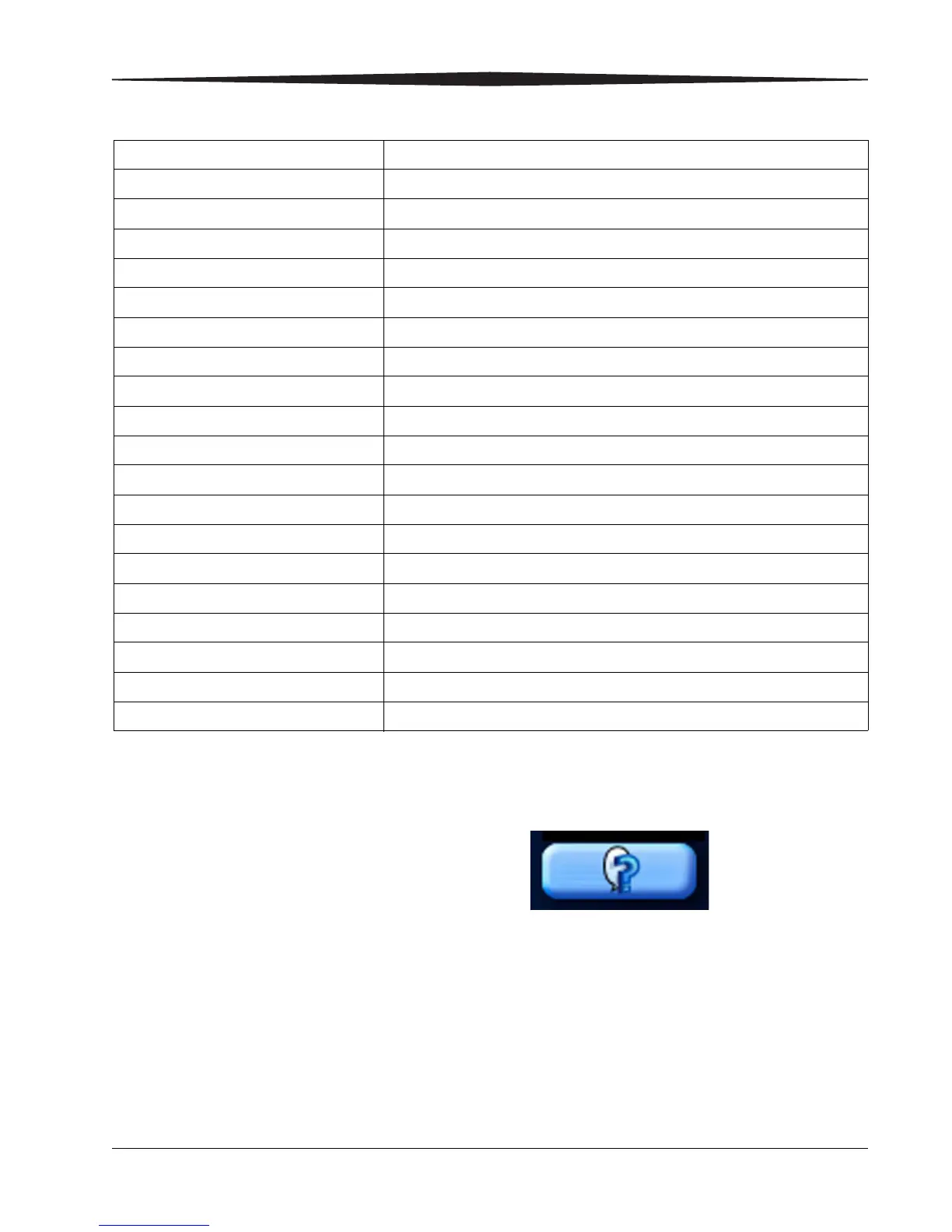
Touch Screen Help Most screens contain a help button located in the upper right corner of
the screen.
There are two types of Help screens on the Laser Imager: general Help
and screen-specific Help.
Start power save Utilities>User Operations>Start power save
Switch the Imager offline Utilities>User Operations>Imager Online
Switch the Imager online Utilities>User Operations>Imager Offline
Unlock doors/drawers Unlock icon>Unlock Film Supply
Unlock processor Unlock icon>Unlock Processor
Update MPDB Utilities>Service>Update Modality DB
Update software Utilities>Service>Update software
View DICOM associations Utilities>Service>Diagnostic data
View error history Utilities>View System Info>Error history
View Imager system information Utilities>View System Info>System info
View Imager temperature/RH Utilities>Service>Diagnostic data
View jobs View Jobs
View network information Utilities>View System Info>System info>Network
View print counts Utilities>View System Info>Print counts
View print counts by modality Utilities>View System Info>Modality counts
View prints to filter change due Utilities>View System Info>Print counts
View prints to PM due Utilities>View System Info>Print counts
View software versions Utilities>View System Info>System info>Versions
View tutorials Help button on Main Screen>More help>Tutorials
How To Touch


 To Next Page