EasyManua.ls Logo

Casio Casiotone CT-S410 - User Manual

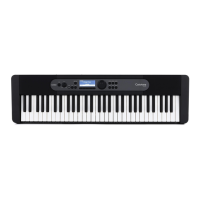
Casio Casiotone CT-S410
214 pages
Print Icon
To Next Page IconTo Next Page
Loading...
EN
CT
-
S400/410
CTS400-E-2A
USER’S GUIDE
Getting Ready to Play Preparing a Power
Supply
Connecting
Headphones (Option)
Connecting a Pedal
(Option)
Selecting a Musical
Instrument Tone
Changing the Pitch in
Semitone Units
(Transpose)
Fine Tuning (Tuning) Sustaining Notes After
Keyboard Keys Are
Released
Saving and Recalling a
Setup (MY SETUP)
Playing a Built-in Song Linking with a Smart
Device (APP Function)
Configuring Settings
Troubleshooting
Cove
r

Table of Contents

Questions and Answers

  • L
    Larry JohnsonAug 19, 2025
    What to do if keys on my Casio Casiotone CT-S410 Synthesizer aren't working?
    • T
      Tara BeckSep 12, 2025
      If nothing happens when you press a key on your Casio Synthesizer, first, adjust the volume level. Next, make sure nothing is plugged into the PHONES/OUTPUT jack on the back. Finally, try turning the keyboard off and then back on to initialize the settings.
  • C
    Charles LaneAug 21, 2025
    How to fix changed volume or tone on Casio Casiotone CT-S410 Synthesizer?
    • M
      Michael ButlerAug 21, 2025
      If the volume level or tone setting on your Casio Synthesizer has changed unexpectedly, you should first adjust the volume level. If that doesn't work, try turning the synthesizer off and then back on to reset the settings. You can also try replacing the batteries or using an AC adapter.
  • K
    Katie BradshawAug 23, 2025
    How to stop notes from constantly sounding on Casio Casiotone CT-S410?
    • B
      Brittney BirdAug 23, 2025
      If notes keep sounding without stopping on your Casio Synthesizer, try turning the keyboard off and then back on to initialize the settings. If the issue persists, replace the batteries or use an AC adapter.
  • A
    audreynunezAug 26, 2025
    Why won't my Casio Casiotone CT-S410 Synthesizer turn on?
    • M
      Michelle BryantAug 26, 2025
      If your Casio Synthesizer's power does not turn on, check the AC adapter or ensure the batteries are correctly installed. If using batteries, replace them with new ones; otherwise, use an AC adapter.
  • J
    james39Aug 28, 2025
    What to do if Auto Accompaniment doesn't start on Casio Casiotone CT-S410?
    • A
      Amanda WhiteAug 28, 2025
      If nothing happens when you start an Auto Accompaniment on your Casio Synthesizer, and you are using rhythms 191 to 200, you need to play a chord on the keyboard. Also, check and adjust the rhythm volume level. Ensure that Auto Accompaniment is not being started when there are no user rhythms stored in rhythm numbers 201 through 210. Finally, try turning the keyboard off and then back on to initialize settings.
  • J
    Jose MartinezAug 30, 2025
    How to fix accompaniment keyboard if it doesn't work on Casio Synthesizer?
    • M
      Megan ShafferAug 30, 2025
      If nothing happens or notes don't play normally when you play on the accompaniment (left-side) keyboard of your Casio Synthesizer, press ACCMP to disable chord play with the accompaniment keyboard.
  • L
    Lisa PopeSep 1, 2025
    What to do if song's Auto Accompaniment doesn't start on Casio Casiotone CT-S410 Synthesizer?
    • K
      Kyle GarciaSep 1, 2025
      If nothing happens when you start playing a song's Auto Accompaniment on your Casio Synthesizer, remember that it takes a little time after you press the button for the song to start playing, so wait for the song to start. Also, check and adjust the song volume level. Song play won't start if the button is pressed while there is no song data stored in song numbers 161 through 178. Finally, try turning the keyboard off and then back on to initialize settings.
  • D
    Diane HerreraSep 3, 2025
    Why does metronome not sound on my Casio Casiotone CT-S410?
    • K
      klinebrandonSep 3, 2025
      If the metronome on your Casio Synthesizer does not sound, check and adjust the metronome volume level. If that doesn't solve the problem, try turning the keyboard off and then back on to initialize settings.
  • E
    Eric DavisSep 5, 2025
    Why does my Casio Casiotone CT-S410 turn off after 30 minutes?
    • L
      Leslie HallSep 5, 2025
      If your Casio Synthesizer suddenly turns off after about 30 minutes, this could be due to the Auto Power Off feature. To prevent this, you should disable the Auto Power Off function.
  • V
    Vanessa KimSep 7, 2025
    Why is the display flickering on my Casio Synthesizer?
    • T
      todd23Sep 7, 2025
      If your Casio Synthesizer's display keeps flickering or going dark, try replacing the batteries with new ones. Alternatively, use an AC adapter for power.

Summary

Getting Ready to Play

Preparing a Power Supply

Instructions for powering the keyboard using AC adapter or batteries.

Using Batteries for Power

Step-by-step guide for inserting and using AA batteries.

Specifying the Battery Type

How to select the correct battery type (Alkaline/Ni-MH) in the settings.

Playing on the Keyboard

Turning Power On or Off

Instructions for powering the keyboard on and off.

Using the Metronome

How to start, stop, and use the metronome for practice.

Controlling the Sound of a Performance

Selecting a Musical Instrument Tone

How to choose different instrument sounds (tones) for playing.

Playing with Touch Response

How keyboard touch sensitivity affects volume and expression.

Sounding Arpeggio Phrases Automatically (Arpeggiator)

How to use the arpeggiator to play automatic phrases.

Adding Harmony to Melody Notes (Auto Harmonize)

How to add harmony notes to melodies using auto-harmonize.

Layering and Splitting Tones

Explains layering (combining) and splitting (dividing) keyboard sounds.

Changing the Pitch in Semitone Units (Transpose)

How to transpose the overall pitch in semitone steps.

Fine Tuning (Tuning)

How to fine-tune the overall pitch by adjusting the frequency of A4.

Saving and Recalling a Setup (MY SETUP)

Saving to MY SETUP

Steps to save current keyboard settings as a setup.

Saving the current setup to MY SETUP

Confirming and completing the save operation for MY SETUP.

Recalling a MY SETUP

Steps to load a previously saved MY SETUP.

Enabling MY SETUP Power On Recall

Setting MY SETUP to load automatically when the keyboard powers on.

Playing a Built-in Song

Using the SONG Function

How to access and start using the SONG function.

Playing Songs

How to select and play built-in songs.

Starting or Stopping Song Play

How to start and stop the playback of songs.

Selecting a Song on a USB Flash Drive

How to play songs stored on a USB flash drive.

Practicing a Song Part (Part Off)

How to mute right-hand, left-hand, or both parts of a song for practice.

Playing with a Rhythm Backing

Using the Rhythms

How to select and start playing built-in rhythms.

Playing a Rhythm

Steps to select and start playing rhythms.

Adjusting the Tempo by Tapping (Tap Tempo)

How to set the tempo by tapping the tempo button.

Fingering a Chord to Play a Rhythm Accompaniment

How to play chords with the left hand to trigger accompaniment.

Selecting a Chord Fingering Mode

How to choose different chord fingering modes (CASIO CHORD, FINGERED, etc.).

Starting Rhythm Play when a Chord is Played (Synchro Start)

How rhythm starts automatically when a chord is played.

Synchro Start

Presetting rhythm patterns for Synchro Start.

Saving and Recalling Setups (Registration)

Saving a Setup

Steps to save current settings to registration memory banks.

Saving the setup to registration memory

Confirming and completing the save operation for registration memory.

Recalling a Saved Setup

Steps to load a previously saved registration setup.

Disabling Recall of Specific Settings (Freeze)

How to prevent specific settings from being overwritten during recall.

Recording Your Keyboard Play

Easy Recording

Overview of the simplified recording method.

Multi-track Recording

Explains multi-track recording for layering performances.

Easy Keyboard Play Recording

Steps for recording a performance using tone and rhythm.

Exiting the recording operation

How to stop and save a recording.

Recording Along with Song Part-off Playback

Recording while playing back song parts.

Overdub Recording (Multi-track Recording)

How to overdub new performances onto existing multi-track recordings.

Press REC START

Starting the recording process for multi-track.

Adjusting the Volume Level and Pan of Each Track of a Multi-track Recording (Mixing)

Adjusting volume and pan for each track in a multi-track recording.

Configuring Settings

Returning Settings to Their Initial Factory Defaults

How to reset all settings to their factory defaults.

Using a USB Flash Drive

Formatting USB flash drives

How to format a USB flash drive.

Inserting and Removing a USB Flash Drive on the Digital Keyboard

Steps for inserting and removing USB flash drives.

Mounting a USB Flash Drive on the Digital Keyboard

How to connect and mount a USB flash drive.

Removing a USB Flash Drive From the Digital Keyboard

Proper procedure for removing a USB flash drive.

USB Flash Drive Formatting

Detailed steps for formatting a USB flash drive.

Saving Digital Keyboard Data to a USB Flash Drive

Steps to save keyboard data (songs, setups) to a USB drive.

Press the YES to save the file

Confirming the save operation for USB files.

Loading Data From a USB Flash Drive to Digital Keyboard Memory

Steps to import data from USB into keyboard memory.

Press SELECT

Confirming the import operation for USB data.

Deleting a USB Flash Drive File

How to delete files from a USB flash drive.

Renaming a File on a USB Flash Drive

How to rename files on a USB flash drive.

Press YES

Confirming the file renaming operation for USB files.

Connecting with External Devices

Linking with a Smart Device (APP Function)

How to connect to a smart device using the Chordana Play app.

Connecting with a Smart Device

Ways to connect smart devices via USB cable or Bluetooth.

Connecting to a Computer and Using MIDI

How to connect the keyboard to a computer for MIDI data exchange.

Connecting to a Computer

Steps to connect the keyboard to a computer via USB for MIDI.

Sounding a Bluetooth Audio Capable Device (Bluetooth Audio Pairing)

Pairing the keyboard with Bluetooth audio devices for playback.

Reference

Troubleshooting

Common issues and their solutions for keyboard operation.

Troubleshooting (continued)

Troubleshooting for settings reverting and MIDI connection problems.

Casio Casiotone CT-S410 Specifications

General IconGeneral
BrandCasio
ModelCasiotone CT-S410
CategorySynthesizer
LanguageEnglish

Related product manuals