2300 CRYO MONITOR
Tank ID: 1 Apr 15, 2001 09:49 AM
Exit
Database
Custom Biogenic Systems 800 523-0072 Fax 810 566-7205
2300 CRYO MONITOR
Tank ID: 1 Apr 15, 2000 04:10 AM
Exit
Database Setup
VIEW
Alarms
Custom Biogenic Systems 800 523-0072 Fax 810 566-7205
Alarm Type
Temperature
DATE
REPORT
Today
This Month
Specify
From
All
04/15/2001
1 04/15/2001 08:00:18 AM -191.1˚ C
1 04/15/2001 11:00:15 AM -189.9˚ C
1 04/15/2001 12:00:11 PM -190.3˚ C
1 04/15/2001 01:00:09 PM -191.2˚ C
1 04/15/2001 02:00:07 PM -189.7˚ C
1 04/15/2001 04:00:10 PM -190.5˚ C
04/15/2001
Apply
To
Print
Preview Printer Setup
AA
TEMPERATURE
Tank ID Time Temperature
Setup
COMM Port
COM 1
ID
1
18
3
Report Title
Alarms
TANK DATABASE DISPLAY
Temperature
FAHRENHEIT
CELCIUS
LEVEL
ALARMS
INCHES
CENTIMETERS
TEMPERATURE
FAHRENHEIT
HIGH LEVEL
LOW LEVEL
LID TEMPERATURE
-180
CELCIUS
Set Clock Transfer Settings
1
3
2
5
4
8
10
12
9
11
6
7
13
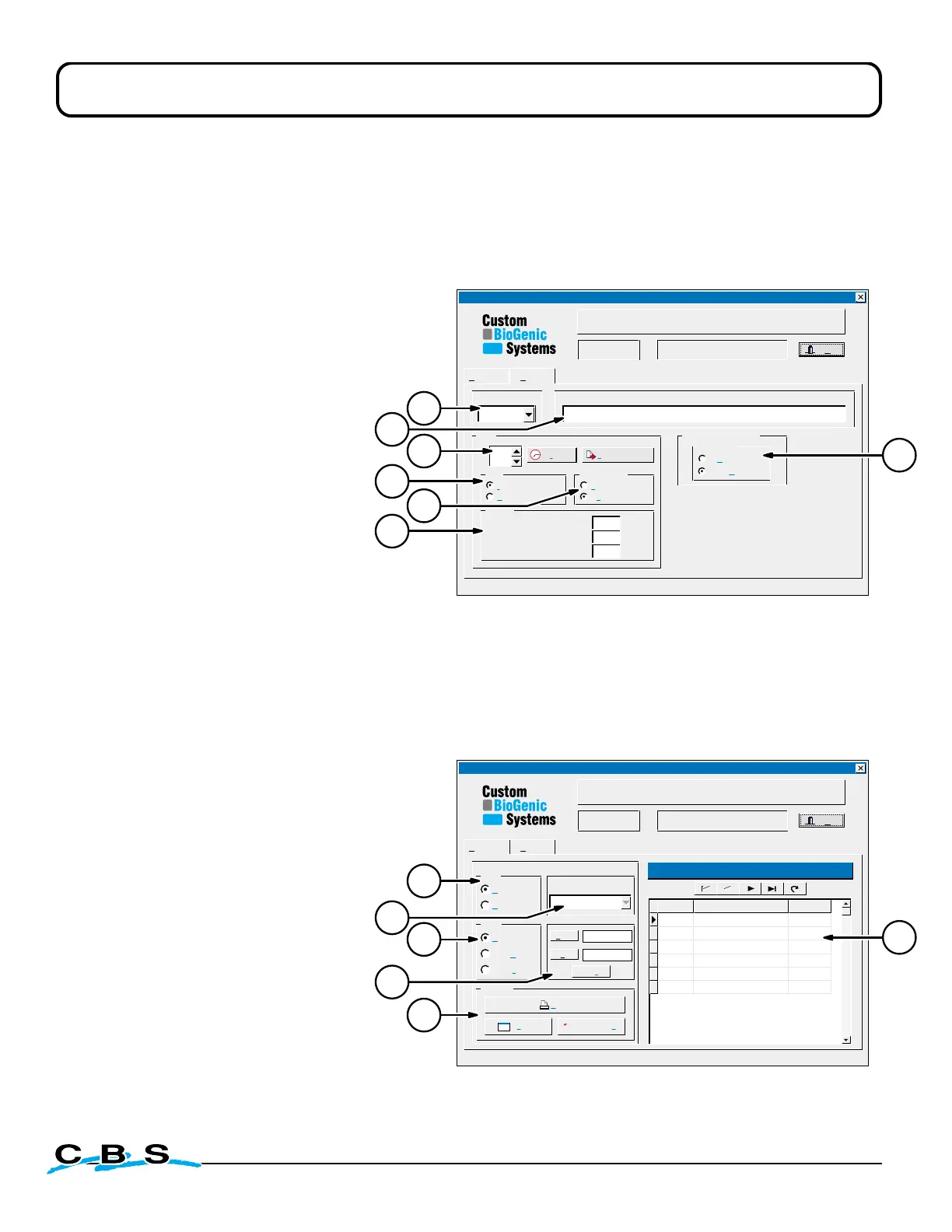
CryoMonitor software is available to connect your storage unit directly to a PC for full access to
the setup and monitoring of the system electronics. Pictured below are the SETUP and DATABASE
menus of the software. Contact Custom Biogenic Systems or your sales representative for
more information about the Cryomonitor Software.
Setup Menu
Database Menu
Setup Menu Controls
1) COMM Port -
Connects the Cryomonitor
Software to the desired port on your PC.
2) Report Title -
Displays which data will be
printed in the report.
3) Tank ID -
Select which storage
tank info will be displayed.
4) Level -
Measurement selection.
5) Temp. -
Select Fahrenheit or
Celsius for the system electronics.
6) Alarms -
Select LOW, HIGH and
TEMPERATURE Alarm setpoints.
7) Database Display -
Select Fahrenheit
or Celsius for the database display.
Database Menu Controls
8) View -
Alarms or Temperature history.
9) Alarm Type -
View specific alarm types
or all alarms in database report.
10) Date -
Choose dates when viewing
database history.
11) From/To -
Further specify dates
when viewing database history.
12) Report -
Preview/Print reports.
13) Visual Database -
View history as
specified in the software setup.



 To Next Page