30 | CELESTRON ORIGIN
INSTRUCTION MANUAL
Save Raw Images
Turning this on saves the raw images on Origin so you can
access them later. Refer to Section 12 of this manual for more
information. This option is off by default to not unnecessarily
fill up Origin’s internal memory if you don’t plan to access the
raw image files later.
Image Stacking Replay
Turning this option on creates a short video of the sub-
exposures being stacked for an imaged object. If you have
enabled this feature, you’ll see a replay icon at the bottom of
the image in the Gallery view after you press End Imaging.
Press the replay icon to play the video.
Replay only works for the last object you imaged. You can
share the video to save it elsewhere. Otherwise, Origin will
overwrite the replay video for the next object you image. Image
Stacking Replay is not available for images obtained from
Scheduled Imaging.
Bin Live Images
Turning this option on bins arrays of 2x2 pixels into a single
pixel, reducing the image’s resolution and file size. Consider
binning when WiFi bandwidth is low or multiple users are
connected to Origin, as images will download much faster.
Besides this use case, we generally recommend leaving this
option off.
AI Image Processing Controls
Here, you can enable or disable different parts of Origin’s AI
image processing.
• AI Deconvolution – This option applies deconvolution to
the final stacked master only, not the “live” images in the
Camera View. You’ll find AI Deconvolution tightens up the
appearance of stars and helps to reveal fine object detail.
• AI Gradient Removal – This option removes gradients
across the field of view.
• Denoise Live Images – This option applies denoise to all
images as they are stacked.
• Denoise Final Image – This option applies denoise only to
the final stacked master.
• Denoising – Here, you can choose from low, medium, or
high denoise. Medium is selected by default.
Flat Frames
Here, you can take a new flat frame for Origin image
calibration. This requires an optional third-party EL panel. Flat
frames ensure even illumination across the sensor. The factory
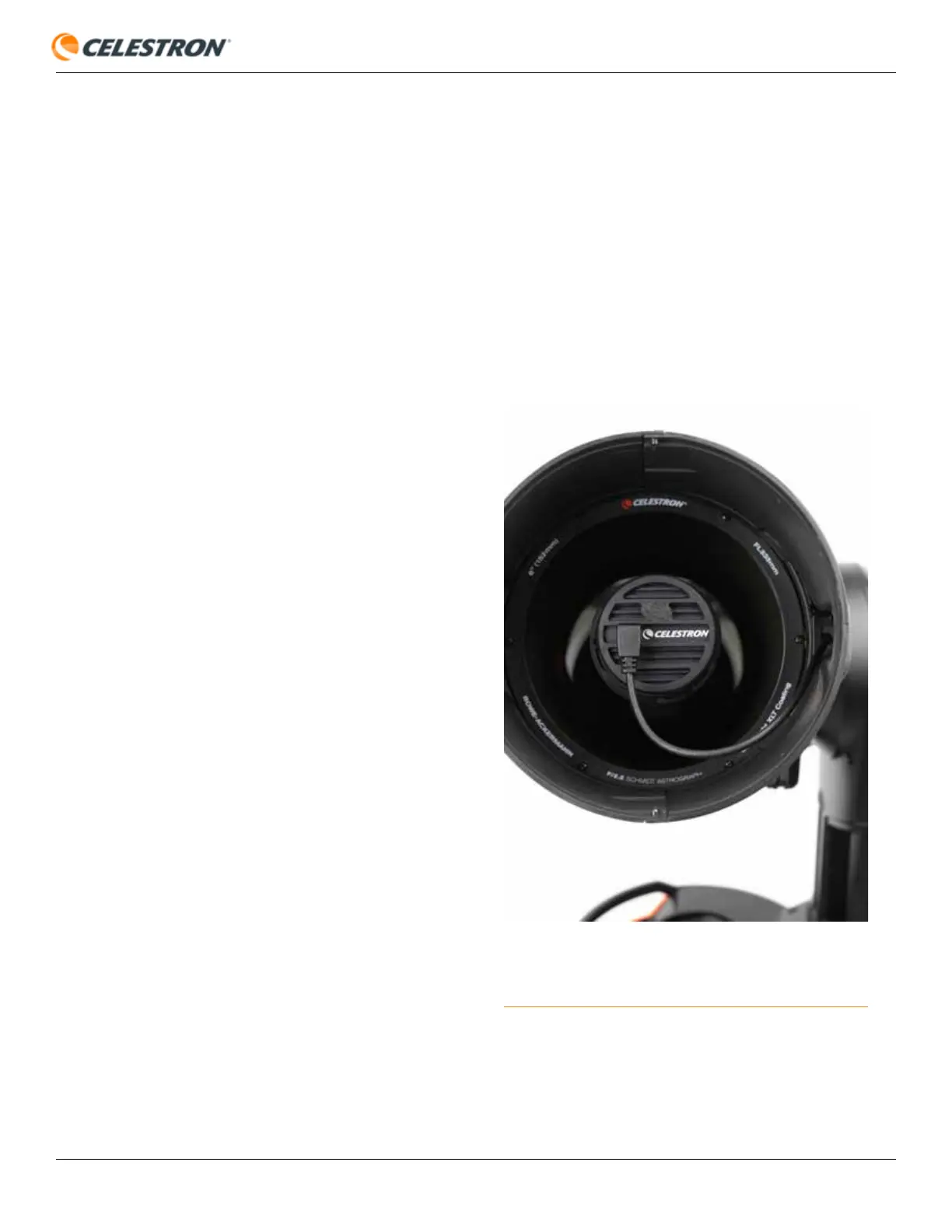
flat was taken with the camera in the orientation shown in
Figure 29.
• An important note about rotating the camera: If you rotate
the camera, you will need to take a new flat frame for best
results, which requires an optional third-party EL panel. This
is why we don’t recommend rotating the camera.
FIG 29: The flat frame taken at the factory and pre-loaded onto Origin was
captured with the camera in the orientation shown. If you rotate the camera
from this orientation, you’ll need to produce a new flat frame.





 To Next Page