| Intelect
®
Mobile 2 - Service Manual 33
6.2. SCREEN DEFAULT: If your device starts but the display stays black, white or can’t change
TOP DISPLAY SUB ASSEMBLY G16-0171-SP
Condition:
Blue light on the ON/OFF button on the top of device
The device starts, the 32 LEDS around the knob button are animated during 3 seconds and then you hear a bip after
the end of the boot
Verification:
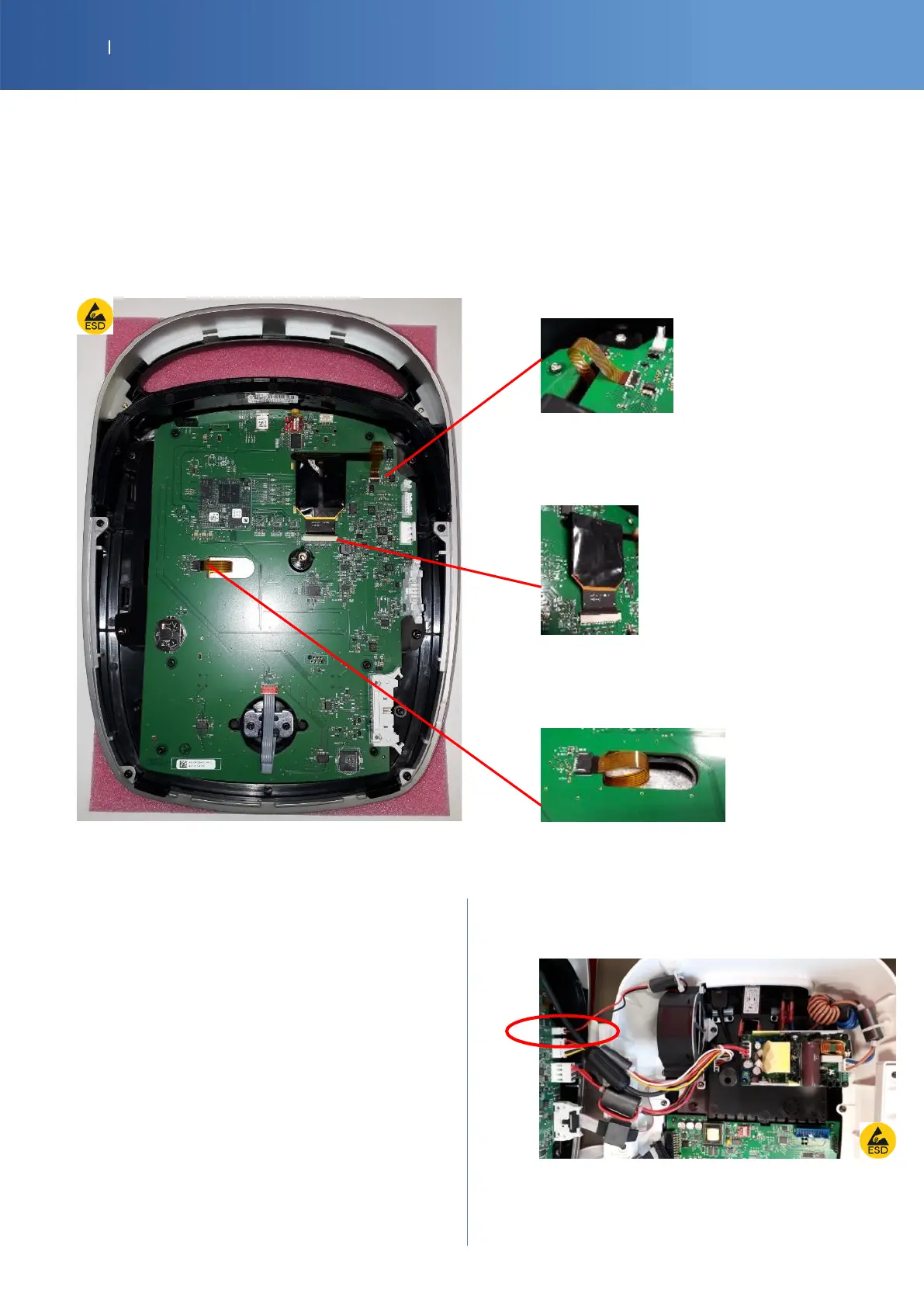
Black screen:
Verify if this ribbon cable is correctly plugged and
if the lock system is closed Or try to reconnect
If problem persists, change the top display sub
assembly
White screen:
Verify if this ribbon cable is correctly plugged and
if the lock system is closed Or try to reconnect
If problem persists, change the top display sub
assembly
Touch screen doesn’t work:
Verify if this ribbon cable is correctly plugged
Or try to reconnect
If problem persists, change the top display sub
assembly
6.3. FAN DEFAULT:
14-1022-SP MOB2 FAN
G16-0010-SP MOB2 CONTROL PCBA
The fan turns on automatically when you enter in the
program or start a treatment.
If the fan doesn’t turn on, open the device and check
the connection
If this doesn’t work: Change the Fan check P50
If this doesn’t work: Change the control board check
P37




 To Next Page