Page 22 of 40 IRIS Touch Engineering Manual Version 1.4
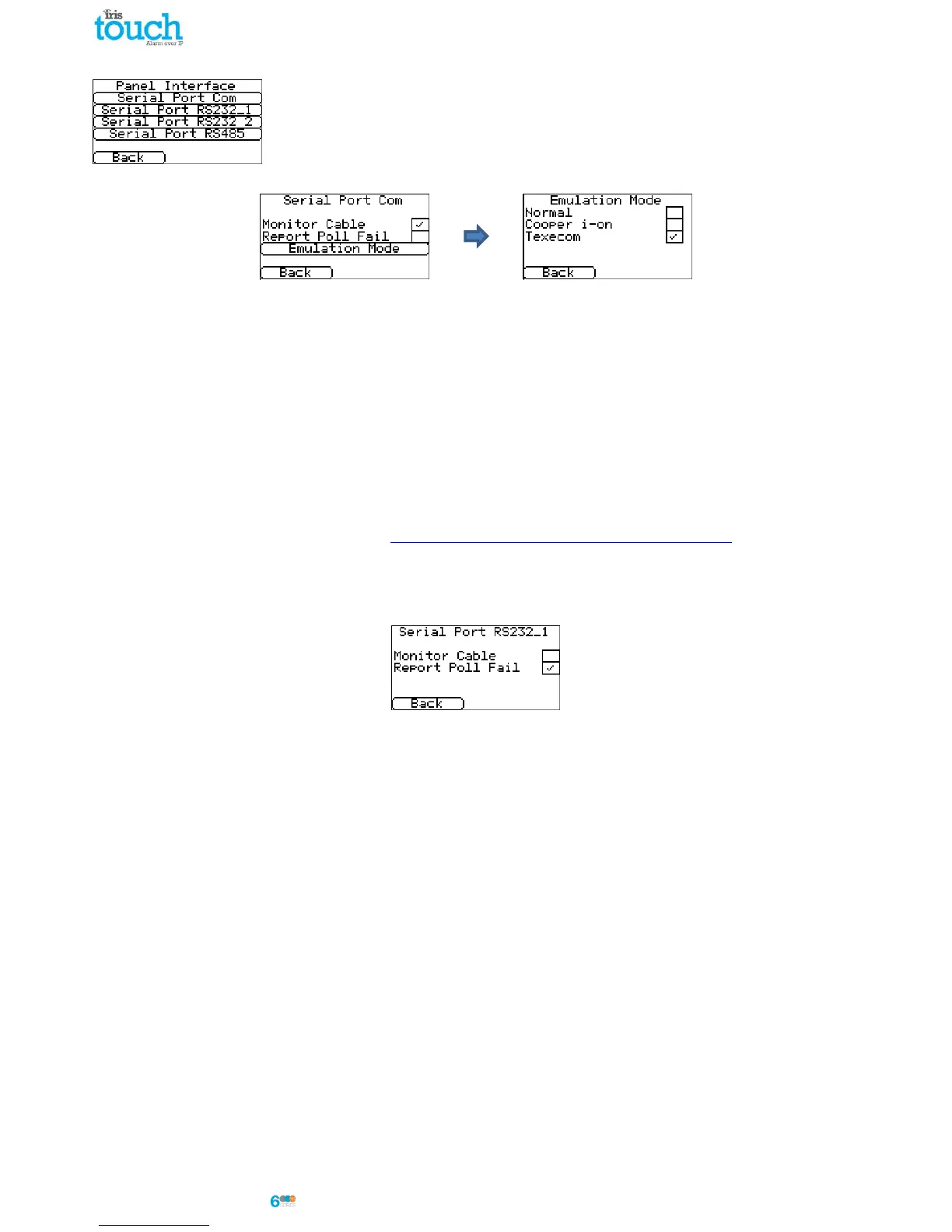
Panel Interface
The IRIS Touch dialler has a number of panel interface options that allow connection too
many different systems. Below are the settings available for each connection type and
their function:
Serial Port Com (Serial TTL connection)
Monitor Cable
Set the IRIS dialler to monitor the serial port for activity and report any status change back to the monitoring
centre (ARC). The monitoring centre will also need to enable the serial port monitoring from the IRIS Secure
Apps software to receive alarm notifications on this status.
Report Poll Fail
Set the IRIS dialler to stop responding to the serial commands if polling has failed. This will then indicate the
failure back to the alarm panel. This allows the site to have local indication of a communication failure (for EN
standards).
Emulation Mode
This allows you to setup the serial port for Normal, Cooper I-ON or Texecom Premier Connections, by default
this is setup for Texecom emulation. For more information on the connection and setup please refer to the
panel installation manual available from http://www.chironsc.com/downloads_security.html.
Note: For the Cooper I-ON panel you will need to purchase separately the IRIS CT-interface board. Please
contact the Sales team for further information on this.
Serial Port RS232_1
Monitor Cable
Set the IRIS dialler to monitor the serial port for activity and report any status change back to the monitoring
centre (ARC). The monitoring centre will also need to enable the serial port monitoring from the IRIS Secure
Apps software to receive alarm notifications on this status.
Report Poll Fail
Set the IRIS dialler to stop responding to the serial commands if polling has failed. This will then indicate the
failure back to the alarm panel. This allows the site to have local indication of a communication failure (for EN
standards).



 To Next Page