CHIYU TECHNOLOGY CO., LTD.
No.28, Renai Rd., Chiayi, 600, Taiwan Tel:(886) 5-2835460 Fax:(886) 5-2835458
BF-480M User’s Guide
- 47 -
Appendix E: Finding the MAC Address and IP Address for Your
Ethernet Adapter
This section describes how to find the MAC address for your computer’s Ethernet adapter so you can use the
MAC address change feature of the BF-2300. You can also find the IP address of your computer’s Ethernet
adapter. This IP address is used for the BF-2300’s configuration. Follow the steps in this appendix to find the
adapter’s MAC or IP address in Windows 98, Me, 2000, or XP.
1. Click Start and Run. In the Open field, enter cmd. Press the Enter key or click the OK button.
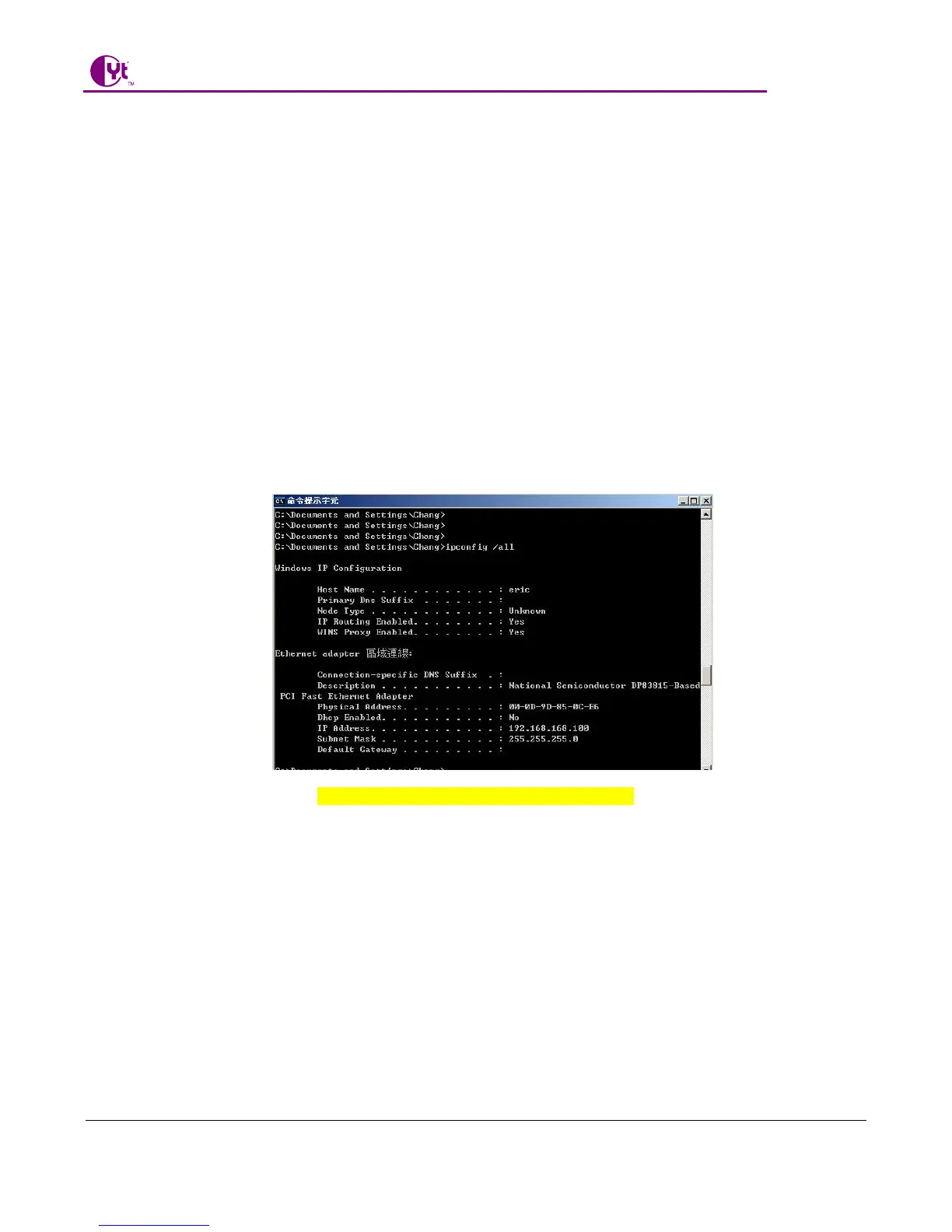
2. At the command prompt, enter ipconfig /all. Then press the Enter key.
3. Write down the Physical Address as shown on your computer screen (Figure D-1); it is the MAC address for
your Ethernet adapter. This appears as a series of numbers and letters.
The MAC address/Physical Address is what you will use for MAC address changing.
The example in Figure D-1 shows the Ethernet adapter’s IP address as 192.168.168.100. Your computer may
show something different.
Figure E-1 MAC Address/Physical Address


 To Previous Page