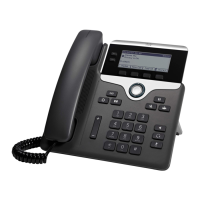
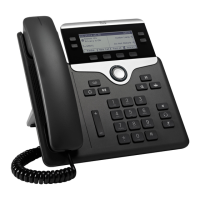
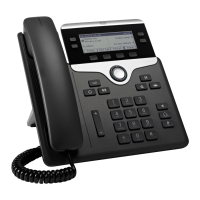
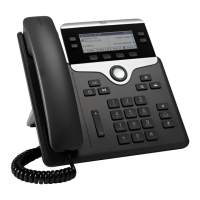
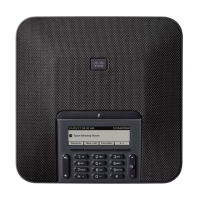
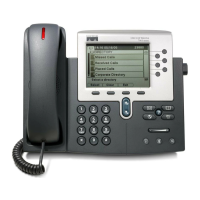
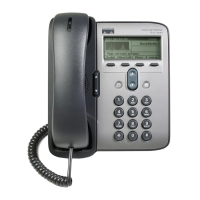
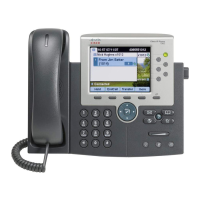
Cisco IP Phone 7821 Series
Copyright © 2015 Cisco Systems, Inc. All rights reserved.
Press the flashing amber line button.
Put a Call on Hold
1. Press Hold .
2. To resume a call from hold, press Hold again.
View Your Recent Calls
1. Press Applications .
2. Scroll and select Recents.
3. Select a line to view.
Your Phone
Cisco IP Phone 7841 shown.
Incoming call or voicemail indicator
Line and feature buttons
Softkeys
4
Navigation
5
Hold, Transfer, and Conference
Speakerphone, Headset, and Mute
Voicemail, Applications, and Directory
Volume
Line and Feature Buttons
Use line and feature buttons to view calls on a line, or
access features such as Speed Dial.
Buttons illuminate to indicate status:
x Green, steady: Active call
x Green, flashing: Held call
x Amber, steady: Private line in use
x Amber, flashing: Incoming call
x Red, steady: Remote line in use
x Red, flashing: Remote line on hold
Add Another Person to a Call (7811)
1. From an active call, press Conference .
2. Press Calls, select a held call, and press Yes.
Add Another Person to a Call (7821, 7841,
7861)
1. From an active call, press Conference .
2. Select a held call and press Yes.
Place a Call
Enter a number and pick up the handset

 Need help?

 To Next Page
 General