3-16
Cisco Integrated Services Router Hardware Installation Guide
Chapter 3 Connecting the Router
Cisco 860, 880, 890 Series
Connecting a Terminal or PC to the Console Port
Connect a terminal or PC to the Console Auxiliary (Aux) port either to configure the software by using
the CLI or to troubleshoot problems with the router.
To connect a terminal or PC to the console port on the router and access the CLI, follow these steps:
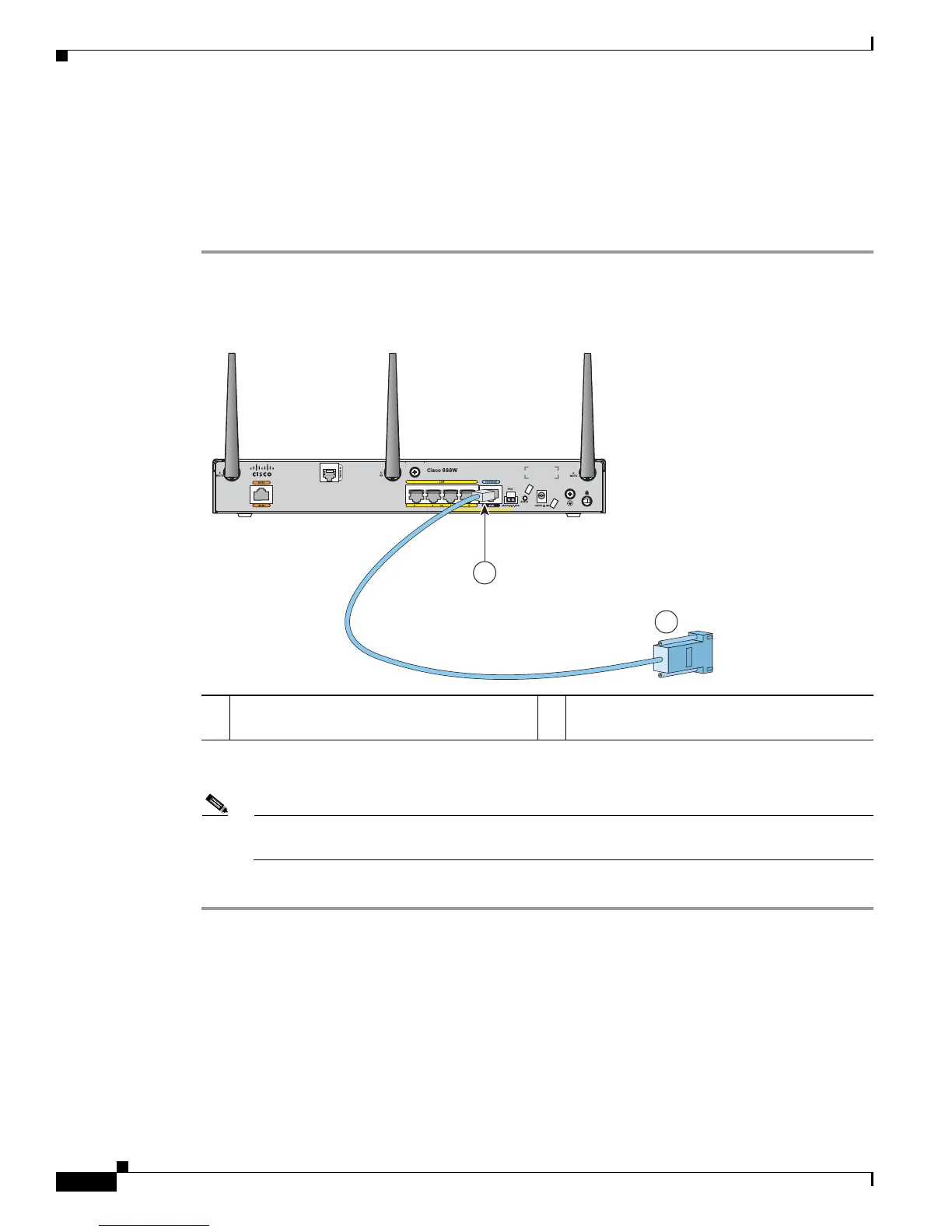
Step 1 Connect the RJ-45 end of a DB-9–to–RJ-45 serial cable to the RJ-45 Console Aux port on the router.
Figure 3-3 shows the RJ-45 end of the serial cable connected to the Console Aux port on the router.
Figure 3-11 Connecting a Terminal or PC to the Console Port
Step 2
Connect the DB-9 end of the DB-9–to–RJ-45 serial cable to the to the COM port on your laptop or PC.
Note Some laptops and PCs do not come with DB-9 serial port connectors and may require a
USB-to-serial port adapter.
Step 3 To communicate with the router, start a terminal emulator application.
Terminal Emulator Settings
Use the following settings for the terminal emulator connection:
• 9600 baud
• 8 data bits, no parity
• 1 stop bit
• No flow control
1 RJ-45 connector to the Console Aux port on
the router
2 DB-9 connector


 To Next Page
 Loading...