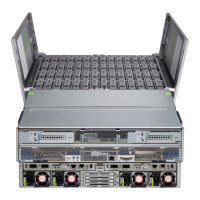
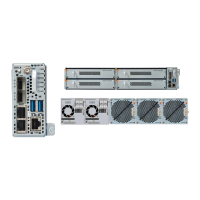
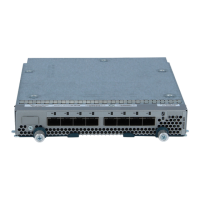
Power cables6CIMC port
1-Gb Ethernet dedicated management port
5
Step 2 Connect a second Cisco-supported SFP+ transceiver and cable to the SFP port to the right of the eth0 port in step 1.
This is eth1 used to access the AMP for Endpoints console and allows your AMP for Endpoints Connectors to perform
cloud queries so should be connected to a network accessible to your endpoints.
Step 3 Connect the Ethernet cable that shipped with your appliance to the CIMC port. This should be connected to a secure
management network.
Step 4 Use the supported power cords to connect the power supplies of the chassis to your power source. For more information
about supported power cords, see Power Cord Specifications, on page 12.
Step 5 Connect a keyboard to one of the USB ports and a monitor to the VGA port or use the KVM port on the front panel.
Step 6 Power on the appliance.
Step 7 Press F8 at the menu options to configure the CIMC. The first time you connect to the CIMC you are prompted to set
a new password. For more information about the CIMC, see the Cisco UCS C-Series Servers Integrated Management
Controller CLI Configuration Guide or the Cisco UCS C-Series Integrated Management Controller GUI Configuration
Guide.
Step 8 Configure the network settings (IP address, DNS) for the CIMC. You can disconnect the keyboard and monitor once
the network settings have been applied.
Step 9 Connect to the CIMC from a web browser on a computer on your secure management network using the IP address
you set in step 8. At the log in prompt enter admin as the username and the password you set in step 7.
Step 10 Choose HTML based KVM session from the Launch KVM option on the browser page. See the Private Cloud
Administration Portal User Guide to continue setup and configuration.
Cisco AMP PC3000 Hardware Installation Guide
32
Mount the Chassis
Connect Cables, Turn on Power, and Verify Connectivity



 To Next Page