1
Product Overview
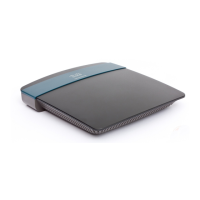
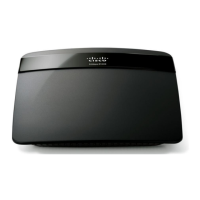
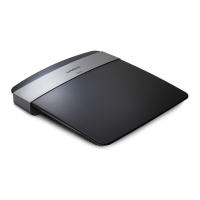
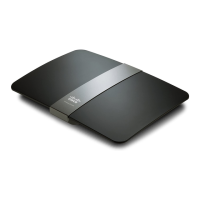
Linksys EA-Series
1
EA2700/EA3500
Back view
Ethernet ports Wi-Fi Protected Setup button
Internet port
Power port
Power indicatorUSB port (EA3500 only)
Your router’s appearance may vary
• USB port (EA3500 only)—To easily share disk storage with other users
on your network or on the Internet, connect a USB drive to this port.
• Ethernet ports—Connect Ethernet cables (also called network cables)
to these Gigabit (10/100/1000) ports, color coded blue, and to other
wired Ethernet network devices on your network.
• Internet port—Connect an Ethernet cable (also called a network or
Internet cable) to this port, color coded yellow, and to your modem.
• Wi-Fi Protected Setup™ button—Press this button to easily configure
wireless security on Wi-Fi Protected Setup-enabled network devices.
• Power indicator—Stays on steadily while power is connected and
following a successful Wi-Fi Protected Setup connection. Flashes slowly
during bootup, during firmware upgrades, and during a Wi-Fi Protected
Setup connection. Flashes quickly when there is a Wi-Fi Protected Setup
error.
• Power port—Connect the included AC power adapter to this port.
CAUTION
Use only the adapter that came with your router.
• Power button—Press | (on) to turn on the router.
Bottom view
Your router’s appearance may vary
• Reset button—Press and hold this button for 5-15 seconds (until the
port lights flash at the same time) to reset the router to its factory
defaults. You can also restore the defaults using Cisco Connect Cloud.
Product Overview


 To Next Page
 Loading...