EasyManua.ls Logo

Cisco VG204 - User Manual

Cisco VG204
18 pages
Print Icon
To Next Page IconTo Next Page
Loading...
QUICK START GUIDE
Cisco VG202, Cisco VG202XM, Cisco VG204, and Cisco VG204XM
Voice Gateways
INCLUDING LICENSE AND WARRANTY
1 Cisco 90-Day Limited Hardware Warranty Terms
2 Obtaining Documentation and Submitting a Service Request
3 Safety Information
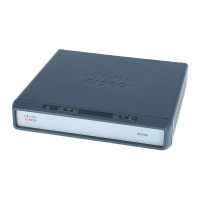
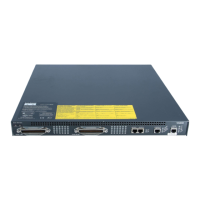
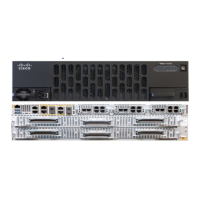
4 Voice Gateways Description
5 Equipment, Tools, and Accessories
6 Accessibility
7 Installing the Voice Gateway Chassis
8 Connecting the Cables
9 Powering On the Voice Gateway
10 Performing the Initial Configuration

Other manuals for Cisco VG204

Questions and Answers

  • L
    Leah WintersJul 26, 2025
    What to do if OK LED is off on Cisco Gateway?
    • J
      Jessica MatthewsJul 26, 2025
      If the OK LED on your Cisco Gateway is off, it could be due to several reasons. First, examine the DC cable and replace it if necessary. Then, check the DC power supply, ensuring it's plugged in correctly, and replace it if faulty. Also, verify that the AC cable is properly connected. Finally, check the input power source and correct it if needed. If none of these steps resolve the issue, it might be due to a faulty internal power supply, and you should contact Cisco or your Cisco reseller.
  • M
    mitchell16Aug 4, 2025
    Why does Cisco VG204 Gateway unit shuts off after operating for some time?
    • J
      jared87Aug 4, 2025
      If your Cisco Gateway unit shuts off after operating for some time, overheating could be the problem. Check the ventilation around the unit to ensure it is properly ventilated. If the issue persists, it could be a faulty voice gateway, in which case you should contact Cisco or your Cisco reseller.
  • D
    Daniel MorganAug 15, 2025
    What to do if console screen display freezes on Cisco VG204 Gateway?
    • H
      Haley IbarraAug 15, 2025
      If the console screen display freezes on your Cisco Gateway, the cause might be a console fault. Try resetting or replacing the console. Alternatively, it could be a software error; in this case, repeat the power-on procedure. If the problem continues, it may indicate a faulty voice gateway, and you should contact Cisco or your Cisco reseller.

Summary

Cisco 90-Day Limited Hardware Warranty Terms

Obtaining Documentation and Submitting a Service Request

Safety Information

Voice Gateways Description

Front Panel Description

Details the front panel features and indicators of the Cisco VG202 voice gateway chassis.

Back Panel Description

Describes the rear panel interfaces and ports for the Cisco VG202 and VG204 voice gateways.

LED Description

Explains the meaning and status of LEDs located on the front of the Cisco voice gateway chassis.

Product Serial Number Location

Specifies where to find the serial number label on the bottom of the voice gateway chassis.

Equipment, Tools, and Accessories

Accessibility

Installing the Voice Gateway Chassis

About Installing the Chassis

Provides guidance on placing the voice gateway chassis on a desktop or mounting it onto a wall.

Chassis Installation Options

Outlines options for setting the chassis on a desktop or mounting it onto a wall.

Connecting the Cables

About Connecting the Cables

Introduces the cables needed for LAN and administrative access for the Cisco voice gateway.

Connecting the LAN and Console Cables

Details the LAN and console cables and their respective connections for the voice gateway.

Connecting the Voice Cable

Describes the voice cable and its connection to the distribution panel or telephone.

Powering On the Voice Gateway

Performing the Initial Configuration

Configuring the Voice Gateway by Using the Cisco IOS CLI

Guides on initial configuration via the Cisco IOS Command Line Interface.

Configuring the Voice Gateway by Using the setup Command

Details the process of configuring the voice gateway using the interactive setup command.

Verifying and Saving Your Configuration

Explains how to verify the current configuration and save it to NVRAM.

Cisco VG204 Specifications

General IconGeneral
Number of FXS Ports4
Voice CodecsG.711, G.729, G.729a, G.729ab
Operating Temperature32 to 104°F (0 to 40°C)
Humidity10% to 90% non-condensing
Network Interface1 x 10/100 Ethernet
Protocol SupportSCCP, SIP
Power SupplyAC 100-240V, 50-60Hz
Weight2.2 lbs (1 kg)
Storage Temperature-20 to 70°C

Related product manuals