EasyManua.ls Logo

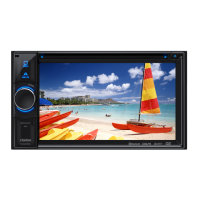
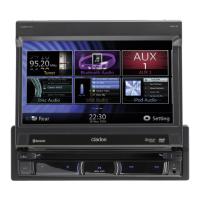
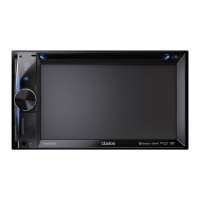
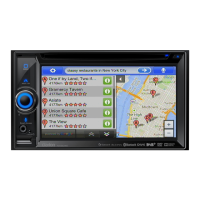
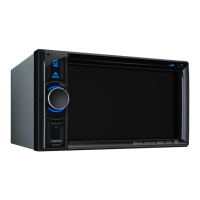
Clarion NX404 - User Manual

Clarion NX404
169 pages
Print Icon
To Next Page IconTo Next Page
Loading...
DVD MULTIMEDIA STATION WITH BUILT-IN NAVIGATION &
6.2’’ TOUCH PANEL CONTROL
NX404
Owner’s manual

Table of Contents

Other manuals for Clarion NX404

Questions and Answers

  • M
    Matthew GibsonAug 16, 2025
    Why does my Clarion Car Receiver sound skips or is noisy with USB?
    • J
      Jeffrey PottsAug 16, 2025
      If the sound skips or is noisy when playing from USB on your Clarion Car Receiver, the MP3/WMA files may not be encoded properly. Use MP3/WMA files encoded properly.
  • K
    Kelly BallAug 19, 2025
    Why cannot pair the Bluetooth enable device with the Clarion car audio system?
    • S
      samuelriosAug 19, 2025
      If you cannot pair the Bluetooth enabled device with the Clarion car audio system, the device may not support the profiles required for the system. Use another device to connect. Also, the Bluetooth function of the device may not be enabled; refer to the user manual of the device for how to enable the function.
  • S
    Susan MillerAug 22, 2025
    Why is my Clarion NX404 sound bad directly after power on?
    • T
      Tami JohnsonAug 22, 2025
      If the sound is bad directly after power is turned on, condensation may have formed on the internal lens when the car is parked in a humid place. Let it dry for about 1 hour with the power on.
  • S
    Shannon GonzalezAug 26, 2025
    What to do if my Clarion NX404 video images are not displayed?
    • K
      kelleymelissaAug 26, 2025
      If video images are not displayed on your Clarion Car Receiver, check that the parking brake is engaged.
  • T
    tannerjoshuaAug 28, 2025
    What to do if my Clarion Car Receiver disc cannot play and shows “PARENTAL VIOLATION”?
    • J
      jbrownAug 28, 2025
      If a disc cannot play and the display shows “PARENTAL VIOLATION”, the feature exceeds the set parental level. Release the view limitation or change the parental level.
  • L
    Linda WilliamsAug 31, 2025
    Why Clarion Car Receiver USB device cannot be inserted?
    • A
      andrewsmithAug 31, 2025
      If the USB device cannot be inserted into your Clarion Car Receiver, it may have been inserted in the wrong direction. Try reversing the connection direction of the USB device. Also, the USB connector may be broken; in this case, replace it with a new USB device.
  • D
    danieljohnsonSep 3, 2025
    Why no sound heard with the Clarion Car Receiver display shows “NO FILE”?
    • E
      Eric RobinsonSep 3, 2025
      If no sound is heard and the display shows “NO FILE” on your Clarion Car Receiver, no MP3/WMA file is stored in the USB device. Store these files properly in the USB device.
  • J
    Jaime HughesSep 6, 2025
    Why the video image of iPod/ iPhone is disturbed in Clarion Car Receiver?
    • M
      Marc RodriguezSep 6, 2025
      If the video image of your iPod/iPhone is disturbed on your Clarion Car Receiver, the TV Signal setting of the iPod/iPhone is not set correctly. Set the TV Signal setting (NTSC/PAL) of the iPod/iPhone correctly.
  • A
    April WardSep 9, 2025
    Why is the audio quality poor after connection with a Bluetooth enabled device in Clarion NX404 Car Receiver?
    • M
      Michael HornSep 9, 2025
      If the audio quality is poor after connection with a Bluetooth enabled device on your Clarion Car Receiver, the Bluetooth reception may be poor. Move the device closer to the car audio system or remove any obstacle between the device and the system.
  • T
    Terri RitterSep 12, 2025
    Why the image is not displayed in Clarion Car Receiver?
    • M
      Michelle BoyleSep 12, 2025
      If the image is not displayed on your Clarion Car Receiver, check that the parking brake is engaged.

Summary

FEATURES

Expanding Systems

Details of expandable audio and visual features for the unit.

PRECAUTIONS

CAUTIONS ON HANDLING

Operation Panel

Care and operational guidelines for the unit's display panel.

OPERATIONAL PANEL

Functions of Buttons

Detailed explanation of each button's specific function and operation.

REMOTE CONTROL

Remote Control Function

Explains the purpose and usage of each button on the remote control.

MAIN MENU

DVD VIDEO PLAYER OPERATIONS

Discs

Information on supported and unsupported disc formats for playback.

Change DVD System Settings

How to configure screen size and parental control levels for DVD playback.

CD PLAYER OPERATIONS

Listening to a Disc;Ejecting a Disc

Steps for playing audio CDs and safely removing them from the unit.

USB AUDIO OPERATIONS

Notes on Using USB Memories

Guidelines for USB device compatibility, folder structure, and file limits.

USB VIDEO OPERATIONS

Select USB Video Mode

How to connect a USB device and activate video playback mode.

iPod OPERATIONS

Notes on using iPod;iPhone

Important notes and precautions when connecting iPod or iPhone devices.

iPod Audio Menu Operations

How to connect and operate iPod for audio playback.

Pandora OPERATIONS

Selecting the Pandora Mode

Steps to access and use the Pandora application via the unit.

Bluetooth AUDIO PLAYER OPERATIONS

Selecting the Bluetooth Audio Mode

How to connect a Bluetooth device for audio streaming.

Bluetooth TELEPHONE OPERATIONS

Select the BT Phone Mode

Steps to activate and use Bluetooth for hands-free phone calls.

Registering Your Cellular Phone (Pairing)

Procedure for pairing a cellular phone with the Bluetooth system.

TUNER OPERATIONS

Listening to the Tuner

Guide to selecting radio bands, tuning stations, and using presets.

HDMI MODE

Wire Connection of HDMI Mode

Diagrams illustrating the correct way to connect devices using HDMI cables.

AUX

CAMERA INPUT OPERATIONS

Switching to Camera mode

How to activate and view video from a connected camera.

REAR SOURCE OPERATIONS

DVD Video in Rear

Instructions for playing DVD video in the rear zone for passengers.

SETTING OPERATIONS

General Setup Menu

Basic settings for language, time, beep, and Bluetooth.

Video Setup Menu

Options for adjusting video display settings like screen mode and dimmer.

Audio Setup Menu

Settings for audio balance, fader, EQ, and subwoofer controls.

Navigation Setup Menu

Configuration for GPS time, navigation prompts, and voice guidance settings.

Others Setup Menu

Settings for password, parental control, language, and calibration.

Set the Anti-Theft code

Instructions for setting and managing the unit's anti-theft security code.

TROUBLESHOOTING

GENERAL

Common issues and solutions for general unit operation and button response.

DVD PLAYER

Troubleshooting specific problems related to DVD playback.

USB DEVICE

Solutions for problems related to USB device connection and recognition.

Bluetooth

Troubleshooting common Bluetooth pairing and audio quality issues.

TFT screen

Solutions for display issues like black screen, dark display, or pixel anomalies.

ERROR DISPLAY

DVD PLAYER

Explains common error messages for the DVD player and how to resolve them.

SPECIFICATIONS

WIRE CONNECTION GUIDE

Wiring Connections

Detailed diagrams for connecting power, speakers, and accessories to the unit.

Clarion NX404 Specifications

General IconGeneral
MP3 playbackYes
CD-R playback-
Audio formats supportedMP3
Video formats supportedDIVX
USB version2.0
Line outputs (RCA)6
USB ports quantity2
DIN size2 DIN
Output power72 W
Product colorBlack
Disc types supportedDVD, DVD+R, DVD+RW, DVD-R, DVD-RW
Audio output channels4.0 channels
Equalizer bands quantity3
Maximum power per channel18 W
Analog signal format systemNTSC, PAL
Signal-to-Noise Ratio (SNR)93 dB
AM band range530 - 1710 kHz
FM band range87.9 - 107.9 MHz
Supported radio bandsAM, FM
Aspect ratio17:9
Display typeTFT
Display diagonal6.2 \
Output power description4 x 18
Weight and Dimensions IconWeight and Dimensions
Weight2268 g
Dimensions (WxDxH)178 x 172 x 100 mm

Related product manuals