SLEEPVIEW USER MANUAL
17
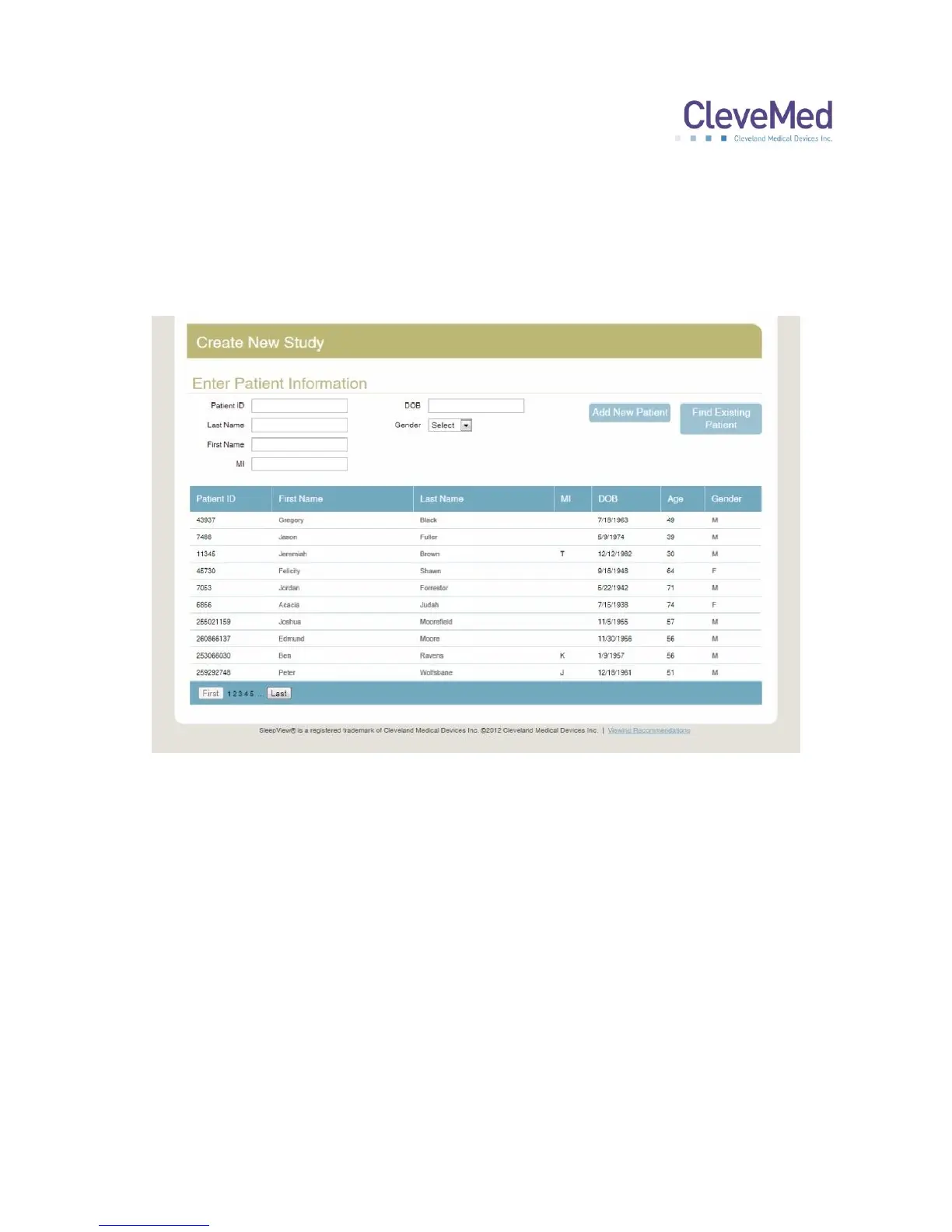
4. To create a new study, click the “Schedule Study” button from the “Home” page and
the following page will appear
PLEASE NOTE: The Patient List will be empty if this is the first time you are
scheduling a study with the company.
5. Select an existing patient by clicking on a name in list provided.
PLEASE NOTE: If this is a new patient, enter the new patient information in the
fields provided and click “Add New Patient”.
Once you have selected, or added the patient to study, the next step will become
available.
6. The next step “Enter/Edit Study Information” asks that you enter the desired date for
the study to take place, as well as the name of the ordering physician. Enter the date
of the study in the “Date” field and select the name of the ordering physician from the
drop-down menu labeled “Physician.” Click on the “Save Study Info” button to
proceed to the next step.



 To Next Page